How to Connect a Switch Pro Controller to PC
A Nintendo Switch Pro Controller is one of the better controllers you can use on a PC (the gamepad tester will show you every button and both sticks once it is connected), and how to connect Switch Pro Controller to PC comes down to one of two routes: a USB-C cable, which on Windows works in Steam and in anything that uses Steam Input but is not seen by every game directly, or Bluetooth, which makes the controller a standard device that Steam and most games can use. The complications are specific and worth knowing in advance: the A/B and X/Y letters are mirrored compared with the Xbox layout most PC games assume, Steam has an option for exactly that, Joy-Con pair as two separate devices, and Nintendo documents pairing with its own console rather than with a PC, so the PC steps here are built from Nintendo’s SYNC-button behaviour plus Microsoft’s and Apple’s Bluetooth steps. This page checks the connection live, and the tester then covers every button and both sticks, including the drift that Joy-Con are known for.
How to connect Switch Pro Controller to PC by USB-C (wired)
Plug a USB-C cable into the port on the top edge of the Pro Controller and into the PC. The controller charges and, in Steam, appears immediately once Steam’s Nintendo controller support is on (next section). Outside Steam the picture is less tidy: over USB the Pro Controller does not present itself as a standard HID gamepad the way an Xbox pad does, so some games and some browsers see nothing from it on a cable until Steam translates it. If the live check below stays on “waiting” over USB with Steam closed, that is why; it is not a fault. The cable must carry data, which the cable in the controller’s box does and many charging cables do not. Nintendo’s own pairing page describes the console side of the wired route (connect the controller to the dock with the included USB charging cable, model HAC-010, and press any button), and the same cable is the one to use on a PC. Latency over USB is the lowest of the options, and the controller latency test compares it with Bluetooth on your machine once the controller is visible.
A note for people who want the controller wired without Steam: it is possible with third-party drivers that present the Pro Controller as a different device, but they replace system drivers and are outside what this guide recommends; Bluetooth achieves the same result with nothing installed.
Bluetooth
Bluetooth is the route that makes the Pro Controller a plain gamepad for Windows, macOS, browsers and most games. Nintendo documents the SYNC button for pairing with the console: “press and hold down the SYNC Button for at least one second” on the controller. For a PC the same button is held longer: with the controller off, hold SYNC, the small button beside the USB-C port, until the four player LEDs on the front start running back and forth, which means the controller is advertising itself. Then on Windows 11, Settings › Bluetooth & devices, Bluetooth on, Add device, Bluetooth, and select Pro Controller from the list (Microsoft notes that a device missing from the list may need the Bluetooth devices discovery setting set to Advanced); on a Mac, System Settings › Bluetooth and Connect next to Pro Controller. The LEDs stop running and one stays lit when the pairing completes. Two facts from Nintendo’s troubleshooting page carry over to a PC: a controller that will not pair may need a reset, done by pressing the SYNC button once and then any other button such as A to power it on again; and if nothing pairs at all by cable or wirelessly, Nintendo says the controller needs service.
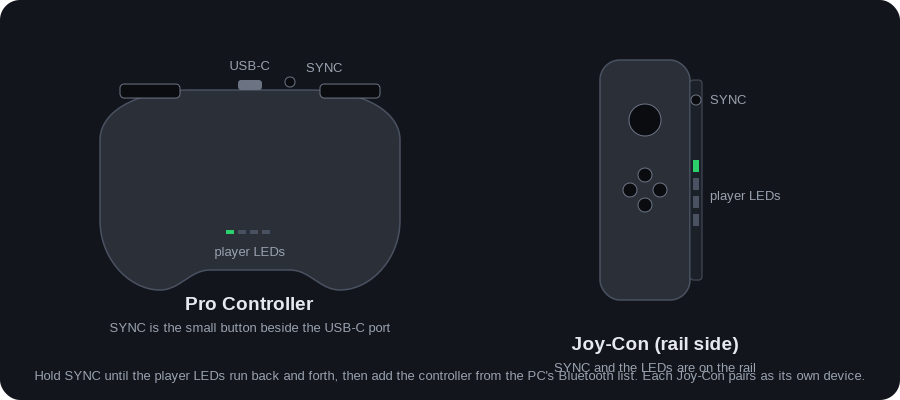
A controller paired with a PC forgets the console and the reverse: the Pro Controller holds one Bluetooth host, so moving between Switch and PC means pairing again each time (on the console, Controllers › Change Grip and Order and holding SYNC for at least one second, per Nintendo). Bluetooth on an older laptop’s built-in adapter can be marginal; if the controller pairs but stutters or drops, disconnect Bluetooth audio devices while testing and move closer to the PC. Vibration over Bluetooth on a PC depends on the game and the translation layer; the vibration test shows what the browser can reach on your connection.
Check it’s connected
Press any button on the controller now. Browsers hide controllers from pages until the first press, so the box reads “waiting” until you do; then it names the controller family and turns green.
Waiting for a controller — connect it and press any button.
This check runs in your browser. Controllers stay hidden from web pages until a button is pressed, so press one even if the controller is already connected.
Now test it: Gamepad TesterGreen over Bluetooth with Steam closed means Windows or macOS is delivering the controller directly, and any game that supports generic gamepads will see it. Green with “through Steam Input” means Steam is running and translating the controller, which is the normal and recommended state for Steam games. “Waiting” over USB with Steam closed is the expected result described above; start Steam or switch to Bluetooth. Once green, the tester page checks every button, both triggers (digital ZL/ZR on this controller, so they read 0 or 1), the sticks’ resting drift and circularity, and the raw table shows the button numbering the next section explains.
Steam: Switch Pro configuration and the A/B layout
Steam supports the Pro Controller and Joy-Con directly through Steam Input, and it is the simplest way to use them in games. Valve’s announcement of Pro Controller support names the two settings: enable the “Nintendo Switch Configuration Support” option in the Controller Settings page so that Steam handles the Pro Controller, and the global “Use Nintendo Button Layout” option, which, in Valve’s words, will swap the A/B and X/Y buttons of your loaded configuration, deciding whether the letters printed on the controller or the Xbox positions are what Steam reports to games (Valve: Nintendo Switch Pro Controller support via Steam Input, 2 May 2018). The announcement is from 2018, so the client’s menu wording may have moved; the option names are Valve’s. Valve’s player documentation describes the general mechanism: with the relevant configuration support enabled, Steam reads the controller itself and presents it to the game as a controller the game understands, with per-game configurations you can edit. Enable the Nintendo support, start a game, and the controller works like an Xbox pad from the game’s point of view.
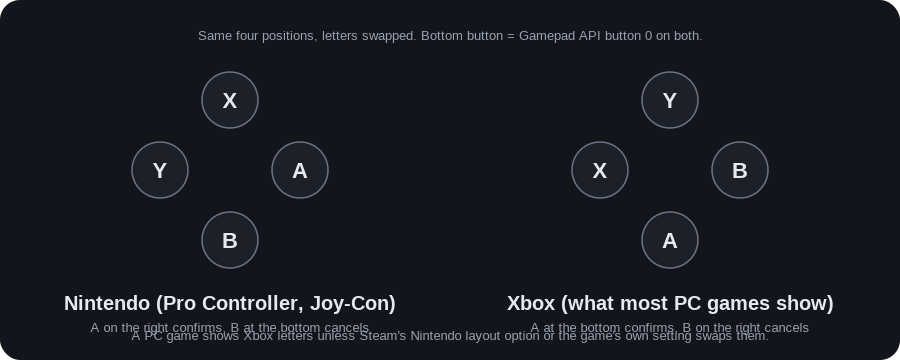
The A/B question is the one that confuses everyone. On the Pro Controller, A is on the right and B at the bottom; on an Xbox controller, A is at the bottom and B on the right, and X and Y are swapped the same way. The positions are identical; only the letters differ, and the browser’s Gamepad API and most games work by position (button 0 is always the bottom button). With the Nintendo layout option off, Steam maps by position, so the game’s “press A” prompt means the bottom button, which is labelled B on your controller; with it on, Steam maps by letter, so “press A” means the button labelled A, on the right. Neither is wrong; pick the one your thumb prefers and keep it, because switching between games is what causes mistakes. Games with native Switch Pro support (some do, and show Nintendo prompts) handle this themselves and are best run with Steam Input disabled for that game.
Joy-Con
Joy-Con work on a PC, with caveats. Each Joy-Con is its own Bluetooth device: hold the SYNC button on the rail of one Joy-Con until its LEDs run, add it in the Bluetooth list, then do the same for the other. Windows and macOS see two separate controllers, each with one stick, two shoulder buttons and four face buttons, and the live check above will show whichever one you press last. Steam can combine a pair into one controller when its Nintendo support is on, which is the only practical way to play a two-stick game with Joy-Con on a PC; without Steam, a single Joy-Con held sideways works as a small one-stick pad for games that need only that. Nintendo’s own pairing page notes that a Joy-Con is paired from the Change Grip/Order screen by holding SYNC for at least one second, and the same hold-until-the-LEDs-run behaviour is what a PC relies on.
Joy-Con are also the controller most associated with stick drift, and a PC is a good place to measure it: the stick drift test reads each stick’s resting position with the controller untouched and suggests a deadzone, and the stick drift guide covers Nintendo’s repair position and the cleaning and replacement options. A Joy-Con that shows drift here will show it on the console too; the measurement is of the stick, not the connection.
Mac
A Pro Controller on a Mac is a Bluetooth story. Hold SYNC until the player LEDs run, open System Settings › Bluetooth, and click Connect next to Pro Controller; macOS treats it as a standard gamepad from then on, Safari, Chrome and Firefox see it in the live check above, and games that support generic controllers use it directly. Steam on macOS supports it through Steam Input in the same way as on Windows, with the same Nintendo layout option. Over USB-C the Mac charges the controller and, as on Windows, does not present it as a standard gamepad to applications without Steam running, so Bluetooth is the practical route for everything outside Steam. The one Mac-specific annoyance is that the controller may reconnect automatically to the Mac when you later try to pair it with the Switch; turn Bluetooth off on the Mac, or remove the controller from its device list, before pairing elsewhere.
Playing games outside Steam, and in a browser
Once the Pro Controller is paired over Bluetooth it is an ordinary controller to the operating system, and three classes of software treat it three ways. Games with native Switch Pro support recognise it by its id, show Nintendo button prompts, and read the letters as printed; these are the games to run with Steam Input disabled, so that two layers do not fight. Games that expect an Xbox controller (most PC games) see a generic gamepad over Bluetooth and map it by position; they will show Xbox prompts, so “press A” means the bottom button, and some will not see it at all because they look for an Xbox-specific driver. For those, running the game through Steam (added as a non-Steam game if necessary) with Nintendo support on is the fix, because Steam presents the Pro Controller to the game as the Xbox controller it expects. Browsers read the controller through the Gamepad API in the standard mapping, which is by position: button 0 is the bottom face button (B on the Pro Controller), button 1 is the right one (A), and so on, which is what the raw table on the controller test page shows and why the drawing there labels positions rather than Nintendo letters for a generic pad. None of these behaviours is a fault with the controller; they are three different conventions meeting one device.
Latency, battery and vibration on a PC
Three practical differences from using the controller on the console. Latency. Over Bluetooth, the controller reports less often than over USB and the PC’s Bluetooth stack adds buffering; how much depends on the adapter. The latency comparison shows the update rate against the display’s frame-rate ceiling and compares a wired run (through Steam) with a Bluetooth run in a reaction test, so the figure is yours rather than a general claim. Battery. The Pro Controller’s battery lasts a long time, but a PC does not show its level the way the Switch does; Steam’s controller settings display it when the controller is handled by Steam Input, and otherwise the only warning is the LEDs’ behaviour. Charge by USB-C from any port; charging does not need pairing. Vibration. The Switch’s HD rumble is a fine-grained effect that PC software does not reproduce; what you get on a PC, where you get it, is ordinary rumble through Steam or through a game’s generic support, and the rumble test shows whether the browser can reach it on your connection. Motion controls (the gyroscope) are available through Steam Input as a mouse or camera input and are not exposed to browsers or to most games directly. Amiibo reading, naturally, does nothing on a PC.
Buying a used Pro Controller or Joy-Con for PC use
Second-hand Switch controllers are plentiful and the faults are predictable, so test before paying. Pair over Bluetooth with the PC you bring, run the live check, then the gamepad tester: every face and shoulder button should register on a light press, ZL and ZR should read cleanly as digital buttons, both sticks should rest near centre with a resting drift well under 5 % and a circularity error that is small and similar in all directions, and the stick should return to centre after every deflection rather than hanging off to one side. Check the USB-C port by watching the controller charge from a known cable, and the battery by playing unplugged for the rest of the test. Joy-Con deserve extra attention: the rail should lock onto a Switch without wobble, the SL/SR buttons on the rail should register, and drift is common enough that a pair with none is worth more than a pair with “a little”. The tester’s PNG or PDF report, with the controller id and the readings, is a fair basis for the price and a record if the seller disputes the condition later.
Keeping the controller paired to both
The Pro Controller remembers one Bluetooth host, so a controller used on both the Switch and a PC has to be re-paired each time it changes sides, which is a nuisance but not a fault. Two habits make it painless. First, keep a USB-C cable at the PC: a Pro Controller on a cable in Steam does not disturb its Bluetooth pairing with the console, so a Steam-only PC setup can stay wired while the Switch keeps the wireless pairing. Second, if you do switch wirelessly, remove the controller from the PC’s Bluetooth list before pairing it to the Switch, and vice versa; a host that still remembers the controller may grab it first when both are on. The console-side pairing is Nintendo’s documented step, Controllers › Change Grip and Order and holding SYNC for at least one second, and the PC side is the hold-until-the-LEDs-run step above. Neither takes more than ten seconds once the habit is set.
Not connecting? Fixes
- Press a button. Browsers and many games need an input before they show the controller.
- Cable with Steam closed is expected to show nothing. Start Steam, or use Bluetooth.
- Charge. A Pro Controller with a flat battery advertises and drops; charge it by USB-C first.
- Reset and re-pair. Nintendo’s step: press SYNC once, then press any button such as A to power the controller back on; then hold SYNC until the LEDs run and add the controller again, removing the old entry in the PC’s Bluetooth list first.
- Paired to the console. The controller holds one host; pair it to the PC again after each use on the Switch.
- Bluetooth adapter. Old built-in adapters pair but drop; disconnect Bluetooth audio while testing, move closer, or use a current USB Bluetooth adapter.
- Steam holding it. If a non-Steam game sees nothing while the live check shows “through Steam Input”, close Steam or disable Steam Input for that game.
- Wrong letters. Not a connection problem: the Nintendo layout option in Steam, described above.
- One Joy-Con shows, the other does not. Pair each separately; in Steam, combine them in the controller settings.
- Nothing pairs anywhere. Nintendo’s troubleshooting ends with the controller needing service if it will not pair by cable or wirelessly with the console either; test it on the Switch before concluding.
FAQ
Can you connect a Switch Pro Controller to a PC? Yes, by Bluetooth as a standard gamepad for Windows, macOS, browsers and most games, or by USB-C for Steam. Hold SYNC until the player LEDs run, add Pro Controller in the PC’s Bluetooth settings, and press a button; the live check on this page turns green when it is working.
Why does my Switch Pro Controller not work on PC with a USB cable? Over USB the Pro Controller is not a standard gamepad to Windows, so games and browsers see nothing until Steam translates it. Start Steam with its Nintendo controller support on, or pair over Bluetooth, which works without Steam.
How do I fix the A and B buttons being swapped? The letters are mirrored between Nintendo and Xbox layouts; the positions are the same. In Steam, the Nintendo button layout option chooses whether games follow the printed letters or the positions. Pick one and keep it; games with native Switch Pro support handle it themselves.
Do Joy-Con work on PC? Each pairs as a separate Bluetooth controller with one stick. Steam can combine a pair into one controller; without Steam, one Joy-Con works as a small single-stick pad. Hold SYNC on the rail until the LEDs run, then add it in Bluetooth settings.
Does the Pro Controller vibrate on PC? It depends on the game and whether Steam is translating the controller. The browser-based vibration test shows whether your connection exposes rumble; HD rumble as the Switch uses it is not reproduced on a PC.
Why does the controller disconnect from my Switch after using it on PC? It remembers one Bluetooth host. Re-pair it on the console from Controllers › Change Grip and Order by holding SYNC for at least one second, which Nintendo documents, and pair it to the PC again next time.
How do I check for Joy-Con drift on a PC? Pair the Joy-Con, open the stick drift test, leave it untouched, and read the resting drift and the suggested deadzone. The gamepad tester shows the raw stick values and circularity too.