Mouse Not Working? 12 Fixes for Wired, Wireless & Bluetooth
A mouse not working has two very different meanings, and the first job is to find out which one you have: either the computer is not receiving anything from the mouse, which is a connection, power or driver problem, or it is receiving something and the result is wrong, which is a settings, surface, battery or worn-part problem. The box below tells you in ten seconds. Move the pointer over it and click: if the counters move, the computer sees the mouse and every fix in the second half of this guide applies; if nothing moves, work through the connection fixes for your type of mouse first. The full mouse tester adds the side buttons, wheel direction, movement speed and a report once the mouse is talking to the computer at all.
Mouse not working: is it the mouse or the PC?
Move the pointer over the box and click left, right and middle (or scroll). The counters show what the computer receives; the right-click menu is suppressed inside the box.
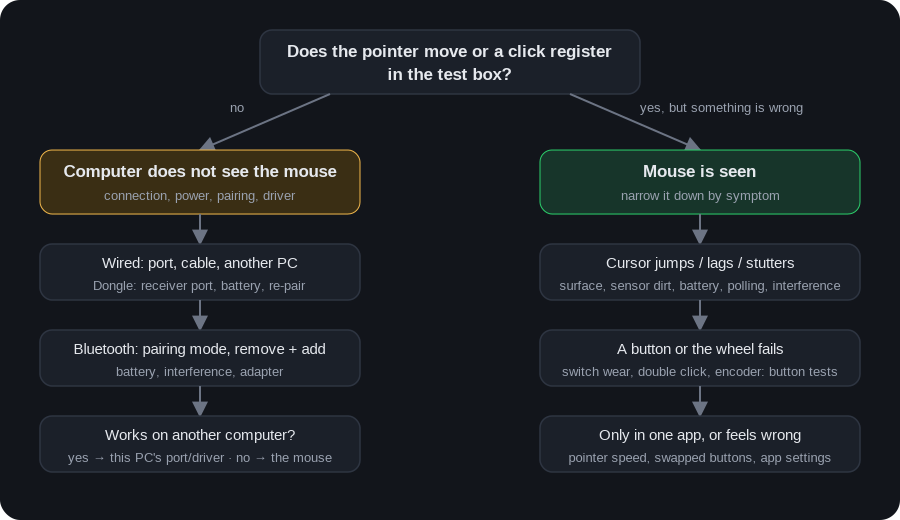
If the box registers movement but no clicks, or clicks but no movement, the mouse is connected and one part of it has failed or is blocked: a switch for the buttons, the sensor or the surface for movement. Skip to the matching section. If you have no working pointer at all and cannot click anything, the keyboard still works: on Windows, the Windows key opens the Start menu and Tab and the arrows move through settings; on a Mac, Command-Space opens Spotlight and you can type “Bluetooth” to reach the settings. A laptop’s touchpad or a second mouse makes everything easier, and a phone can act as a mouse through remote-control apps in an emergency, but most fixes below need no pointer at all.
Wired mouse
A wired mouse that does nothing is almost always the port, the cable or the hub, in that order of likelihood, with the mouse itself last. Unplug it and plug it into a different USB port, preferably one directly on the computer rather than on a hub, monitor or keyboard pass-through; some front-panel ports on desktops are wired through internal headers that fail or were never connected. Watch the underside: an optical or laser mouse that is receiving power lights its sensor (some modern sensors use invisible infrared, so a dark sensor is not proof on its own), and a mouse that does not light on any port is not getting power. Flex the cable near the plug and near the mouse while moving it in the test box; a cursor that comes and goes as you flex the cable is a broken conductor, which is a cable replacement on mice with detachable cables and the end of the road for cheap ones. Then the cross-check that settles it: this mouse on another computer, and another mouse on this port. A mouse that fails everywhere is the mouse; a port that fails every mouse is the port or the driver. On Windows, a wired mouse that appears in Device Manager under Mice and other pointing devices with a warning icon can be uninstalled from there and replugged so that the generic driver reinstalls; mice need no manufacturer driver to move and click, only for extra buttons and lighting.
Wireless mouse (USB dongle)
A mouse with its own 2.4 GHz receiver fails in three places: power, the receiver, and the pairing between them. Power first, always: replace the battery or charge the mouse, and check that the power switch underneath is on; a mouse with a weak battery often moves but stutters, skips or sleeps, which is covered in the cursor section. The receiver: move it to a different USB port, directly on the computer; many dongles work poorly on USB 3 ports next to other USB 3 devices or behind a tower, because USB 3 radiates in the 2.4 GHz band and a metal case blocks the signal. The best place for a receiver is on the desk, near the mouse, on a short USB extension or in a port on the front or side of the machine; a receiver at the back of a tower under a desk is the most common cause of a “laggy” wireless mouse that is actually fine.
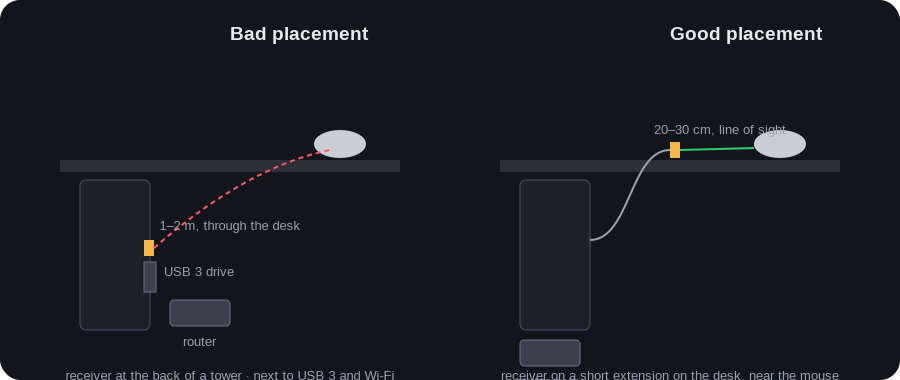
Pairing: most dongles are paired to their mouse at the factory and never need it again, but a receiver that has been swapped between mice, or a mouse that was paired with a different receiver or a unifying-style multi-device dongle, may need re-pairing with the maker’s software, which is the one case where that software is required. A lost receiver cannot be replaced by any other dongle unless the maker’s system allows it. If the mouse works on another computer with the same receiver, the problem is this computer’s USB or drivers; if it fails everywhere, open the battery compartment and look for corrosion on the contacts, which a cotton swab and isopropyl alcohol remove.
Bluetooth mouse
Bluetooth mice add pairing and the computer’s Bluetooth adapter to the list. On Windows 11, Microsoft’s steps are to select Start › Settings › Bluetooth & devices, make sure Bluetooth is on, then Add device › Bluetooth and select the mouse; the mouse must be in pairing mode, which usually means holding a button underneath until a light blinks, and Microsoft notes that a device missing from the list may need the Bluetooth devices discovery setting set to Advanced. If the mouse was paired before and has stopped, remove it from the device list and pair again, since a stale pairing is the usual cause of “connected but not moving”. On a Mac, Apple’s steps for its own Magic Mouse apply to any Bluetooth mouse in spirit: make sure the mouse is on (the Magic Mouse’s switch is underneath; slide it so green shows), make sure Bluetooth is on in System Settings › Bluetooth, and for Apple’s mice connect the charging cable to the Mac for a minute, which pairs and charges at once; Apple also points to wireless interference when a mouse will not stay connected. On both systems, Bluetooth mice are the ones most affected by a weak battery (they pair and then stutter or drop), by distance and obstacles, and by old or marginal Bluetooth adapters in older laptops, which pair but cannot sustain a mouse alongside headphones; disconnect Bluetooth audio to test. A Bluetooth mouse that pairs with a phone but not the computer is the computer’s adapter or driver.
Laptop touchpad vs mouse
Two laptop-specific cases. A laptop whose touchpad has stopped while an external mouse works, or the reverse, is usually a setting rather than a fault. On Windows, Settings › Bluetooth & devices › Touchpad has the on/off toggle and, on many laptops, an option to leave the touchpad on when a mouse is connected; a function key (often with a touchpad icon) toggles it as well, and is pressed by accident more often than anyone admits. On a Mac, Apple’s trackpad troubleshooting starts with the obvious (use one finger) and then with a point that applies to the whole machine: a Mac laptop that does not respond may be showing a low-battery alert you cannot see; connect it to power or an external keyboard to see it. macOS also has an accessibility option to ignore the built-in trackpad when a mouse or wireless trackpad is present, under the Pointer Control settings, which, when on, makes the trackpad seem dead whenever a mouse is connected. The second case is a mouse that works but the touchpad fights it: palm rejection failing, so the pointer jumps while typing; turning the touchpad off while a mouse is connected is the fix.
Cursor jumping or lagging
The mouse is seen, the pointer moves, and it is wrong: jumping, stuttering, drifting, lagging behind the hand, or stopping for a moment and then catching up. Work through the physical causes before the settings. Surface: optical sensors need texture; glass, glossy laminate, transparent or very dark surfaces, and worn pads with a shiny patch make the sensor lose tracking and the cursor jump. A sheet of paper is a fair test surface. Sensor dirt: a hair or lint across the sensor window causes erratic movement; turn the mouse over and clean the window with a dry swab. Battery: a wireless mouse on a weak battery stutters and sleeps before it stops; charge or replace. Receiver placement and interference for wireless mice, as above; the mouse polling rate test shows a wireless link that is dropping reports as a rate well below what the mouse should deliver, and a rate that fluctuates. Lift-off and height: a mouse used on a thick pad or held at an angle can lose tracking at the edges of a stroke. DPI: a DPI setting that changed (a DPI button under the wheel, pressed by accident) makes the cursor suddenly too fast or too slow; the DPI analyzer measures what the mouse is actually sending. Power saving: USB selective suspend and aggressive sleep settings on wireless mice cause the half-second pause before the cursor moves after a break; the mouse’s software or the system’s power settings adjust it. The computer: a cursor that stutters only when the machine is busy, during a game load or a heavy page, is the computer, not the mouse; a USB polling rate above what the system handles comfortably can also show as stutter, and the polling rate test’s lower settings are a quick check.
A button or the wheel fails
A button that misses clicks, registers twice, or needs a hard press is a worn switch, and the double click test measures it: presses that arrive twice within tens of milliseconds are switch chatter, and a button that needs force shows as missed presses in the mini test above. Fixes range from a debounce setting in the mouse’s software, which hides mild chatter, through contact cleaner into the switch, to replacing the switch, which is a soldering job on most mice; the mouse double clicking guide covers all of them. A wheel that scrolls the wrong way, skips, or scrolls in both directions is a dirty or worn encoder: the scroll wheel test shows reversed steps and skipped detents, and the fix is cleaning the encoder or replacing it. Side buttons that do nothing in a browser are often fine: the browser treats them as back and forward, which the mouse tester explains and suppresses inside its test area. Middle-click that pastes text on Linux, opens links in new tabs, or does nothing in some apps is behaving as designed.
Windows settings and steps
The settings that make a working mouse seem broken, with the paths Microsoft documents for Windows 11. Pointer speed and acceleration: Start › Settings › Bluetooth & devices › Mouse has the primary button choice, the pointer speed slider and the scrolling options; under Related settings, Additional mouse settings opens the Mouse Properties window, whose Pointer Options tab holds “Enhance pointer precision” (acceleration, which gamers turn off and the DPI analyzer asks you to disable for an accurate measurement) and whose Buttons tab holds the double-click speed and ClickLock. Swapped buttons: the primary button option on the same page; a mouse that right-clicks when you left-click is this, or the mouse’s own software profile. Scrolling: lines per notch and the direction are on the Mouse page; a wheel that scrolls the wrong way may be a setting rather than the encoder. Bluetooth: the pairing steps above. Driver: Device Manager › Mice and other pointing devices; uninstall a device with a warning icon and replug it, and restart, which Microsoft lists as the first step for a slow or unresponsive mouse because it reloads the drivers. Mouse Keys: an accessibility feature that turns the numeric keypad into a mouse; when on, it can make the real mouse feel disabled or slow in some situations, and it lives under Settings › Accessibility › Mouse. Manufacturer software: a profile that remaps buttons, changes DPI on a key, or disables a button entirely survives a mouse swap and is the usual explanation for “the mouse works on my other PC but not here”.
macOS settings and steps
On a Mac, the equivalent checks. Tracking speed and scrolling: System Settings › Mouse holds tracking speed, natural scrolling, secondary click and, on Apple mice, the gestures; a mouse that scrolls the opposite way to what you expect is the Natural scrolling setting, not a fault. Bluetooth: System Settings › Bluetooth, with the Connect button next to the mouse and Forget on a right-click to clear a stale pairing; Apple’s advice for a Magic Mouse that will not connect is the power switch, Bluetooth on, a minute on the charging cable, and checking for interference, in that order. Accessibility: System Settings › Accessibility › Pointer Control has Mouse Keys and the option to ignore the built-in trackpad when a mouse is present; both change how pointing devices behave in ways that look like faults. Third-party mice: macOS drives any USB or Bluetooth mouse without software, with the side buttons mapped to back and forward in most apps; vendor software is only needed for button remapping and DPI, and an old vendor driver left over from a previous mouse can interfere with a new one, which removing it fixes. Low battery on a laptop: Apple’s note that a Mac may be showing an alert you cannot see applies here too; plug in before concluding anything.
Gaming mice, software profiles and onboard memory
Gaming mice add a layer that ordinary mice do not have: a profile stored in the mouse’s own memory, set by the maker’s software, that can remap or disable buttons, change DPI on a button press, set a polling rate the computer struggles with, or turn the lighting off so the mouse looks dead when it is fine. Because the profile lives in the mouse, it follows it to another computer, which produces the classic “works on my other PC” confusion in reverse: the mouse misbehaves everywhere until the profile is reset. If a gaming mouse has a button that does nothing, a DPI that changes by itself, or a cursor that feels different from one day to the next, open the maker’s software, look at the active profile and the DPI stages, and reset the mouse to defaults if the options are a mess. A polling rate set to the maximum the mouse offers can cause stutter on some systems and in some games; the mouse polling rate test shows what the computer is actually receiving, and dropping one step is a quick test. Uninstall old vendor software for mice you no longer own; two makers’ drivers fighting over the same generic HID device is a recognisable cause of a mouse that stops working after a reboot.
Mouse not working after an update or on a new PC
A mouse that stopped after a Windows or macOS update is rarely broken. On Windows, Device Manager › Mice and other pointing devices: a device with a warning icon can be uninstalled and the mouse replugged so the generic driver reinstalls; Microsoft’s own first step for a slow or unresponsive mouse is a restart, because it reloads the drivers. Check that USB selective suspend has not started putting the port to sleep (it is in the power plan’s advanced settings) and that a Bluetooth mouse’s pairing survived the update; if not, remove and re-pair. On a Mac, a macOS update can reset accessibility and Bluetooth permissions for third-party mouse software, so a remapping utility stops working until it is re-allowed in System Settings › Privacy & Security; the mouse itself keeps moving. On a new PC, the usual gaps are a missing Bluetooth driver on a desktop that has no Bluetooth at all (a 2.4 GHz dongle mouse works, a Bluetooth mouse cannot), USB ports on the front panel that were never connected inside the case, and a firmware setting that disables USB legacy support so the mouse works in the operating system but not in the firmware setup screen, which is normal and not a fault.
Wake, sleep and USB power
Three behaviours that look like a dead mouse and are power management. A mouse that does nothing for the first second after a pause is waking from its own sleep; wireless mice do this to save battery, and the maker’s software often has a setting for the sleep timer. A mouse that cannot wake the computer from sleep is a setting on the computer: on Windows, Device Manager › the mouse’s entry › Power Management tab, “Allow this device to wake the computer”; on a Mac, Bluetooth devices can wake the Mac only when the option is enabled in Bluetooth settings. And a mouse that works until the computer sleeps and then stays dead until replugged is USB selective suspend or a port that is powered down in sleep; disabling selective suspend in the power plan, or moving the receiver to a different port, settles it. None of these is a fault in the mouse, and none shows in the test box, which only sees the mouse while it is awake.
When the mouse has failed
Signs that the mouse itself is at fault, after the swap test: it fails on every computer and port; the sensor light is off on any power; the cursor cuts out when the cable is flexed; a button registers twice or not at all on the double click test regardless of settings; the wheel skips on the scroll test after cleaning; the battery compartment shows corrosion; or the mouse was dropped or wet. Mice are cheap enough that repair is rare beyond a switch or a cable, but a good mouse with a worn main button is worth a switch replacement, and a wireless mouse that only needs a battery or a receiver re-pair is not broken. Before buying, run the tests on the candidate: the mouse tester for every button and the wheel, the double click test for the switches, the polling rate test for the connection, and the DPI analyzer for the sensor, which together take five minutes and catch the faults a shop test misses.
FAQ
Why is my mouse not working at all? Either the computer receives nothing (connection, power, pairing, driver) or it receives something wrong (settings, surface, battery, a worn part). The test box at the top tells you which: counters that move mean the mouse is seen. For nothing at all: another port or cable, fresh battery, re-pair, then the swap test with another computer.
Why is my wireless mouse not working but the light is on? The receiver is not seeing the mouse: move the dongle to a port near the mouse away from USB 3 devices, re-pair with the maker’s software if the mouse or receiver was swapped, and replace the battery even if the light is on, since a weak battery powers the LED but not a stable link.
Why does my Bluetooth mouse connect but not move? A stale pairing or a weak battery. Remove the mouse from Settings › Bluetooth & devices (Windows) or System Settings › Bluetooth (Mac), put it back in pairing mode and add it again, and charge or replace the battery. Disconnect Bluetooth headphones to test on an older laptop.
Why does my mouse cursor jump around? Surface, sensor dirt, battery or interference, in that order. Use a plain mouse pad or a sheet of paper, clean the sensor window, charge the mouse, and move the receiver near the mouse. If it still jumps on a wired connection on paper, the sensor is failing.
Why is my mouse lagging? On wireless mice, receiver placement and battery; on any mouse, a busy computer. The polling rate test shows a link that is dropping reports as a low or fluctuating rate; a mouse that lags only during heavy loads is the computer, not the mouse.
Why does my mouse double click on its own? A worn switch, which the double click test confirms by measuring the interval between registrations. Fixes are a debounce setting, cleaning the switch, or replacing it; the double-clicking guide covers them.
Mouse works on another computer but not mine. Why? This computer’s USB port, Bluetooth adapter, driver or a leftover vendor profile. Try another port, uninstall the device in Device Manager and replug, remove old mouse software, and check the mouse settings pages for a disabled or remapped button.