How to Change Your Wi-Fi Password on Any Router (Step by Step)
How to change wifi password is a question with one shape and a hundred menus: you open your router’s settings, find the wireless section, type a new password and apply it, and then every device in the house asks for the new one. The menus differ by maker and by internet provider, and this guide gives them only as the makers and providers write them on their own support pages, with the page linked each time. Start with the address: the router’s admin page lives at an address on your own network, most often 192.168.1.1, and the buttons below open the common ones in a new tab. If your provider gave you an app, it is usually the faster route and is covered too, and once the password is changed, a Wi-Fi QR code lets guests join by scanning instead of typing.
Before you start: find your router’s address
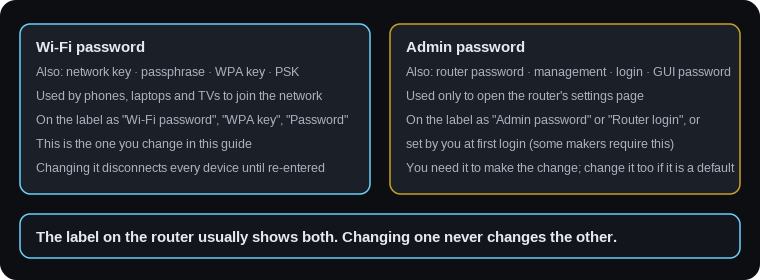
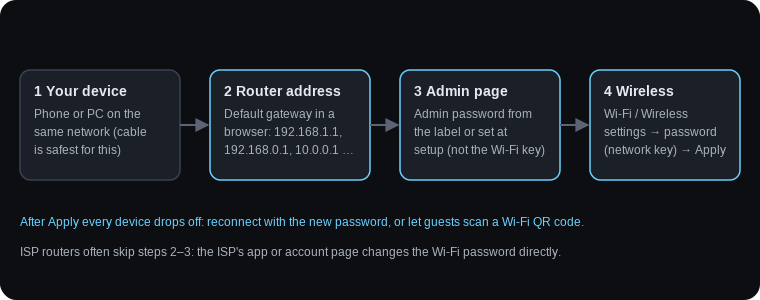
Every router has two addresses that matter here. The one printed on the label is the one it had at the factory; the one your devices actually use is called the default gateway, and on an untouched router they are the same. The quickest check is to open the common addresses in turn from a device that is connected to the router’s network, by cable if you can, because the change you are about to make will drop every Wi-Fi device: 192.168.1.1 (NETGEAR, Linksys, many others), 192.168.0.1 (TP-Link, D-Link, Virgin Media), 10.0.0.1 (Xfinity gateways), 192.168.1.254 (AT&T, BT), and, for a second router behind a first, 192.168.2.1. Each of those pages opens the address in a new tab and lists which makers document it. If none loads, read the gateway from the device itself: Windows shows it in the network adapter’s details, a Mac under Router in the Wi-Fi details, an iPhone in the network’s information screen, Android in the network’s advanced details; the finding-your-router-IP guide gives each path from Microsoft’s, Apple’s and Google’s pages. One more thing to have ready before you log in: the admin password, which is a different credential from the Wi-Fi password and is printed on the router’s label or was set at installation.
How to change wifi password in the router’s admin page
The generic procedure, which every maker’s page below is a variation of:
- On a device connected to the router, open the router’s address in a browser. Accept the browser’s note about leaving a secure site or about the router page being “not secure”; it is a local connection inside your home.
- Sign in with the admin user name and password from the label or from setup. Not the Wi-Fi password. If the label does not say, the default router password page quotes what each maker’s page states.
- Find the wireless section. It is called Wireless, Wi-Fi, WLAN or Wireless Settings, and on dual-band routers it may have one page per band (2.4 GHz and 5 GHz) or a shared setting.
- Find the password field. It is labelled Password, Network Key, Passphrase, Pre-Shared Key, WPA Key or Security Key depending on the maker. Replace its contents with the new password. Choose WPA2 or WPA3 as the security type if the page offers a choice; the D-Link guide below says the same.
- Apply or Save. The router may restart its Wi-Fi for a few seconds.
- Reconnect every device with the new password. Devices that were connected keep trying the old one and need to be told the new one.
Three details trip people up at step 3 and 4. Dual-band and tri-band routers often keep a separate password per band; if the page shows 2.4 GHz and 5 GHz sections, change both, or the phone that roams between bands will connect on one and fail on the other. Guest networks have their own password and their own page, and changing the main network leaves the guest one as it was. And some routers ask whether to apply the Wi-Fi password to a “Smart Connect” or combined network; if that option is on, one password covers all bands, which is the simpler arrangement for a home. Save, then confirm on the same page that the new value is shown, because a few routers reject passwords with characters they do not accept and silently keep the old one.
By router brand: Netgear, TP-Link, ASUS, Linksys, D-Link
Each path below is quoted from the maker’s own support page, linked; where a maker’s page could not be opened, the maker is linked without steps.
NETGEAR. Launch a web browser from a device connected to the router’s network and enter www.routerlogin.net; a login window displays. Enter your user name and password, the default user name being admin. Select Wireless (for Nighthawk Pro Gaming routers, Settings > Wireless Setup). Enter the new network name in the Name (SSID) field and the new password in the Password (Network Key) fields, then click or tap Apply. NETGEAR notes that the Wi-Fi password is not the admin password (NETGEAR: how do I change my router’s WiFi password or network name).
TP-Link. Open a browser and go to tplinkwifi.net or 192.168.0.1 and log in. The wireless settings are under Wireless > Wireless Settings, or Basic > Wireless, or on older models separate Basic Settings and Wireless Security pages, depending on the model and firmware; enter the new password in the password field, save, and reconnect your devices with the new password (TP-Link: how to change the Wi-Fi password).
ASUS. Connect to the router and open http://www.asusrouter.com or the router’s LAN IP, then log in. On newer firmware go to Network > Main network profile, click the network name (SSID) and password to modify them, and Apply; on older firmware go to Wireless > General, where the password field is the WPA-PSK Key, and Apply. The ASUS Router app has the same setting under Settings > Network > Main network profile on newer firmware (ASUS: how to modify wireless name and password).
Linksys. For Linksys Cognitive Mesh routers, open the web interface at www.myrouter.info or https://192.168.1.1, enter the router’s admin password and sign in, click the CA link at the bottom right, click Wi-Fi Settings, change the Wi-Fi name and password, click Apply and then Ok; if the bands have separate names and passwords, choose the right band when reconnecting each device (Linksys: how to change Wi-Fi settings using the router’s web interface). Linksys’s older routers follow the generic procedure above at 192.168.1.1.
D-Link. Enter the router’s address in the browser (D-Link’s guide lists 192.168.0.1 among the typical addresses; its DIR-878 FAQ gives 192.168.0.1 or dlinkrouter.local), log in, find the Wireless section through the Wireless or Wireless Settings/Setup tab, look for the box labelled Password, Passphrase or Shared Key and enter the new password, choose WPA2 as the security type, and click Apply or Save (D-Link: how to change your router’s Wi-Fi password).
By ISP: Xfinity, Spectrum, Verizon, AT&T
Internet providers’ gateways are usually managed through the provider’s app or account page, and the providers’ own pages prefer that route.
Xfinity (Comcast). Xfinity’s page says the quickest way to view or change the WiFi network name and password is the WiFi Details feature in the Xfinity app, and that for XB6 and newer gateways and for networks with WiFi extenders the app is the only route. Through the Admin Tool at 10.0.0.1, where available: in the left-hand menu pick Gateway, then Connection, then Wi-Fi; click Edit next to the network; type in the Network Name and/or Network Password field and click SAVE SETTINGS (Xfinity: change your WiFi network name and password with the Admin Tool). Admin Tool access on newer gateways must first be allowed in the app, as Xfinity’s access page describes.
Spectrum. Spectrum’s support pages describe changing the network name and password in the My Spectrum app (Services tab, Your Spectrum Network, select the network, update and Save) and on Spectrum.net under Services > Internet. Spectrum’s pages required cookies to display when we tried to read them, so the steps are not quoted here; the page is linked for the current wording (Spectrum: My Spectrum app).
Verizon. For a Fios Quantum Gateway or Fios Advanced router, sign in to My Verizon, hover over Services, select Internet, under My Network select a network to Manage, enter the new credentials and Save Changes. For other Fios routers, open a browser and enter 192.168.1.1, sign in with the router name admin and the default router password from the label, and change the Wi-Fi name or password there. Verizon adds that after applying changes you must reconnect each Wi-Fi device with the new name and password (Verizon: change Wi-Fi name or password).
AT&T. Sign in to Smart Home Manager, scroll to the My Wi-Fi card and choose Change next to the name or password, select X to clear the existing info, enter the new name or password, select Save, then reconnect your devices with the updated network info. If Smart Home Manager is not available, the same change can be made from the gateway’s settings screen, reached at 192.168.1.254, using the Device Access Code from the label on the device (AT&T: change your Wi-Fi network information).
UK providers. Virgin Media’s page sends Hub owners to 192.168.0.1 for the Wi-Fi settings page and, for Hub 3, 4 and 5, to the My Virgin Media app’s Broadband tab, menu, WiFi networks, where the name, password and the Hub’s settings password can be changed, adding that every device must reconnect afterwards (Virgin Media: change your Wi-Fi password and network name). BT’s Hub Manager at 192.168.1.254 needs the admin password from the back of the Hub for changes (BT: Hub Manager); BT’s specific Wi-Fi password page was not opened, so its menu path is not quoted.
After you change it: reconnect devices, share with a QR code
The moment you apply the change, every Wi-Fi device in the house loses the network and keeps trying the old password until it is told otherwise. Work through them in a sensible order: the phone in your hand first, then anything that someone is using, then the quiet devices, televisions, speakers, printers, thermostats, cameras and plugs, which fail silently and are the ones people discover days later. A device that will not accept the new password usually has the old one saved: forget the network on that device and join it afresh. Devices that joined by WPS or by a QR code will need the new password typed once. For guests and for the quiet devices with cameras, a Wi-Fi QR code is the fastest way to hand over the new password without reading it aloud or typing it on a television remote: the Wi-Fi QR code generator on this site encodes the network name and password into a code in your browser, nothing is uploaded, and you print it or show it on a screen. Phones read it with their camera: on iPhone, open the Camera app, hold the device so the QR code appears in the viewfinder and tap the link that appears, or use the Scan Code control in Control Center (Apple: scan a QR code with your iPhone or iPad); on a Pixel, open the Camera app with Camera scan suggestions turned on in its settings, point it at the code and tap the link, or swipe down to Quick Settings and tap Scan QR code, and Google notes that a QR code can connect you to a Wi-Fi network (Google: scan QR codes with your Pixel phone).
Choosing a strong password
Length beats complexity, and the standard that says so is NIST’s Special Publication 800-63B, which governs how passwords should be handled: it requires user-chosen passwords to be at least 8 characters, says systems should accept at least 64, says they should not impose composition rules such as requiring mixtures of character types, and says they should not require periodic changes unless a compromise is suspected (NIST SP 800-63B, section 5.1.1.2). For a Wi-Fi password that translates into: a phrase of several unrelated words, long enough that you would not want to guess it and easy enough that you can read it to a guest; no need for symbol gymnastics; and a change when you suspect someone has it who should not, not on a calendar. WPA2 and WPA3 allow up to 63 characters, so length is not a constraint. This guide gives no example password on purpose, because an example that is published is an example that is tried. Write the new password on the router’s label area or in a password manager, since the printed one is now wrong, and use a separate, equally long password for the admin page.
If a device refuses a long passphrase, the device, not the password, is the limit: a few older printers and smart plugs cap the key at fewer characters or reject spaces, and the practical fix is a guest network with a password those devices accept, keeping the main network’s long one.
One habit makes the next change painless: keep the network name the same and change only the password. Changing the name creates what devices see as a brand-new network, so every saved profile becomes useless and smart-home devices that were set up through an app have to be set up again; changing only the password lets each device reconnect with one prompt. If the name must change, because the old one carried the router’s model or your surname, do both at once rather than twice, and expect the longer round of reconnecting.
Can’t log in?
The admin page refuses most often because the wrong password was offered: the Wi-Fi password at the admin prompt, or an old admin password after someone changed it. Check the label on the router for the admin credentials; check with whoever installed it; and for an ISP router, try the provider’s app, which signs in with your account instead. If the page does not load at all, the address is wrong or the device is on another network; the finding-your-router-IP guide walks through reading the real address. If the admin password is genuinely lost, every maker and provider documents a factory reset on its own page, which returns the router to the label’s credentials and erases the Wi-Fi name and password along with any other settings; do it with the label to hand so you can log in afterwards, and set a new admin password and a new Wi-Fi password straight away. The pages for 192.168.1.1 and the other addresses on this site quote what each maker’s page says about defaults and resets, and the network tools hub collects them.
FAQ
How do I change my Wi-Fi password? Open your router’s admin page at its address (most often 192.168.1.1 or 192.168.0.1), sign in with the admin credentials from the label, find the Wireless section, replace the password or network key, and apply; then reconnect your devices. If your provider gave you an app, it usually changes the password without the admin page; the Xfinity, Verizon and AT&T routes above are quoted from their pages.
How do I change my Xfinity Wi-Fi password? Xfinity’s page says to use the WiFi Details feature in the Xfinity app, which for XB6 and newer gateways is the only route. Where the Admin Tool at 10.0.0.1 is available: Gateway > Connection > Wi-Fi, Edit, enter the new Network Password, SAVE SETTINGS.
What is the difference between the Wi-Fi password and the router password? The Wi-Fi password, also called the network key or passphrase, is what devices use to join the network. The router (admin) password opens the settings page. Both are usually on the router’s label, and you need the second to change the first.
Will changing the Wi-Fi password disconnect everything? Yes. Every device keeps the old password until you enter the new one, so plan for a few minutes of reconnecting, starting with the device you are using and ending with televisions, printers and smart-home devices. Keeping the network name unchanged makes each reconnection a single prompt rather than a fresh setup.
How long should a Wi-Fi password be? Longer than you think and simpler than you fear: NIST’s guidance requires at least 8 characters, recommends allowing 64, and discourages mandatory symbol mixtures and scheduled changes. A phrase of several unrelated words satisfies all of that; WPA2 and WPA3 accept up to 63 characters.
How do I share the new password with guests? A Wi-Fi QR code: the generator on this site builds it in your browser from the network name and password, and phone cameras read it, as Apple’s and Google’s pages describe. Print it and keep it where guests sit. The code holds the network name and password in plain form, so treat the printout as you would the written password: fine in a kitchen drawer, not on a window that faces the street.