Dead Pixel vs Stuck Pixel: How to Tell Them Apart
A dot on your screen that won’t go away is one of three things: a dead pixel, a stuck pixel or a hot pixel. They look similar from a distance and they are treated very differently, by fixers, by manufacturers and by warranties, so the first job is to tell them apart. The quickest way is the dead pixel test: it fills the screen with black, white, red, green and blue in turn, and the dot’s behavior on each color gives you the answer in under a minute. This guide explains what you are seeing, why it happens, what can be done about each kind and when a defect is covered.
What is a dead pixel
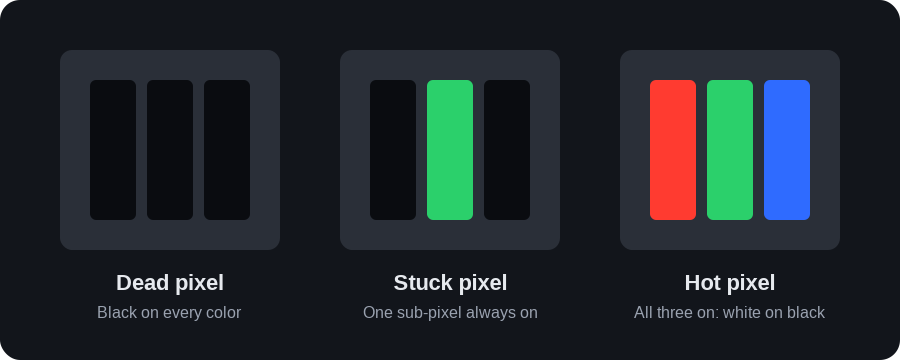
Every pixel on an LCD or OLED is made of three sub-pixels, one red, one green and one blue, each switched by its own tiny transistor. When all three are permanently off, the pixel shows nothing: it is black on white, black on red, black on every color. That is a dead pixel. The usual cause is a failed transistor or a broken connection in the panel’s driving circuitry, and it is a manufacturing defect that either exists on day one or appears after physical stress such as pressure or a knock. It does not get better with use, it cannot be corrected by software, and it does not spread; a dead pixel that gains neighbours is normally a sign of pressure damage or a failing driver rather than a defect that is “growing”.
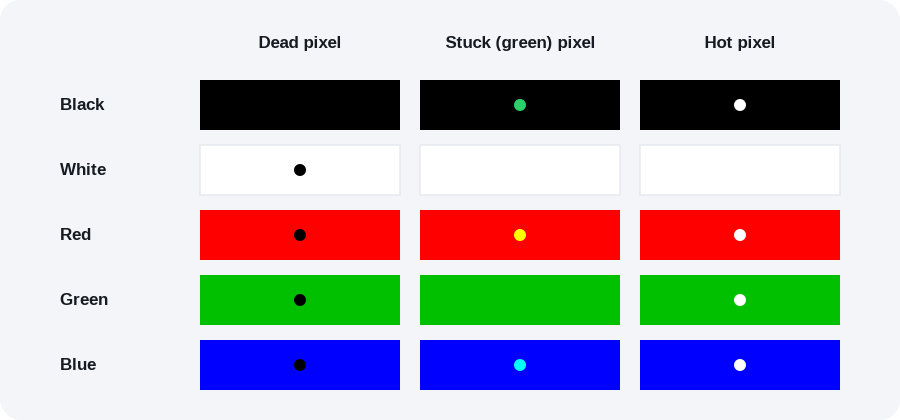
On a white or light background a dead pixel is a tiny black dot, about the size of this full stop on a 1080p 24-inch monitor and smaller on higher-density screens. Many people live with one for months without noticing it until a full-screen white page or a light-colored game menu shows it up. Dead sub-pixels also exist: if only the red transistor has failed, the pixel looks fine on white and black but shows as a dark dot on a red field and as a slightly cyan dot on white. The color-by-color sequence in the test catches those.
Stuck pixels
A stuck pixel is the opposite problem: one or more sub-pixels are receiving power but have settled into one state and no longer follow the signal. On a black screen a stuck pixel glows, usually red, green or blue, sometimes yellow, cyan or magenta if two sub-pixels are stuck. On other colors it keeps its own color instead of changing with the screen: a stuck green sub-pixel shows as a green dot on black and red, as a slightly yellowish dot on red, and disappears on green and white because there it is supposed to be on anyway.
Stuck pixels are far more common than dead ones and they are the kind that can sometimes be revived. The liquid crystal in that cell has got stuck in position; driving it through fast, large changes between colors for a while can free it, which is what the stuck pixel fixer does. Many stuck pixels also clear by themselves over days or weeks, and some come and go with temperature. If a dot is lit rather than black, the news is better than it looks.
Hot pixels
A hot pixel is a stuck pixel where all three sub-pixels are fully on, so it shows as a white dot on a black or dark screen and is invisible on white. It is the most noticeable of the three in everyday use, because dark scenes in films and games are exactly where a bright white dot stands out, and it is the one people most often mistake for a speck of dust on the surface; a hot pixel sits behind the glass and does not move when you wipe it. The term comes from camera sensors, where hot pixels are a familiar problem in long exposures, and screen hot pixels behave similarly: they are often temperature-related, more visible after the panel has been on for a while, and sometimes fade when the screen has cooled. They respond to the fixer like other stuck pixels, and a hot pixel that only appears when the panel is warm is worth noting with the time and conditions if you plan a warranty claim, because a cold panel in a service center may not show it.
How to check yours in 1 minute
Clean the screen first with a dry microfiber cloth: dust is the most common false alarm. Open the test, press Start in full screen and look over the whole panel on each color in turn. Black finds stuck and hot pixels; white finds dead pixels; red, green and blue find dead or stuck sub-pixels individually. Scan in rows from the top left so you don’t skip the edges and corners, and look from about an arm’s length, then closer.
When you find a dot, press M to mark it. The marker records where it is and which color it was found on, and you can then step through the remaining colors with the marker in place to classify it: black on every color means dead; lit on black and keeping its color on the others means stuck; white on black means hot. The test’s PNG or PDF report lists every marker with its coordinates and the color it was seen on, which is exactly the evidence a retailer or manufacturer asks for.
If what you see is a line rather than a dot, you are looking at a different fault; see our guide to vertical lines on a monitor. If it is a patch or a cloud, it is backlight bleed or pressure damage, and the backlight bleed test covers that.
Can they be fixed?
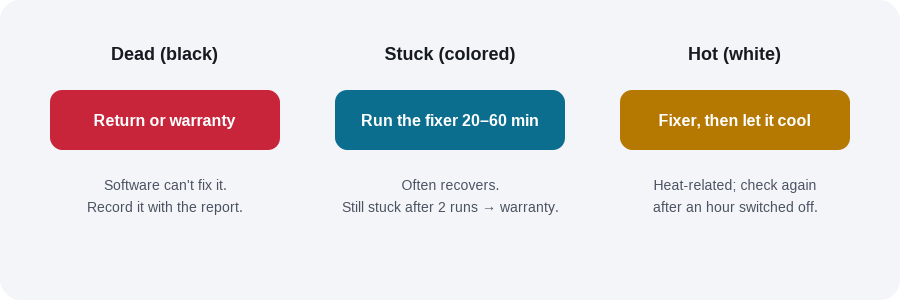
Dead pixels: no. With all three transistors failed or disconnected, no pattern on the screen changes anything, and no setting in the operating system or the monitor can route around a dead pixel. Pressure and heat methods circulate online; they are aimed at stuck pixels and on a dead pixel they only risk a larger permanent mark.
Stuck pixels: often. Run the fixer for 20 minutes with the flashing square over the pixel, check it on black and white, and if it is unchanged run a longer session of 30 to 60 minutes. Pixels that are going to recover usually do so in the first hour; a third attempt after the panel has been switched off and warmed up again catches a few more. Beyond that, the fixer isn’t going to help. Gentle pressure through a soft cloth, applied once or twice while the fixer runs, occasionally frees a stubborn pixel and occasionally damages the panel; use it as a last resort and lightly.
A note on OLED screens: their pixels are self-emitting and are driven differently from LCD cells, so classic stuck pixels are rare on them. A persistent dot on an OLED is more often a dead sub-pixel, which behaves like a dead pixel and cannot be revived, or a tiny patch of burn-in, which the screen burn-in test tells apart. Phones with OLED screens are the common case; run the same color sequence on them in landscape and portrait.
Hot pixels: usually like stuck pixels. Try the fixer, then let the panel cool for an hour and check again. A hot pixel that disappears when cool and returns when warm is still a defect, but one worth documenting carefully before you claim.
Are they covered by warranty?
Two different rules apply, and the easier one is the retailer’s. Within the return period, typically 14 to 30 days from delivery, most retailers accept a monitor, laptop, phone or TV back as an unwanted or faulty item for a single dead or stuck pixel, with no argument about standards. If the screen is new and you have found a defect, this is the route to take, today rather than next week.
After the return period, the manufacturer’s pixel policy applies. Policies are built on the ISO 9241-307 standard, which defines classes of allowed defects per million pixels for bright (always on), dark (always off) and sub-pixel faults. Most consumer screens are sold as Class II, which allows a small number of each kind before the panel counts as defective; some premium lines promise zero bright pixels, and some manufacturers publish their own stricter or looser tables. The policy decides whether a single defect qualifies for a replacement, and the answer is often no for one dead pixel and yes for one bright pixel on a zero-bright-dot line. Our dead pixel policy guide compares the major brands’ rules, with links to the official pages.
Whatever the route, document the defect first: the test’s report with coordinates and the color it was seen on, a photo of the screen with the test pattern showing (close up, slightly out of focus, exposure lowered until it matches what you see), and the date. A stuck pixel the fixer could not clear counts as a bright defect under every policy; note the color it is stuck in.
What causes dead and stuck pixels
Behind every sub-pixel on an LCD is a thin-film transistor that switches the voltage across that cell of liquid crystal, and on an OLED a transistor that drives the pixel’s own light. A panel has millions of them, made in one pass on a sheet of glass, and a tiny fraction come out faulty or fail early. A transistor that is open, or a broken trace to it, leaves the cell unpowered: on an LCD the crystal rests in whichever state the panel’s design uses for black, so the sub-pixel is dark, which is a dead pixel when all three fail together. A transistor that is shorted or stuck conducting holds the cell at a fixed voltage, so the sub-pixel sits at one brightness regardless of the signal: a stuck pixel, lit in its own color.
Most defects are present from manufacture and are what the ISO classes and pixel policies are written for. Defects that appear later usually have a cause you can name: pressure on the panel from a finger, a bag or a closed laptop lid on an object, which damages transistors in a small cluster and often leaves a faint bright or dark patch around it; a knock or drop, which does the same in a line; heat, which pushes marginal transistors over the edge and is why hot pixels appear when a panel is warm; and age, which on OLED shows as uneven wear rather than individual pixels. Dust is not a cause but the most common false alarm, and a dot that moves when you wipe the screen with a dry cloth was never a pixel.
Dead pixels on phones, laptops, TVs and OLED
The three kinds behave the same on every screen, but what you do about them differs by device. On a phone, pixel density is so high that a single dead pixel is nearly invisible and a stuck one is a tiny colored speck noticed only on dark screens; the fixer works through the phone’s browser in full screen, and the retailer’s return window is the practical route for a new phone because manufacturers’ pixel policies for phones are tight. On a laptop, the panel is replaced as a unit and is a routine repair out of warranty; a single dead pixel is almost never covered by the manufacturer, a bright stuck one sometimes is, and the test’s report with coordinates is what the service desk wants. On a television, viewing distance makes one dead pixel invisible from the sofa, and television pixel policies are correspondingly loose; a cluster or a line is what qualifies. OLED screens, on phones and televisions alike, rarely have classic stuck pixels because there is no liquid crystal to stick; a persistent dot on an OLED is a dead sub-pixel, which is permanent, or the start of burn-in, which the screen burn-in test identifies.
Living with a dead pixel
One dead pixel on a monitor that is past its return window and below its maker’s threshold is, in practice, something to stop looking for. It is invisible on dark content, invisible at normal distance on a high-density screen, and it does not spread or indicate a failing panel. People who have found one tend to see it constantly for a week and then not at all. If it sits exactly where your eye rests, in the middle of a document or under a game’s crosshair, the honest options are a replacement under the retailer’s goodwill, a panel swap on a laptop, or a small dark wallpaper region behind it. A stuck pixel is worth the fixer’s hour; a dead one is not worth an afternoon of pressing on the glass, which risks turning one dead pixel into a patch of them.
Dead pixel vs stuck pixel: the short version
A dead pixel is black on every color and permanent; a stuck pixel is lit in one color and often fixable; a hot pixel is white on black and usually heat-related. Check with the color sequence in the dead pixel test, mark what you find, try the fixer on anything that is lit, and take anything that is black straight to the retailer or the pixel policy.
Can a dead pixel spread? Not on its own. A pixel that gains neighbours over days was damaged by pressure or a knock, which stressed the cells around it, or sits on a failing driver line that will become a full line; both are worth documenting with dates, because a spreading defect is treated as a panel fault rather than a pixel count. A dead pixel that stays one dead pixel for a month will stay that way for the life of the screen, and the test is the way to check it occasionally without staring at the glass.
Do dead pixels affect the rest of the screen? No. Each sub-pixel has its own transistor, and one failing leaves its neighbours unaffected; brightness, color and response time of the panel are unchanged. The only practical effects are the dot itself and, on a panel still under the retailer’s return window, the question of whether to exchange it now.