What Motherboard Do I Have?
What motherboard do I have is a question a browser cannot answer, and it is worth seeing that for yourself before reading on: the box below, a short form of the PC specs checker, lists everything your browser is allowed to know about this machine, and the board is not on the list, because no web API exposes it. The operating system knows, though, and so does the board itself, and this guide gives the places where each of them says it: the System Information window on Windows, which names the board maker and model in two fields; About This Mac and the Model Identifier on a Mac, where the question has a different shape because Apple does not sell boards; the print on the board and the BIOS screen for a desktop you can open; and the model label of a laptop or prebuilt PC, where the maker’s model number is the thing to search for rather than a board name. Every step is from the maker’s own page, Microsoft’s, Apple’s or ASUS’s, and the two board makers whose pages would not open at the time of writing are linked without steps.
What motherboard do I have? Why a browser cannot say
Runs only when you press the button. The browser reports what it is allowed to see; the motherboard is never on that list.
| What | What your browser sees | Class |
|---|
Press the button and the table fills with what a web page can read: the platform and, in browsers that implement Client Hints, the architecture; the number of logical processors; a memory figure rounded to a bucket; the graphics chip as the graphics driver reports it to WebGL. Each row carries its class, Measured or Estimated, and the last row is the point of this guide: the motherboard is Unmeasurable from a browser. There is no API for it and there will not be one, because the board model, the BIOS version and the serial number are exactly the kind of stable, device-identifying facts the browser makers keep away from websites to stop them fingerprinting visitors. Sites that claim to detect your motherboard are either reading the graphics or processor rows and guessing, or asking you to download a program, which is the operating system route by another name. So the sections below leave the browser and go to the operating system, which has the board’s identity from the firmware, and to the board itself.
Windows: System Information
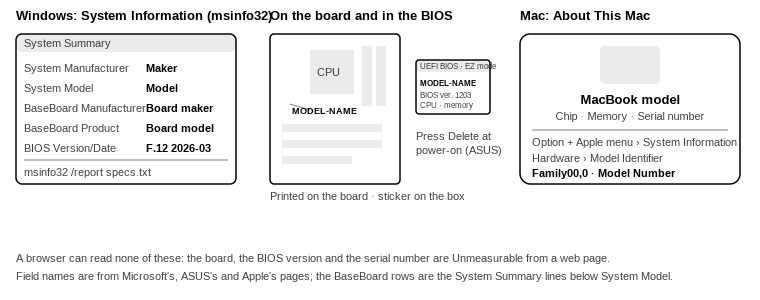
Windows reads the board’s identity from the firmware at every start and shows it in the System Information tool. Microsoft’s reference for the tool describes it as opening System Information to display a comprehensive view of the hardware, system components and software environment on the local computer, and the command that opens it is msinfo32: press the Windows logo key + R, type msinfo32 and press Enter, or type System Information in the Start menu search (Microsoft: msinfo32). The window opens on System Summary, a long list of name and value pairs. ASUS’s own page on checking a model name in Windows points at this list: in the System Model field, it says, you can locate your device model, and in the BIOS Version/Date field the BIOS version (ASUS: how to check the model name and BIOS version in Windows 11/10). A route Microsoft does document is the Win32_BaseBoard class, which represents a baseboard, also known as a motherboard or system board, with a Manufacturer property, the name of the organization responsible for producing the physical element, and a Product property, the baseboard part number defined by the manufacturer (Microsoft: Win32_BaseBoard class); in PowerShell, Get-CimInstance Win32_BaseBoard | Select-Object Manufacturer, Product prints exactly those two values. In System Information, the same two values appear on a desktop built from parts as the rows named BaseBoard Manufacturer and BaseBoard Product, a few lines below System Model, and System Model itself often repeats the board name or reads “System Product Name”; on a laptop or a prebuilt desktop, System Manufacturer and System Model name the computer, which is the number you want for drivers and manuals, and the BaseBoard rows name the board inside it, which is usually a maker’s internal part number nobody searches for. Two more things the same window gives you. The BIOS Version/Date row is the firmware version, which is the first thing a board maker’s update page asks for. And the tool can save the whole list as a text file: Microsoft’s reference documents the /report switch, so msinfo32 /report specs.txt in a Command Prompt writes everything to a file you can send to a support ticket or keep with the machine’s paperwork, with no screenshot needed. ASUS’s page also names DirectX Diagnostic Tool, dxdiag, as a second place for the System Model and BIOS fields; it opens from the same Run box and shows the model on its System tab. Neither tool needs installing and neither changes anything.
Mac: About This Mac and the Model Identifier
A Mac has a logic board that Apple designs and does not sell separately, so the useful identity is the Mac’s model, and Apple’s page gives two ways to read it. From the Apple menu in the corner of the screen, choose About This Mac; the window that opens shows an image of the Mac followed by its model name and, further down, the serial number (Apple: find your Mac model name and serial number). For the technical identifier, Apple says to press and hold the Option key while choosing Apple menu > System Information from the menu bar, then select Hardware in the sidebar; the Hardware Overview lists the Serial Number, the Model Identifier and the Model Number, which is the part number. The Model Identifier, a string such as a family name followed by two numbers, is what Apple’s own “Identify your Mac” articles and every parts and compatibility list key on, and Apple’s page says to search for the identifier in the appropriate article to find the specific model. The serial number, Apple adds, is usually printed on the underside of the Mac near the regulatory markings and on the original packaging next to a barcode label, and it can be looked up in your Apple account. What a Mac does not give you is a board maker to go to for a BIOS update or a memory compatibility list, because Apple is the maker of both and updates the firmware through macOS updates; the practical reasons for knowing a board model on a PC, covered below, translate on a Mac into knowing the model and year, which the About window states in plain words.
Look at the board itself
On a desktop whose side panel comes off, the board answers the question directly. ASUS’s FAQ on checking a motherboard’s model name gives three places, and they apply to every maker’s boards: the model name printed on the motherboard, usually in large letters between the processor socket and the expansion slots or along an edge; the serial number label on the back side of the board; and the sticker on the box the board came in (ASUS: how to check the model name of a motherboard). Reading the print needs the machine off, unplugged, and a torch, and nothing else; the model name is the one printed largest, while the smaller strings near it are revision numbers and certifications. The same ASUS page gives the firmware route for a machine you would rather not open: press the Delete key as the system boots to enter the BIOS, and check the model name at EZ mode in the UEFI BIOS, where ASUS boards show it in the top left with the BIOS version and the processor and memory it detected. Other makers’ setup screens show the same facts on their first page, under names such as Main or System Information; the key that opens the setup screen is shown briefly at power-on and differs by maker, so watch the first screen or check the manual rather than guessing. Gigabyte publishes a page on finding a board’s model name and serial number and MSI a support page for identifying its products, but neither page would open at the time of writing, so their steps are not reproduced here: Gigabyte support and MSI support are the places to read them. For any maker, the printed name and the firmware screen agree with System Information’s BaseBoard rows, which is the check that tells you Windows is reading the right board.
Laptops and prebuilt PCs: the model number is the answer
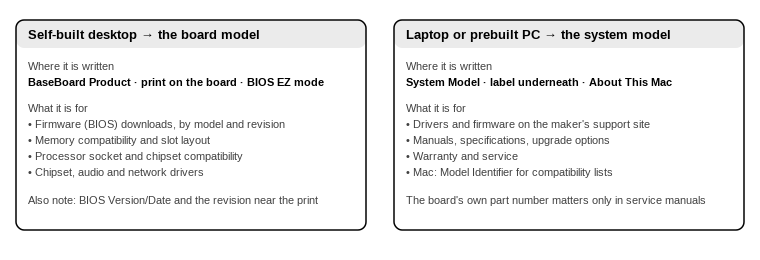
A laptop or a desktop from a big brand has a motherboard too, but its name is a part number that exists only in the maker’s service manuals, and nothing you want to do with it, drivers, firmware, memory upgrades, warranty, is filed under it. The useful identity is the system model: the product name and number on the label underneath a laptop or on the back of a desktop, which is the same string System Information shows as System Model and which the maker’s support site asks for first. Microsoft’s page on finding information about a Windows device gives the route to the rest of the machine’s facts next to it: right-click Start, choose Settings, select System and pick About, where Device specifications lists the processor, the installed memory and whether the device is running a 32-bit or 64-bit version of Windows, and Windows specifications lists the edition and version (Microsoft: find information about your Windows device). Some makers add their own tool that shows the model and the firmware version in one place; ASUS’s page names MyASUS, whose Firmware section shows the BIOS version. When a support agent asks what motherboard a laptop has, the system model and the BIOS version from System Information are the answer they can use; the BaseBoard rows are for curiosity and for the rare case where two revisions of the same laptop shipped with different boards and the manual distinguishes them.
Why you need the model: BIOS updates, memory, upgrades
The reasons the question gets asked are practical, and each one needs a slightly different fact. Firmware updates. A board maker’s download page is organised by exact model and often by revision, and flashing the wrong file is the one way to brick a board from software, so the printed name, the revision near it and the current BIOS version from System Information are all worth having before downloading anything. Memory. How much RAM a board takes, at what speed and in which slots is on the maker’s specification and qualified-vendor pages for that model; the RAM test covers what a browser can see about memory and how to find real errors, but which modules to buy is a board question. Processor and graphics upgrades. The socket, the chipset and the physical slot sizes are properties of the board, and the model name is how you look them up; the CPU stress test and GPU test tell you how the parts you have behave, not what you can replace them with. Drivers. On a laptop or prebuilt, drivers are filed under the system model; on a self-built desktop, chipset, audio and network drivers come from the board’s page. Selling or supporting. A listing or a support ticket that names the board, the BIOS version and the system model saves a round of questions, and the System Information report file carries all three. Keep the three facts together, the system model, the board model with its revision, and the BIOS version, because every one of these tasks asks for at least two of them, and the System Information report file is the simplest way to carry all three. In every case the browser’s role ends where this guide started: it can show you that the board is not visible to it, and the system tests hub lists what it can measure instead.
Reading the model name: maker, chipset, size and revision
Once you have the string, it is worth knowing what it encodes, because the parts of it answer different questions. The first word is the maker, which is where drivers, firmware and the manual live. The letters and numbers after it usually contain the chipset, the controller hub that fixes which processors the board accepts and which features it offers; it is the same code the processor maker’s compatibility pages use, so matching it is how you check whether a particular processor will work. A size code, where present, says whether the board is the full ATX size, the shorter micro-ATX or the small mini-ITX, which decides what case it fits and how many expansion slots and memory slots it has. A suffix often marks the product tier or a feature such as built-in Wi-Fi. And somewhere near the printed name, in smaller type, is the revision, a version number for the physical board; makers sometimes change components between revisions and publish separate firmware files for each, which is why the revision matters when downloading a BIOS and why ASUS’s page sends you to the board’s own print rather than to a list. On a laptop the same logic applies to the system model: the family name, the size, a generation code and a configuration suffix, and the maker’s support page asks for the full string because the suffix is what separates two machines that look identical. None of this decoding is something a browser can do for you, and this guide deliberately does not try to guess a board from the processor or graphics rows it can see; two boards from different makers can carry the same processor, and the only honest source for the board’s identity is the operating system, the firmware screen or the print on the board.
FAQ
How do I know what motherboard I have on Windows 11 or 10? Open System Information: press the Windows logo key + R, type msinfo32 and press Enter. In System Summary, System Model names the computer or board, and the BaseBoard Manufacturer and BaseBoard Product rows name the board maker and model; BIOS Version/Date gives the firmware version. ASUS’s Windows page points to the same System Model field and to dxdiag as a second place.
Can a website tell me what motherboard I have? No. No web API exposes the board, the BIOS or the serial number; the box at the top of this guide shows what a browser can read, and the board is marked Unmeasurable. A site that claims to detect it is guessing from the processor or graphics name, or asking you to install a program.
How do I find my motherboard without opening the PC? System Information on Windows, as above, or the firmware setup screen: ASUS’s page says to press Delete as the system boots and read the model name in the BIOS EZ mode. Other makers’ setup screens show it on their first page.
Where is the model printed on the motherboard? ASUS’s FAQ says the model name is printed on the motherboard itself, with the serial number label on the back side, and also on the sticker on the box. On most boards the name is the largest print between the processor socket and the expansion slots or along an edge; the smaller strings near it are revision numbers.
What motherboard does my Mac have? Apple does not identify Macs by board. Apple’s page says to choose About This Mac from the Apple menu for the model name, or hold Option while choosing System Information and select Hardware for the Model Identifier and Model Number, which are what compatibility lists and Apple’s “Identify your Mac” articles use.
Why does System Information say “To be filled by O.E.M.”? Because the maker of a prebuilt computer or board left the field blank in the firmware. The BaseBoard Product row and the print on the board usually still name the model; on a laptop, the System Model and the label underneath are the identity that matters.