How to Find Your Router's IP Address on Windows, Mac, iPhone and Android
How to find router ip address is a question your own device can answer in under a minute and no website can answer at all: the router’s address, called the default gateway, is handed to every phone and computer when it joins the network, and each operating system shows it in its network settings. This guide gives those paths as Microsoft, Apple and the router makers write them, explains what the number means, and maps the usual results to the address pages on this site, starting with 192.168.1.1, the most common one. If you already suspect your address, those pages open it in a new tab; if the page there does not load, the steps below find the real one.
How to find router IP address: what the default gateway is
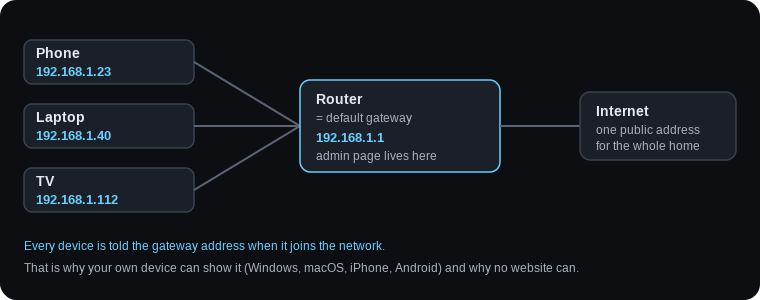
Every device on a home network has a private address, and one device, the router, has the job of passing traffic between that network and the internet. The router’s own private address is the default gateway: the address a device sends anything to when the destination is not on the local network. When your phone joins the Wi-Fi, the router gives it an address of its own and tells it the gateway address at the same time, which is why the phone’s settings can show it and why a website, which is on the far side of the router, cannot. The same address serves the router’s admin page, which is why finding it matters: typed into a browser, it opens the settings where the Wi-Fi password lives. Private addresses come from three reserved ranges, 10.x.x.x, 172.16–31.x.x and 192.168.x.x, and routers take a handful of conventional values within them: 192.168.1.1 and 192.168.0.1 most often, 10.0.0.1 on Xfinity gateways, 192.168.1.254 on AT&T and BT gateways, 192.168.2.1 on Belkin routers and second routers, with 192.168.100.1 belonging to a cable modem rather than a router. A home with a mesh system or a second router can have two gateways, one for each network, and the device shows the one it is actually using. The number on the router’s label is the factory default; the number your device shows is the one in force, and when they differ the device is right.
Two situations change what you will read. On a network with an ISP modem-router in front of a router you bought, there are two gateways: devices on the second router’s Wi-Fi show its address, often 192.168.2.1 or 192.168.0.1, while devices plugged into the ISP box show the ISP box’s address, and the Wi-Fi password lives on whichever router broadcasts the network you use. And a VPN, on any system, inserts a virtual network adapter with a gateway of its own; the settings screens below list it alongside the real one, and the real one is the adapter named after your Wi-Fi or Ethernet connection. A gateway that is blank or that reads 169.254.x.x means the device never received an address from the router at all, which is a connection problem to fix before any admin page will open: reconnect to the network, or restart the router.
The number is also worth writing down once you have it, next to the admin password, because every later task on this site that touches the router starts with it: changing the Wi-Fi password, reading the client list to identify a device, setting up port forwarding, or checking whether a firmware update is waiting. A router’s address changes only when someone changes it in the router’s own settings, so a note made today is good until then.
Windows 11 and 10: ipconfig and Settings
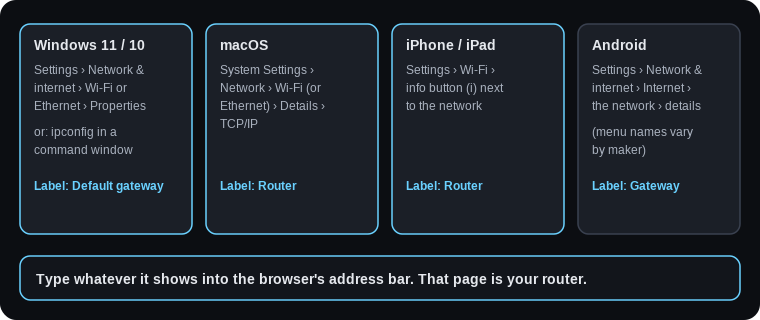
Two routes, one visual and one typed. Settings. Microsoft’s network settings page says that to quickly see details about the connected network you go to Network & internet settings and select Properties near your connected network; for a Wi-Fi connection that is Network & internet, Wi-Fi, then the network you are connected to, and for a wired connection Network & internet, Ethernet. The properties list includes the IPv4 address Microsoft points to, and alongside it the IPv4 default gateway, which is the router (Microsoft: essential network settings and tasks in Windows). ipconfig. Open Command Prompt, Windows Terminal or PowerShell and type ipconfig, then press Enter. Microsoft’s reference for the command says that used without parameters it displays the IPv4 and IPv6 addresses, subnet mask and default gateway for all adapters; find the adapter you are using, Wi-Fi or Ethernet, and read the line labelled Default Gateway. The /all parameter adds the full configuration, including the adapter’s physical address (Microsoft: ipconfig). Two readings to expect: a laptop that is connected by both cable and Wi-Fi shows two adapters, usually with the same gateway, and a virtual adapter from a VPN or a virtual machine shows its own, which is not your router. Type the Wi-Fi or Ethernet adapter’s gateway into a browser’s address bar.
If the Properties page shows no gateway, or ipconfig shows Default Gateway with nothing after it, the adapter has not been given an address by the router; Windows’ network troubleshooter, reconnecting to the Wi-Fi, or unplugging and replugging the cable usually restores it, and the gateway appears with it. If the gateway is 192.168.1.1 but that page does not load, check whether the adapter you read was the right one: on a laptop with Wi-Fi switched on while plugged into a dock, Windows may route through the dock’s Ethernet, whose gateway is the one to use.
macOS: System Settings › Network
Apple’s path to the TCP/IP details: choose Apple menu > System Settings, click Network in the sidebar, click the network service you are using, Wi-Fi or Ethernet, click Details, then click TCP/IP; the pane shows how IPv4 is configured and, in the router field that Apple’s page describes for manual configuration, the router address in use (Apple: change TCP/IP settings on Mac). Apple’s Wi-Fi settings page adds that clicking Details next to the connected Wi-Fi network shows the router address for that connection alongside the Wi-Fi address and the private-address option (Apple: Wi-Fi settings on Mac). The value next to Router is the one to type into Safari or any other browser. On a Mac with several services listed, Wi-Fi and a USB or Thunderbolt Ethernet adapter, the one with a green dot and the word Connected is the one in use, and a VPN service shows a router of its own that is not your home router.
The same Details pane’s TCP/IP tab shows how the Mac got its address, Using DHCP for almost every home network, and offers Renew DHCP Lease, which is the fix when the router field is empty after a change of network. A Mac connected through a Thunderbolt dock or an iPhone’s hotspot shows that adapter’s gateway, which is the dock’s upstream router or the phone, not the home router you may be after. On older macOS versions the same information sits under System Preferences, Network, Advanced, TCP/IP, with the Router field in the same place.
iPhone and iPad
On an iPhone or iPad the address is in the network’s details. Apple’s page gives the path: open the Settings app, then tap Wi-Fi, and tap the More Info button next to the network name (Apple: use private Wi-Fi addresses on Apple devices). The screen that opens lists the connection’s addresses, and TP-Link’s router-address FAQ names the field: on Mac and iOS devices the router’s address displays as Router in the TCP/IP or Wi-Fi settings (TP-Link: router LAN IP address). The same screen shows the Private Wi-Fi Address setting, which is why the address your router lists for the iPhone is not its hardware address; the MAC address lookup page explains that behaviour from Apple’s own documentation. Type the Router value into Safari’s address bar, and expect Safari’s note about an insecure page, which is normal for a router.
When the iPhone is providing a Personal Hotspot rather than using Wi-Fi, the roles invert: the phone is the router for the devices connected to it, and those devices will show the phone’s hotspot address as their gateway, which opens no admin page because an iPhone has none. An iPhone on cellular data shows no Wi-Fi details at all, since there is no Wi-Fi network; connect to the home Wi-Fi first.
Android
Android shows the gateway in the connected network’s details. Google’s Pixel page gives the path to a network’s settings: open your device’s Settings app, tap Network & internet, then Internet, and tap a network (Google: manage advanced network settings on your Pixel phone); TP-Link’s router-address FAQ names the field, stating that Android and Chrome OS users will find the address labelled Gateway in their network information (TP-Link). Other makers’ phones follow the same path with slightly different headings: Samsung’s One UI puts the details behind the network’s gear icon and sometimes inside a View more section, and some phones only show the gateway after you tap the connected network’s name rather than its icon. If the field is missing altogether, the phone may be on mobile data or on a network that assigns addresses through a different mechanism; connect to the home Wi-Fi, wait for the connection to settle, and reopen the details. Whatever the phone shows under Gateway is the address to type into the browser, and the address pages below map each common result to its makers. Samsung and other makers place the same entry under slightly different headings, often inside an Advanced or View more section of the network’s page. Type the Gateway value into Chrome’s address bar. The randomised MAC address shown on the same screen is the subject of the MAC lookup page, and the Android steps for it are quoted there from Google’s page.
The details screen also shows the phone’s own IP address, which is not the router, and on a work-managed phone a VPN or a work profile can add a second network entry with a gateway of its own; the home router is the gateway of the Wi-Fi network you joined, not of the VPN. As with the iPhone, a phone acting as a hotspot shows up on connected devices as their gateway, and that address opens no settings page.
Common router addresses
Once you have the number, it is almost certainly one of a short list, and each entry on this site has a page that opens the address, lists the makers that document it with links to their pages, and covers the misspellings and the fixes.
| Your device shows | Usually | Page |
|---|---|---|
| 192.168.1.1 | NETGEAR, Linksys, some TP-Link, Verizon Fios routers | 192.168.1.1 |
| 192.168.0.1 | TP-Link, D-Link, Virgin Media hubs | 192.168.0.1 |
| 10.0.0.1 | Xfinity (Comcast) gateways | 10.0.0.1 |
| 192.168.1.254 | AT&T gateways, BT Hubs | 192.168.1.254 |
| 192.168.100.1 | A cable modem’s status page, not the router | 192.168.100.1 |
| 192.168.2.1 | Belkin routers, a second router behind a first | 192.168.2.1 |
| 192.168.68.1 | TP-Link Deco mesh systems (per TP-Link’s FAQ) | type it directly |
| 192.168.50.1 | ASUS routers (per ASUS’s FAQ) | type it directly |
The “usually” column is drawn only from makers’ pages we opened, which is why it is short; a router from another maker at any of these addresses is simply configured that way. Whatever your device shows, type that, even if it is not in the table: the address pages here are explanations and buttons, not the only valid values. A gateway in the 172.16–31.x.x range or an unusual 10.x.x.x value is common on business networks and on mesh systems and works the same way.
Two addresses in the table deserve a caution. 192.168.100.1 is almost never the router: it is the diagnostic page of a cable modem sitting behind your router, and the Wi-Fi settings are not there; its page explains the difference and points to the router. And 192.168.1.254 belongs to ISP gateways whose settings pages ask for an access code or an admin password printed on the device rather than a generic default, so have the device to hand. For every address, the page on this site is an explanation and a button, and the authoritative number remains the one your device showed you.
Why this website cannot detect it for you
A web page runs inside a sandbox that keeps it off your local network: it cannot read your device’s network settings, cannot send anything to a private address and cannot see your router at all. The traffic that reaches this site comes through your router, carrying only the one public address the whole household shares, and that public address says nothing about the private one inside. So a site that shows a “your router’s IP” figure is either showing your public address under a misleading label or guessing from a list, and a site that offers to log in to your router for you is asking you to install something. This guide and the address pages on this site are built on the opposite premise: the router’s address is a fact your own device knows, the pages tell you where it shows it, and every button here is a plain link that your own browser follows. The network tools hub collects the address pages, the MAC address lookup for naming the devices you will find in the router’s client list, the Wi-Fi QR code generator for sharing the password once you have changed it, and the guide to changing the Wi-Fi password, which is where most people are heading once the router page opens.
If you were looking for your public IP address, the one the internet sees, that is a different number again and not one this site displays: it changes when your provider decides, it is shared by every device in the home, and knowing it does not open any settings page. The private gateway address is the useful one for anything inside the house, and reading it from your own device is the only honest way to get it. When the two are confused, the symptom is a public address typed into a browser that opens nothing or opens a stranger’s page; the private gateway, read from Settings or ipconfig, is the one that opens yours, and it is the only address this guide asks you to type.
FAQ
How do I find my router’s IP address on Windows? Open Command Prompt and type ipconfig; the Default Gateway line under your Wi-Fi or Ethernet adapter is the router, per Microsoft’s command reference. Or open Settings, Network & internet, Wi-Fi or Ethernet, your network, Properties, and read the IPv4 default gateway.
How do I find my router’s IP address on a Mac? Apple menu, System Settings, Network, your Wi-Fi or Ethernet service, Details, TCP/IP: the Router field is the address. Apple’s Wi-Fi settings page also shows it under Details next to the connected network.
How do I find my router’s IP address on an iPhone? Settings, Wi-Fi, the info button beside the connected network; the Router entry under the IPv4 address section is the gateway. Type it into Safari.
How do I find my router’s IP address on Android? Settings, Network & internet, Internet, the connected network’s details; the Gateway entry is the router. Exact headings vary by maker.
Is the router’s IP address the same as my IP address? No. Your device has its own private address, the router has the gateway address, and the whole home shares one public address on the internet. Only the gateway opens the router’s admin page.
What if the address my device shows is not on your list? Type it anyway. The list covers the makers whose pages we opened; any private address your device reports as the gateway is the router, and the browser will open it if you are on that network.