OLED Burn-in: How to Test, Prevent and Fix It
OLED burn in is the one display fault that is caused by what you watch rather than by how the panel was made, which makes it both more preventable and more worrying than a dead pixel. It is also widely misdiagnosed: most of the “burn-in” people report on a new screen is image retention, which fades, and the settings that prevent the real thing are already in the menu of every OLED sold today, switched on. This guide explains the difference, shows you how to check your own screen with the screen burn-in test in about a minute, lists the prevention settings for TVs, monitors and phones from the manufacturers’ own instructions, explains what the built-in pixel refresh routines do and how often to run them, and says plainly what can and cannot be fixed.
Burn-in vs image retention
An OLED pixel is a tiny light source, three sub-pixels of organic material that emit red, green and blue (or white filtered into colours) when current flows. Like every emitter, it dims slowly as it is used, and it dims faster the brighter it is driven. Burn-in is uneven ageing: if the same bright element, a channel logo, a taskbar, a game’s health bar, sits in one place for hundreds of hours, the sub-pixels under it age more than their neighbours, and when the whole screen later shows a uniform grey, that region is slightly darker, or tinted where one colour has aged more than the others. It is permanent, because the organic material does not recover. Image retention looks similar for a few minutes but is a different mechanism: a temporary shift in the electrical state of pixels that have just shown a static image, which relaxes on its own once the content changes. Apple’s description for iPhone OLEDs is representative: “image persistence is temporary and disappears after a few minutes of normal use,” while burn-in “can occur in more extreme cases such as when the same high-contrast image is continuously displayed at high brightness for prolonged periods of time.”
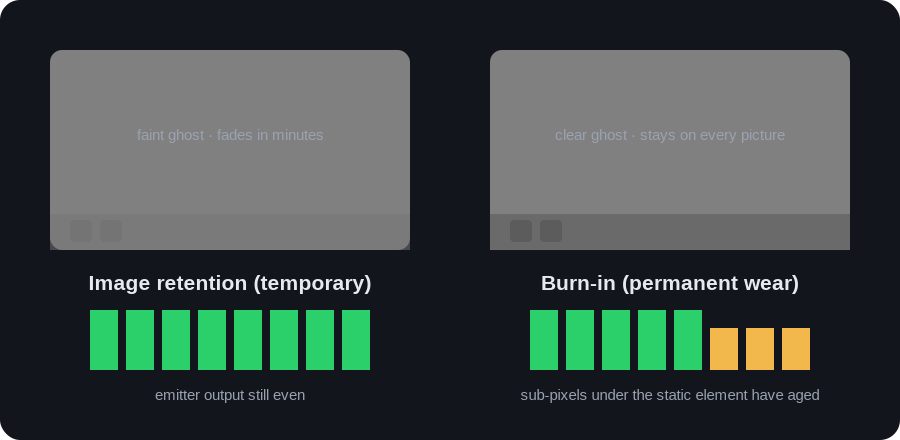
The practical test for which one you have is time. Show a mid-grey field, note the ghost, watch something varied for half an hour, and look at the grey again. Retention is gone or much weaker; burn-in is unchanged. LCDs can show retention too, and a form of permanent image sticking on old or abused panels, but the self-emitting structure of OLED is what makes uneven wear a design consideration rather than a rarity.
Test yourself with the burn-in test
The burn-in test page fills the screen with solid colours and with 18 % and 50 % grey, the levels at which burn-in is most visible, because a uniform mid-grey asks every pixel for the same modest output and any that have aged show as a darker shape. Run it full screen in a dim room after the display has been on for a few minutes. Look for the shapes of things that live on your screen: the taskbar or dock along one edge, a browser’s tab strip, a news channel’s lower-third, a game’s map and ammunition counter, the keyboard area on a phone, a static clock. Then step through red, green and blue: wear is often stronger in one colour, and a shape that is faint on grey can be obvious on a single primary. If you see something, use the retention check: the test shows a varied moving pattern for a timed period and then returns to grey, so you can compare before and after without guessing. A shape that survives is burn-in; one that fades was retention. Repeat the comparison on another day if the result is borderline, because a panel that has just shown a static image for hours needs longer to relax.
For a used OLED you are thinking of buying, or a display coming back from a repair, this is the one check that matters, because burn-in is the fault a seller is least likely to mention and the one you cannot fix. The gray screen page gives the same 18 % and 50 % fields without the timer if you want the quick version on a phone in a shop, and the full monitor test includes a uniformity step for the same purpose.
How much burn-in risk is real
Honest framing: for most people watching mixed content at sensible brightness, a modern OLED TV lasts for years without visible burn-in, because the content varies and the panel’s own compensation routines even out small differences. The risk rises with three things together: static content, the same bright element in the same place; brightness, because wear accelerates with drive current; and hours. A news channel on all day, a monitor with a bright taskbar and white document windows for eight hours of work, a game with a fixed bright HUD played for hundreds of hours, a phone used as a dashboard with the screen always on, are the cases that produce it. Manufacturers’ own advice targets exactly these: Samsung’s monitor page warns against “video games that display fixed images for a long time,” Sony’s says that “images that include clocks and bright colors easily cause image retention,” and Apple asks users to “avoid displaying static images at maximum brightness for long periods of time.”
The settings below are the practical translation of that advice, and most of them cost nothing in picture quality.
How to prevent OLED burn in: settings for TVs, monitors and phones
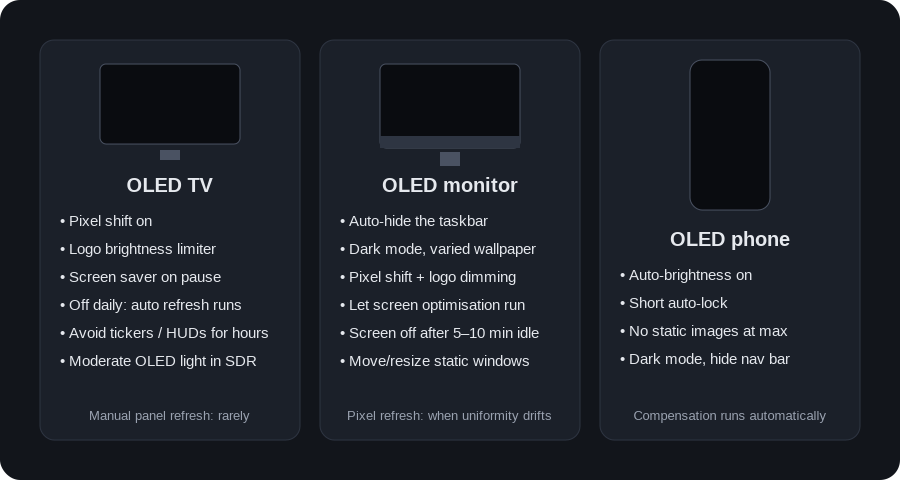
OLED TVs. Every current OLED TV ships with a set of panel-care features; the names differ by brand but the functions are the same four. A pixel shift (orbiting) that moves the whole image by a pixel or two at intervals so that hard edges do not sit on the same sub-pixels; Sony describes it as a feature that “helps prevents image retention by automatically moving the image at fixed intervals” and says to keep it enabled. A logo brightness limiter that detects static bright elements and dims them. A screen saver that starts when a paused image or a menu is left on screen. And an automatic compensation cycle that runs when the TV is switched off with the remote, which is why the manufacturers tell you to turn the TV off rather than leave it on a static screen: Sony recommends you “turn off the TV on a daily basis for more than four hours using the remote control or the power button,” and LG says its Pixel Cleaning “runs automatically when you turn off the TV” and to leave the TV plugged in. Beyond the menu: keep SDR brightness (often called OLED light or OLED pixel brightness) at the level the room needs rather than maximum, use the TV’s game mode for games rather than a vivid mode, and give channels with permanent tickers a rest.
OLED monitors. A desktop is the hardest case for an OLED because so much of it is static and bright: the taskbar, window title bars, white documents, a browser’s tab strip. Samsung’s panel-care menu for its OLED monitors, at Settings › All Settings › General & Privacy › Panel Care, offers Pixel Shift (“moves pixels at regular intervals to prevent screen issues,” on by default), Adjust Logo Brightness (“prevents screen issues by lowering the brightness of fixed images, such as logos and banners,” with Off, Low and High), an automatic Screen Optimization that runs when the monitor is turned off after four or more hours of cumulative use and takes about ten to fifteen minutes, and a manual Pixel Refresh. Other brands have equivalents under names like screen move, taskbar detection and pixel cleaning. On the computer side: set the taskbar or dock to hide automatically, use dark mode and a dark or varied wallpaper, let the screen turn off after five or ten minutes idle rather than showing a screen saver, and move or resize the windows you keep open all day from time to time. Moderate SDR brightness does more than any single setting.
Phones and tablets. Apple’s advice for OLED iPhones is a good summary for any OLED phone: use auto-brightness, set a short auto-lock so the display turns off when you are not using it, and avoid static images at maximum brightness for long periods. Apple also describes the compensation that runs underneath: algorithms that “monitor the usage of individual pixels to produce display calibration data,” used to “automatically adjust the brightness levels for each pixel as needed to reduce visual effects from burn-in.” Always-on displays are designed around these rules, dimming heavily and shifting content. The phone cases that do produce burn-in are the ones that defeat them: a navigation app on a car mount at full brightness for hours every day, a point-of-sale or dashboard app running permanently, a game with a bright fixed interface played for very long sessions.
Built-in pixel refresh: what it does and how often to run it
Every OLED runs two kinds of compensation. The short cycle (a few minutes) runs automatically after some hours of use when the device is switched off; it measures and corrects small drifts between pixels and you never need to think about it, except to let it happen by turning the TV or monitor off with its own control rather than at the wall. The long cycle (about an hour) is the one with a menu entry, and it is a stronger correction that works by ageing the whole panel slightly to match the most worn pixels, which is why the manufacturers tell you not to run it casually. Sony’s instruction is the clearest: “manually perform panel refresh only when image retention is particularly noticeable. Avoid performing it more than once a year because it may affect the usable life of the panel.” Run it when the test above shows a persistent shape that bothers you, not as maintenance.
The menu locations from the manufacturers’ support pages, as published on 20 October 2026:
- LG OLED TVs (Pixel Cleaning / Pixel Refresher). 2022 and newer (webOS 22+): Settings › All Settings › General › OLED Care › OLED Panel Care › Pixel Cleaning. 2021 (webOS 6.0): Settings › All Settings › Support › OLED Care › OLED Panel Care › Pixel Cleaning. 2020 (webOS 5.0): Settings › All Settings › Picture › OLED Care › OLED Screen Saver › Pixel Refresher. 2019 (webOS 4.5): Settings › All Settings › Picture › Additional Settings › OLED Panel Settings › Pixel Refresher. 2018 and older: Settings › All Settings › Picture › OLED Panel Settings › Pixel Refresher. The TV must stay plugged in; it runs while the TV is off.
- Samsung OLED monitors (Pixel Refresh). Settings › All Settings › General & Privacy › Panel Care › Pixel Refresh, then Start Now or Start After Monitor Off. Samsung notes that the power is turned off for more than an hour and that a white line may appear on the screen during the process, which is normal, and that the feature is not available on all models.
- Samsung OLED TVs (Pixel Refresh). Samsung’s support article points to Settings › Picture › Picture Settings and the Pixel Refresh entry there, for the QN90B, QN95B, S90C, S95B and later models it lists; it suggests the feature when a static image has left a visible trace and directs you to Samsung Service if the trace remains afterwards.
- Sony BRAVIA OLED TVs (Panel refresh). HOME › Settings › Display & Sound › Expert panel settings › Panel refresh; about an hour, with the room between 10 °C and 40 °C, and no more than once a year by Sony’s own advice. Pixel shift lives in the same menu and should stay on.
Phones have no manual refresh; the compensation is continuous and invisible.
If your TV or monitor is not listed, the entry is almost always under a panel-care, OLED-care or screen-protection heading in the picture or general settings, and the manual for the model will name it. Avoid third-party instructions that tell you to run the long cycle weekly; none of the manufacturers’ pages we read suggests that, and Sony’s explicitly warns against it.
How to fix screen burn-in (and what does not work)
Start with the test, because most “burn-in” is retention and the fix for retention is to display varied content for a while, which the test’s retention check and the burn-in test’s fixer mode both do; the fixer runs moving colour patterns on a timer so you do not have to find a video to leave on. If the shape fades, it was retention and nothing more is needed. If it does not, the options are: the manufacturer’s long pixel refresh, once, as above; living with it, which is easier than it sounds for a faint shape visible only on grey; and a warranty or service claim. Things that do not work on OLED: “burn-in fixer” videos beyond what the retention check already does (they are varied content, useful for retention, useless for wear); pressure or heat, which are dangerous on any panel and pointless here; and the stuck-pixel fixers meant for LCD cells. Some reduction is possible by lowering the panel’s overall brightness so that the worn region’s shortfall is smaller in absolute terms, but that is masking, not repair. Permanent burn-in is a replacement-panel problem.
Is it covered by warranty?
Less often than you would hope, and the wording matters. Many warranties exclude image retention and burn-in as the result of use rather than a defect, or simply do not mention it, which in practice means a case-by-case evaluation. Where cover exists it is explicit. Dell’s Alienware monitor support page states that “QD-OLED panel technology is limited to a 3-year maximum warranty term, includes burn-in,” so a QD-OLED Alienware is covered for burn-in for three years. LG’s UK OLED TV warranty page offers a five-year panel warranty (panel, parts and labour in year one, panel only from years two to five) and states that it does not cover commercial or abnormal use, without naming burn-in either way. Several other monitor brands now advertise two- or three-year burn-in cover on specific OLED models; read the product page and the warranty leaflet for the exact model rather than the brand, and keep the receipt, because these are per-model promises with start dates. Samsung’s OLED pages we read do not state a burn-in warranty position and direct persistent cases to service. If you do claim, the test’s grey fields and a photograph of the shape with the field on screen are the evidence a service desk asks for, and the date you first saw it matters; take the photos the day you notice. The same documentation habits apply as for pixel claims, which the dead pixel policy guide covers.
Buying an OLED without worrying
Choose by use, and set expectations from the test rather than from forum horror stories, which are real but describe the worst cases. For films, series and mixed TV, an OLED is a low-risk choice, and the default settings protect it. For a living-room set that shows a news channel all day, a bright LCD is the safer buy, or accept the care routine and lower brightness. For a desktop monitor, an OLED is excellent for games and video and needs the habits above for office work; if you spend eight hours a day in white documents and spreadsheets, an LCD for work and an OLED for play is a reasonable split. For a phone, the risk is small under normal use and the compensation is automatic; the exceptions are permanent-display jobs. And for a second-hand OLED, bring the burn-in test, show the 50 % grey, and look for the previous owner’s taskbar.
FAQ
What does OLED burn-in look like? A faint, fixed shape visible on uniform fields, usually mid-grey, in the outline of something that sat on the screen for long periods: a taskbar, a channel logo, a game’s interface. It is darker than its surroundings or slightly tinted, and it appears on every picture in the same place, unlike retention, which fades.
How long does it take for OLED to burn in? There is no fixed number; it depends on how static, how bright and how long. Varied content at normal brightness can run for years without visible wear, while a bright fixed element for many hours a day can show within months. Static plus bright plus hours is the combination to avoid.
Can OLED burn-in be fixed? Permanent burn-in cannot be reversed, because it is wear of the emitters. The manufacturer’s long pixel refresh can reduce visibility once by evening out the panel, and lowering brightness masks it. Retention, which looks the same for a few minutes, clears with varied content, which is why the test comes first.
Does the built-in pixel refresh damage the panel? The short automatic cycle does not; it is routine. The long manual cycle ages the whole panel slightly to match worn pixels, which is why Sony advises running it only when retention is particularly noticeable and no more than once a year. Use it as a remedy, not maintenance.
Should I turn off pixel shift? No. It moves the image by a pixel or two at intervals and is invisible in use; Sony and Samsung both say to leave it on. Turning off panel-care features to gain a sliver of sharpness is how burn-in happens.
Is burn-in covered by warranty? Only where the warranty says so explicitly, such as Dell’s three-year QD-OLED cover including burn-in. Many warranties do not mention it or exclude it as usage. Check the model’s warranty leaflet, and document any shape with the test’s grey field and a photo on the day you first see it.
Do LCDs get burn-in? Rarely and differently. LCDs can show temporary image retention and, on old or heavily used panels, a permanent image sticking in the liquid crystal. It is uncommon on modern panels and does not involve emitter wear. The same test shows it, and the same retention check tells the temporary kind from the permanent.