How to Connect an Xbox Controller to PC (Wired, Bluetooth, Adapter)
There are three ways to connect an Xbox controller to a PC, and which one you choose decides more than convenience: how to connect Xbox controller to PC with the lowest latency is a cable, with several controllers or a headset is Microsoft’s Xbox Wireless Adapter, and with no extra hardware is Bluetooth, which works only on controllers made since 2016 and, on a PC, without vibration. This guide gives the steps for each, a live check that turns green when Windows or macOS is actually delivering the controller to applications, the firmware update that fixes a surprising share of connection problems, and the fixes for a controller that pairs but does nothing or will not pair at all. Once it is connected, the Xbox controller tester checks every button, both triggers, stick drift and rumble in a minute.
USB
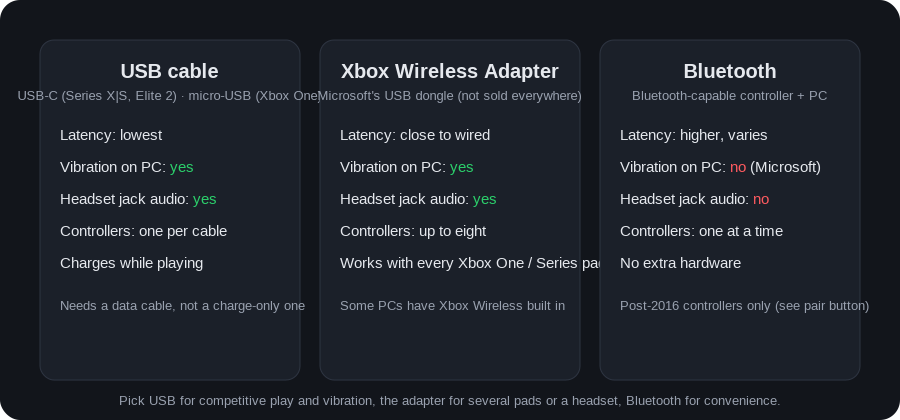
Plug a cable into the port on the top edge of the controller and into the PC; Windows installs the driver itself and the controller is ready within seconds, with no pairing step. Xbox One controllers use micro-USB; the Xbox Series X|S controller, the Elite Series 2 and the Adaptive Controller use USB-C. The cable must carry data: a great many micro-USB and USB-C cables sold for charging phones carry power only, and a controller on one of them lights up, charges, and never appears to the PC. If a cable works for file transfer with a phone it will work here. A wired connection is the lowest-latency option, supports vibration and the headset jack, and charges a rechargeable battery pack while you play; the controller latency test is the page to compare it against a wireless connection on your own machine. A wired Xbox controller counts as one controller per cable and does not need the controller to have Bluetooth, so it is also the route for the oldest Xbox One pads. On a Mac, USB works the same way on current macOS versions.
Bluetooth (which models support it)
Only controllers made since the 2016 revision have Bluetooth, and Microsoft’s test for which one you have is the plastic around the Xbox button: if it is part of the face of the controller, with no seam between the button’s surround and the body, the controller supports Bluetooth; if the plastic around the Xbox button is part of the top, where the bumpers are, it is an original 2013–2015 Xbox One controller and connects only by USB or the Xbox Wireless Adapter. Every Series X|S controller, Elite Series 2 and Adaptive Controller supports Bluetooth.
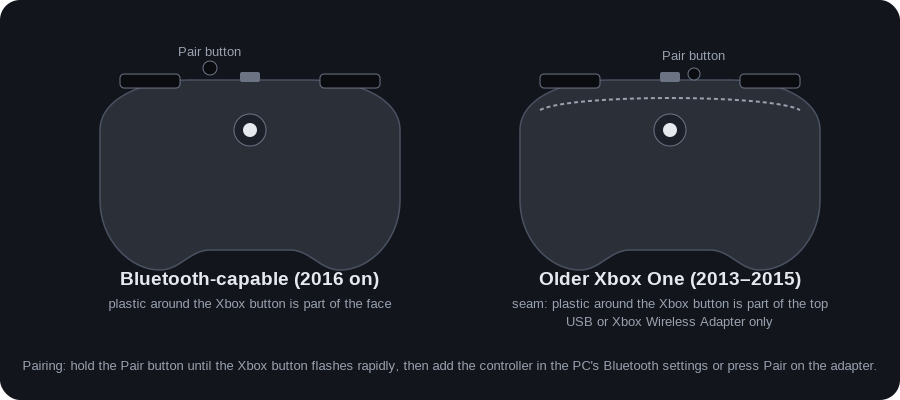
To pair on Windows 11: turn the controller on with the Xbox button, then press and hold the Pair button on the top edge for three seconds until the Xbox button flashes rapidly. On the PC, open Settings › Bluetooth & devices, make sure Bluetooth is on, choose Add device, then Bluetooth, and select Xbox Wireless Controller (or Xbox Elite Wireless Controller) from the list; Microsoft’s Windows page notes that if the device isn’t displayed, the Bluetooth devices discovery setting might need to be set to Advanced. On Windows 10 the path is Settings › Devices › Bluetooth & other devices › Add Bluetooth or other device. The Xbox button stays lit when connected. Three limits to know before you choose Bluetooth: Microsoft states that controller vibration does not work when playing games on a PC while the controller is connected through Bluetooth; the headset jack does not pass audio over Bluetooth; and Windows supports one Xbox controller over Bluetooth at a time. A controller paired with a PC must be re-paired to the console afterwards, and the reverse, since it remembers one Bluetooth host; the adapter and USB do not have that limitation. On a Mac, pairing is the same hold-to-flash step and then System Settings › Bluetooth › Connect.
Xbox Wireless Adapter
Microsoft’s own USB dongle speaks the Xbox Wireless protocol rather than Bluetooth, which is why it works with every Xbox One and Series controller, including the pre-2016 ones, supports vibration and headset audio on PC, and connects up to eight controllers at once. Plug the adapter into a USB port with a clear line of sight to where you sit, ideally on the front of the case or an extension lead rather than behind a tower; turn the controller on; press the Pair button on the adapter until its light flashes; then press and hold the Pair button on the controller until the Xbox button flashes rapidly. Both lights go solid when connected, and the controller stays paired to the adapter through restarts until you pair it elsewhere. Some Windows laptops and desktops have Xbox Wireless built in, in which case the same steps work without the dongle; the adapter is not sold in every market. Latency over the adapter is close to wired in our comparison design, and the latency test’s A/B run is how to confirm that on your setup.
Check it’s connected
Press any button on the controller now. Browsers hide controllers from web pages until the first button press, so the box below reads “waiting” even when Windows already lists the controller; the press makes it visible and the box names the controller family and turns green.
Waiting for a controller — connect it and press any button.
This check runs in your browser. Controllers stay hidden from web pages until a button is pressed, so press one even if the controller is already connected.
Now test it: Xbox Controller TesterGreen means the operating system is delivering the controller to applications and the connection problem, if there was one, is solved. If the box says the controller arrived “through Steam Input”, Steam is running and presenting it as a virtual controller, which is normal and discussed below. If the box stays on “waiting” after a button press, go to the fixes section. If it turns green, press a few buttons to see the count move, then open the full Xbox tester for the full check of every button, the analog triggers, stick drift and both rumble motors, which is worth doing once on any new or second-hand controller while a return is still possible.
Update controller firmware (Xbox Accessories)
Controller firmware fixes connection drops, Bluetooth pairing failures on particular PCs and headset problems, and Microsoft’s page says keeping the controller updated maximises its capabilities and compatibility. On Windows, the update runs through the Xbox Accessories app from the Microsoft Store: connect the controller, open the app, and it offers an update if one is available; it can also be done on an Xbox console wirelessly or by USB. For the update itself, Microsoft’s page is explicit: connect your Xbox Wireless Controller by using a USB cable or the Xbox Wireless Adapter for Windows, because updating the controller over Bluetooth is not supported (Microsoft: update your Xbox Wireless Controller); plug in before updating. Microsoft also documents that a firmware update can occasionally cause Bluetooth connection problems with some older non-Xbox devices and provides a way to revert to the previous firmware through the same app; if a controller that used to pair with a laptop stops after an update, that page is the place to look. Update once when you first set up the controller and again if a connection problem appears; there is no need to chase every release, and a controller that works is not improved by an update it did not need.
How to connect Xbox controller to PC: which way, and on a Mac
Choose by what you need rather than by habit. For competitive play, vibration and the headset jack, the cable wins on every count and costs nothing. For a living-room PC with several controllers, or a wireless controller with a headset plugged into it, the Xbox Wireless Adapter is the only route that delivers everything wirelessly, and it also supports the pre-2016 controllers that have no Bluetooth. For a laptop, a travel setup or an occasional game, Bluetooth is fine, with vibration off on PC and one controller at a time. Nothing stops you switching: a controller paired over Bluetooth works on a cable the moment you plug it in, and the latency test’s A/B run tells you whether the difference is one you can feel on your hardware.
On a Mac, current macOS versions support Xbox controllers over USB and Bluetooth without extra software: for Bluetooth, hold Pair until the Xbox button flashes, open System Settings › Bluetooth, and click Connect next to the controller; then choose nothing else, since macOS presents it as a standard gamepad to games and browsers. The live check and the tester on this site run in Safari, Chrome and Firefox on a Mac. The Xbox Wireless Adapter has no macOS driver, so Mac users are limited to the two other routes, and firmware updates still need a Windows PC or a console.
Not connecting?
Work down this list; each item takes a minute.
- Press a button and check the embed again. Browsers and some games need an input before they see the controller.
- Cable. Swap a USB cable that may be charge-only for one known to carry data, and try another USB port, preferably on the back of a desktop or directly on a laptop rather than through a hub.
- Battery. A controller with low batteries pairs and drops, or pairs and reports nothing. Fresh AA cells or a charged pack first.
- Re-pair. Hold Pair until the Xbox button flashes, remove the old entry under Settings › Bluetooth & devices if it is there, and add the controller again. A controller last used on a console has to be paired to the PC afresh.
- Bluetooth model check. If the plastic around the Xbox button is part of the top shell, the controller has no Bluetooth; use USB or the adapter.
- Bluetooth adapter on the PC. Built-in Bluetooth on older laptops often lacks the bandwidth for a controller plus a headset; disconnect audio devices to test, or use the Xbox Wireless Adapter. Windows 10 needs the Anniversary Update or later for Xbox Bluetooth.
- Firmware. Update through the Xbox Accessories app over USB.
- Steam Input. If a game sees no controller while the embed shows one through Steam Input, Steam has taken it; close Steam, or in Steam › Settings › Controller adjust the configuration support for Xbox controllers for that game. The PS5 connection guide has the same Steam section in more detail, and it applies to Xbox pads.
- Driver. In Device Manager, an Xbox controller appears under Xbox Peripherals or as an HID-compliant game controller; one with a warning icon can be uninstalled and reconnected so Windows reinstalls the driver.
- Another PC or console. A controller that fails everywhere is the controller: check the battery contacts, and if it is under warranty, Microsoft’s support is the route; if it is out of warranty and the problem is a stick rather than the connection, the stick drift guide covers repair options.
FAQ
How do I connect an Xbox controller to a PC wirelessly? Two ways: Bluetooth, on controllers made since 2016 (no seam around the Xbox button), by holding the Pair button until the Xbox button flashes and adding the controller in Settings › Bluetooth & devices; or the Xbox Wireless Adapter, by pressing Pair on the adapter and then on the controller. The adapter supports vibration, headset audio and up to eight controllers; Bluetooth supports one controller and no vibration on PC.
Why does my Xbox controller connect but not vibrate on PC? Because it is on Bluetooth: Microsoft states vibration does not work on a PC over Bluetooth. Connect by USB or through the Xbox Wireless Adapter and test it on the vibration test.
Why won’t my Xbox controller connect via Bluetooth? Most often the controller is a pre-2016 model without Bluetooth, the batteries are low, it is still paired to a console, or the PC’s Bluetooth adapter is old. Hold Pair until the Xbox button flashes rapidly, remove any old entry in Bluetooth settings, and try again; if the plastic around the Xbox button is part of the top shell, use USB or the adapter.
Do I need the Xbox Wireless Adapter? Not for one Bluetooth-capable controller. You need it for an original Xbox One controller without Bluetooth, for vibration or headset audio wirelessly on PC, or for more than one wireless controller at a time.
Does an Xbox controller work on a Mac? Yes, over USB or Bluetooth on current macOS versions, with the same hold-to-flash pairing step and System Settings › Bluetooth › Connect. The tester and the live check on this page work in Safari, Chrome and Firefox on a Mac.
How do I update my Xbox controller’s firmware on PC? Install the Xbox Accessories app from the Microsoft Store, connect the controller by USB or the adapter, open the app and accept the update it offers. Updates fix connection and headset problems; Microsoft also provides a reversion if an update breaks Bluetooth pairing with an older device.
Why does Steam show my Xbox controller as a different controller? Steam Input is translating it. That is normal and usually harmless for Steam games; for a game that misbehaves, disable Steam Input for that game in its controller settings, or close Steam while playing outside it.