Touch Screen Not Working? Test It, Then Fix It
iPhone touch screen not working is the most-searched version of a problem every touch device has, and the first step is the same on all of them: find out whether the screen is dead everywhere, dead in one region, or responding but ignored by an app or a setting. The mini test below paints a grid on the screen you are holding and tells you which, and the touch screen test does the same in full screen with a finer grid, a multi-touch counter and a report for a repair request. The fixes that follow are quoted from Apple’s, Samsung’s, Google’s and Microsoft’s own support pages, nothing is reproduced from forums, and no “last resort” involving heat or pressure appears here, because the makers do not recommend any and they damage screens.
Test the screen first
Press Test my screen and drag a finger over every cell of the box; press Evaluate when you have covered it. If the screen is so unresponsive that you cannot press the button, that is itself the answer, and the “Nothing responds” branch below applies.
Drag a finger over every cell of the box below. Edge cells are the system gesture zone and are not counted.
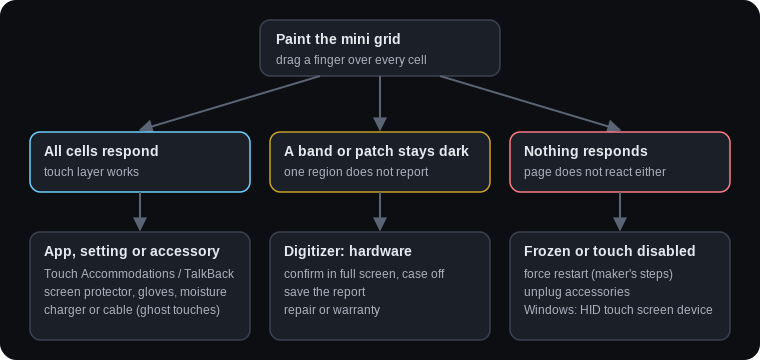
All cells respond. The touch layer works. Whatever ignores you is an app, a setting or an accessory: an accessibility feature such as Touch Accommodations or TalkBack, a screen protector or glove, moisture, or, for touches that happen on their own, a charger or cable. Go to the platform section for your device and skip the hardware part. A band or patch stays dark. That region of the digitizer is not reporting. Confirm it with the full test in full screen, with the case and protector removed, and if the dark region is still there in the same place, it is hardware; the digitizer section at the end covers repair and warranty, and the full test’s report is the evidence to take with you. Nothing responds at all. The device is frozen, touch is disabled, or the controller has stopped. On a phone or tablet the maker’s force restart is the first move; on a Windows laptop, the touch screen device may be disabled in Device Manager, which Microsoft’s steps re-enable; and if a mouse works but touch does not on a Surface, Microsoft’s UEFI test separates Windows from hardware.
iPhone touch screen not working (and iPad)
Apple’s page for a screen that isn’t working on an iPhone or iPad gives four steps, in this order: restart your iPhone or iPad; make sure that your screen is clean and free of any debris or water; disconnect any Lightning or USB-C accessories, and if your screen works after removing an accessory, try using a different outlet, cable or charger; and remove any cases or screen protectors. If the screen still isn’t working after those, Apple says you might need to set up service for your device (Apple: if the screen isn’t working on your iPhone or iPad). The restart matters because a frozen iPhone looks exactly like a dead screen, and a frozen iPhone cannot be restarted from the screen. Apple’s force-restart steps: on iPhone 8 and later, press and quickly release the volume up button, press and quickly release the volume down button, then press and hold the side button until you see the Apple logo; on iPhone 7 and 7 Plus, press and hold the side button and the volume down button together until the logo appears; on iPhone 6s and earlier, press and hold the Home button and the side or top button together until the logo appears (Apple: restart an unresponsive iPhone). The accessory step is the one people skip and the one that catches the strangest cases: a charger that makes the screen ignore or invent touches is common enough that Apple lists it second, and the fix is a different outlet, cable or charger, not a new screen.
If the screen responds but seems slow, needs a long press, or ignores quick taps, check Touch Accommodations, an accessibility feature that, in Apple’s words, changes how the screen on your device responds to taps, swipes and other gestures. It lives under Settings > Accessibility > Touch > Touch Accommodations, and its options explain the symptoms: Hold Duration sets how long you must press the screen before your touch registers, and above 0.3 seconds a circular timer appears when you touch the screen; Ignore Repeat makes multiple inadvertent or involuntary taps read as a single tap; Tap Assistance decides whether your initial touch location or final touch is read as your intended tap location (Apple: use Touch Accommodations). A device that was set up for someone else, or a child who found the setting, is the usual route to these being on. The same checks apply to an iPad; Apple’s screen page covers both devices.
Two iPhone-specific details save repeat visits. The accessory step includes anything in the charging port, not only the charger: a cable connected to a car, a speaker dock or a power bank counts, and Apple’s wording, a different outlet, cable or charger, is a reminder that the supply end matters as much as the cable. And a screen that works everywhere except along the very bottom or in the corners is usually a case or protector edge rather than a fault; the full touch screen test greys out the system gesture zone so that the home indicator strip is not mistaken for a dead band, and a dead band that is not at an edge is the digitizer. On an iPad with a keyboard case or a magnetic cover, remove the case before testing, since a cover that is slightly misaligned presses on the screen edge and can both block and invent touches.
Android and Samsung
Samsung’s troubleshooting page for Galaxy touchscreen issues is the most complete maker page on the subject and its order is the one to follow. Restart first: press and hold the Side key and Volume down key at the same time for more than seven seconds until the device restarts automatically. Then accessories and protectors: remove non-genuine accessories, and if you use a screen protector, turn on Touch sensitivity under Settings > Display, which raises the sensitivity to compensate for the extra layer. Then accessibility: TalkBack changes how touch works, so go to Settings > Accessibility > TalkBack and tap the switch to turn it off if it was on by accident. Then moisture: wipe the screen with a soft, dry cloth and try again. Then software: Settings > Software update > Check for updates, and update apps through the Google Play Store’s Manage apps & device section. Samsung’s own diagnostic runs inside the Samsung Members app: open it, select Support, tap Get started, select Touch screen and follow the on-screen instructions. Safe mode, reached by holding Power and Volume down and then touching and holding Power off and tapping Safe mode, runs the phone without third-party apps and shows whether an app is the cause. A factory data reset under Settings > General management > Reset is the last software step, after a backup (Samsung: troubleshoot touchscreen issues on a Galaxy device).
Google’s page for a Pixel screen that doesn’t respond correctly starts with the same physical checks: try removing the case or screen protector to see if touch responsiveness improves, make sure the screen is clean, remove any stickers covering the screen or sensors, and take off gloves. On Pixel 9 models, open Settings, tap Display & touch, then Touch diagnostics, to run Google’s own test; install system updates under Settings > System > Software updates; and try Adaptive touch under Settings > Display & touch > Touch sensitivity, turning it on or off. On Pixel 8a and earlier, toggle Screen protector mode under Settings > Display & touch > Touch sensitivity. Safe mode isolates a misbehaving app here too, and Google adds that a problem confined to one app is the app developer’s to fix (Google: fix touch and response issues on your Pixel screen). The grid above and the full test on this site are a maker-neutral version of those diagnostics, useful on a phone whose maker has none.
Two Android habits help. The sensitivity settings are a trade: Samsung’s Touch sensitivity and Google’s Screen protector mode make the screen respond through a protector but can also make it twitchy without one, so turn them off when you remove the protector and on when you fit one. And safe mode is the fastest test for the app-side cause: if the screen behaves perfectly in safe mode and misbehaves after a normal boot, an app is interfering, usually one with an overlay or a screen filter, and uninstalling recent additions one at a time finds it; Samsung’s and Google’s pages both put safe mode ahead of a reset for exactly this reason.
Windows touch laptop and Surface
A Windows touch screen that stops responding while the touchpad and mouse work is very often a software state rather than a fault, and Microsoft documents two checks. The first is whether the touch screen device is enabled at all: right-click the Start menu and select Device Manager, select the arrow next to Human Interface Devices to expand it, right-click HID-compliant touch screen and select Enable device (or Disable device to turn it off); if more than one touchscreen device appears, repeat the step for each (Microsoft: enable and disable a touchscreen in Windows). A touch screen that someone disabled to stop stray touches stays disabled through restarts, and this is where it comes back.
For Surface devices Microsoft’s touch troubleshooting page goes further. Check for updates: in the Surface app, expand Help & support to check the update status, and if updates are available, select Check for updates to open Windows Update. Test touch in UEFI, which runs independently of Windows: when the Surface is off, press and hold the volume up button and press the power button until a Microsoft or Surface logo appears, then touch the screen and try to navigate the UEFI menus by tapping; if touch works there, the issue involves Windows or the driver, and if it fails there, it is likely a hardware failure that needs service. Reinstall the touchscreen driver: in the search box on the taskbar enter device manager, select Device Manager, expand Human Interface Devices, right-click HID-compliant touch screen and select Uninstall device, then from the Action menu select Scan for hardware changes, and Windows reinstalls the driver. Microsoft also notes that nearby electronic equipment can interfere with touch, and that disabling touch also affects the Surface Pen and other touch accessories (Microsoft: how to fix touch issues on your Surface touchscreen). The UEFI test is the Windows equivalent of this page’s grid: it answers the hardware question without the operating system in the way.
On a non-Surface Windows laptop the same logic applies with the maker’s tools in place of UEFI: Device Manager’s HID-compliant touch screen entry is universal, a driver reinstall through Scan for hardware changes works on any brand, and a touch screen that works in the BIOS setup screen but not in Windows is a software problem. Laptops whose touch screen died after a Windows update are common and almost always this: the device was left disabled or its driver replaced, and the enable step or the reinstall brings it back. A convertible that ignores touch only in tablet mode, or only with the pen, has a separate setting for pen-and-touch input in Windows’ Settings that is worth checking before Device Manager.
Steam Deck
Valve’s Steam Deck basic use and troubleshooting guide has no touch-screen troubleshooting section, so this section quotes only what that guide does say and adds no invented steps. On cleaning, which is the one touch-relevant instruction in it, Valve says to use a dry microfiber cloth to clean the display, and if a cleaning liquid is used, not to apply the alcohol directly to the display glass but to the cloth only, because applying any liquid directly to the display may result in damage not covered by the warranty (Valve: Steam Deck basic use and troubleshooting guide). Beyond that, the general advice for any touch device applies: restart the Deck, remove a screen protector if one was fitted, and test the screen in the Deck’s own browser with the full touch screen test on this site, which runs there like anywhere else. The Deck’s controls are a separate question: its thumbsticks, triggers and buttons are tested on the gamepad tester, and a Deck whose screen ignores touches but whose controls work is a touch-layer problem, not a controller one. If Valve publishes a touch page, this section will quote it; until then, Steam Support is the route for a Deck whose screen fails the grid.
Screen protector, moisture, gloves and cases
Four ordinary causes account for most touch screens that “stop working” without being broken, and all four appear on the makers’ pages above. Screen protectors add a layer between finger and digitizer; a thick, cheap or badly applied one reduces sensitivity and blocks the edges, which is why Samsung’s page offers a Touch sensitivity setting and Google’s a Screen protector mode, and why Apple’s and Google’s first instruction is to remove the protector and see. Moisture conducts, so drops on the screen or a damp finger register as touches or smear them; Samsung’s instruction to wipe the screen with a soft, dry cloth is the whole fix, and a phone that has been rained on will behave until it dries. Gloves do not conduct unless made for touch screens; Google lists taking them off among its first checks. Cases with a lip that overhangs the glass, or that press on the edge of the screen, cause touches along that edge to be missed or invented; removing the case is on every maker’s list. Add to these the accessory on the charging port: Apple’s page puts disconnecting Lightning or USB-C accessories ahead of removing the case, because a charger or cable with a noisy supply disturbs the digitizer, and the fix is a different outlet, cable or charger. Run the grid once with all of these removed before reading a sparse result as a fault.
There is a fifth ordinary cause that is not an object at all: the hands. Dry skin in winter, lotion, and a finger that is barely in contact register poorly on every capacitive screen, and a stylus made for the device is a fair control: if the pen paints the full grid and the finger does not, the digitizer is fine. Cold also slows some screens; a phone that misses touches in the first minute outdoors and recovers indoors is behaving within its specification rather than failing.
When it is the digitizer: repair or warranty
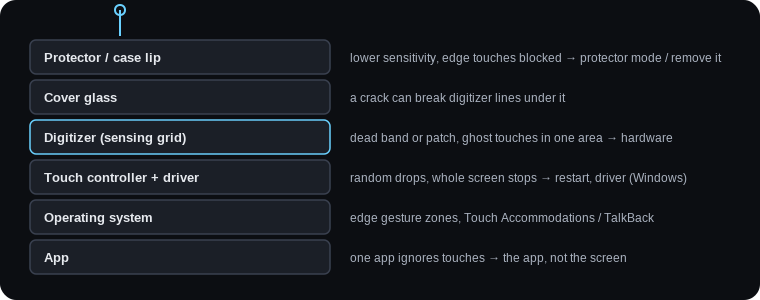
The digitizer is the transparent grid of sensing lines laminated to the glass, and it fails in recognisable ways: a vertical or horizontal band that never registers, a corner or patch that is dead after a drop, or touches that appear on their own in one area, which the ghost touch guide covers. Cracked glass often takes digitizer lines with it even when the picture is intact, and a screen that passed the grid before a fall and fails it after has answered the question. Once the software steps above are exhausted, the full touch screen test in full screen with case and protector off, repeated twice with the same dark region both times, is the evidence; its PNG report records the grid result, the simultaneous-touch count and the device class without any personal data, and it is what to attach to a service request. Apple’s page ends at service for this case; Samsung’s Members diagnostic and Google’s Touch diagnostics produce the makers’ own records on their devices; Microsoft’s UEFI test is the Surface equivalent. Repair means a screen assembly, since the digitizer is bonded to the glass and usually to the panel on modern devices, and the picture side of the same assembly is checked by the dead pixel test. What this guide does not include is any method that heats, presses, bends or taps the screen; such methods circulate widely, they can crack the glass or damage the panel, and no maker recommends them.
FAQ
Why is my iPhone touch screen not working? Apple’s order: restart (force restart if it is frozen: volume up, volume down, then hold the side button until the logo), clean the screen, disconnect any Lightning or USB-C accessory, remove the case and screen protector; if it still does not respond, service. Check Touch Accommodations under Settings > Accessibility > Touch if touches register slowly or oddly.
Why is my iPad touch screen not working? The same page covers iPad: restart, clean, disconnect accessories, remove case and protector, then service. The mini test above runs in Safari on iPad and shows whether a region or the whole screen is affected.
How do I fix a touch screen that is not working on Android? Samsung’s and Google’s pages agree on the order: restart, remove the protector and case or turn on the touch sensitivity setting, clean and dry the screen, check accessibility settings such as TalkBack, update software, run the maker’s diagnostic (Samsung Members, or Touch diagnostics on Pixel 9), try safe mode, and reset as the last software step.
Why does my laptop touch screen not work but the touchpad does? Usually because the touch screen device is disabled: Microsoft’s steps are Device Manager, Human Interface Devices, right-click HID-compliant touch screen, Enable device. On a Surface, test touch in UEFI to separate a Windows problem from hardware, and reinstall the driver if UEFI touch works.
Is my Steam Deck touch screen broken? We could not find a Valve support page for the Deck’s touch screen, so this guide gives no Valve steps. Restart, remove any protector, and run the touch screen test in the Deck’s browser; a dead region there with the controls working points at the touch layer, and Steam Support is the route.
Can a screen protector stop a touch screen from working? Yes, by reducing sensitivity and blocking the edges. Apple and Google both say to remove it to test, and Samsung and Google both offer a setting that raises sensitivity for protectors, Touch sensitivity on Galaxy and Screen protector mode or Adaptive touch on Pixel.