How to Connect a PS5 Controller to PC (Bluetooth & USB)
A PS5 DualSense works on a Windows PC or a Mac in two ways, and this is how to connect PS5 controller to PC with either: plug in a USB-C cable, or pair it over Bluetooth by holding the Create and PS buttons until the light bar flashes. Either way the computer sees it within seconds, and you can confirm that without opening a game: the live check further down this page turns green the moment the controller is detected, and the PS5 controller tester shows every button, trigger and stick. What takes a little more care is getting games to use it, because many PC games expect an Xbox-style controller; Steam handles that translation, and this guide covers that too, along with the fixes for a controller that won’t connect.
Fastest way to connect PS5 controller to PC: USB-C cable
Plug a USB-C cable into the port on the top edge of the DualSense and into the computer, then press the PS button. Windows 10 (64-bit) and later, Windows 11, and macOS 11.3 and later recognise the controller as a “Wireless Controller” with no driver to install; Sony lists those as the supported versions. Nothing else is required: the controller charges while connected, the light bar lights, and games and the tester below can read it immediately.
Before you start, two things save time whichever method you choose. Charge the controller for a while if it has been in a drawer, because a nearly flat DualSense connects and then drops out, which looks like a pairing fault. And decide what you want from it: for buttons, sticks, triggers and ordinary rumble, Bluetooth is fine and convenient; for a game’s haptic feedback and adaptive triggers, you need a cable, and you need the game to support the DualSense natively.
The one thing that goes wrong here is the cable. Many USB-C cables sold for charging phones carry power only, and the controller will charge from them but never appear to the computer. If the light bar comes on but nothing detects the controller, swap the cable for one you know transfers data (the cable from a phone that syncs, or one labelled as a data cable), and try a USB port directly on the computer rather than on a monitor or hub. USB is also the connection to prefer for anything beyond buttons and sticks: Sony notes that the DualSense’s haptic feedback on PC requires a USB connection, and it isn’t available on Mac at all.
Bluetooth pairing (PS + Create, Windows 11/10 steps)
Bluetooth frees you from the cable at the cost of the haptic features, which need USB. The pairing steps are Sony’s, and the Windows steps are Microsoft’s.
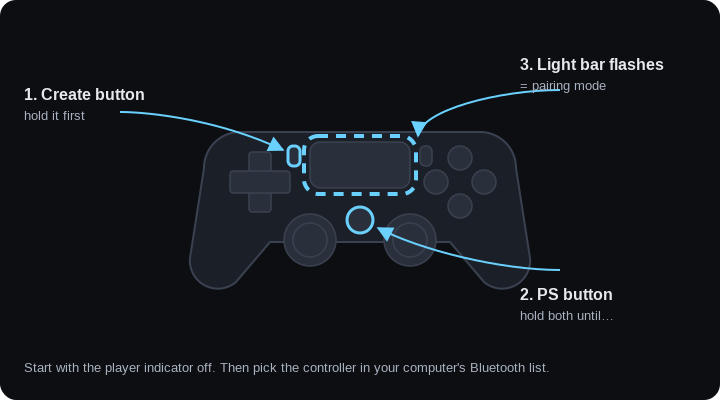
Put the controller into pairing mode. Make sure the player indicator on the controller is off; if it’s on, press and hold the PS button until it turns off, and disconnect any USB cable. Then, while pressing and holding the Create button (the small button to the upper left of the touchpad), press and hold the PS button until the light bar blinks. The controller is now discoverable and stays so for a short while; if it stops blinking before you finish, repeat the step.
Windows 11. Open Start > Settings > Bluetooth & devices, make sure Bluetooth is on, and select Add device, then Bluetooth. Pick “Wireless Controller” from the list of new devices. The light bar blinks while connecting and then the player indicator lights, which is Sony’s sign that pairing completed. You can also get there from the quick settings by the clock: select the Bluetooth quick setting’s chevron, Manage Bluetooth devices, and choose the controller under New devices.
Windows 10. Open Start > Settings > Devices > Bluetooth & other devices, turn Bluetooth on, select Add Bluetooth or other device, and in the “Add a device” window choose Bluetooth. Select the controller from the discovered list and select Done.
After the first pairing the controller reconnects when you press the PS button, as long as it hasn’t been paired with another device since. A DualSense remembers one Bluetooth host at a time: pairing it with the PC breaks the pairing with the PS5 (and the other way round), so switching between console and PC over Bluetooth means repeating the pairing each time. A USB cable to the console re-pairs it in one step.
Check it’s connected
Press any button on the controller now. Browsers keep controllers hidden from web pages until a button is pressed, so the box below reads “waiting” even when the controller is already connected; the first press makes it visible, and the box names the controller family and turns green.
Waiting for a controller — connect it and press any button.
This check runs in your browser. Controllers stay hidden from web pages until a button is pressed, so press one even if the controller is already connected.
Now test it: PS5 Controller Tester (DualSense)If the box says the controller arrived “through Steam Input”, Steam is running and presenting the DualSense to the system as a virtual Xbox controller. That is normal and works for most games, and it is covered in the next section. If the box stays on “waiting” after a button press, skip to Not connecting? Fixes. If it turns green, press a few buttons and watch the detail line count them, then open the PS5 controller tester for the full check of every button, both triggers, the touchpad click, stick drift and rumble; the tester is worth running once on a new or second-hand controller, because a stick that drifts or a trigger that stops short is far easier to return in the first week than to live with.
Steam: PlayStation Configuration Support
Steam’s controller layer, Steam Input, is what makes a DualSense work in games that were written for Xbox controllers. When it is enabled for PlayStation controllers, Steam reads the DualSense directly and presents an Xbox-style controller to the game, translating every button, stick and the triggers; games that support the DualSense natively through Steam’s API also get the touchpad, gyro and light bar. The same layer handles Xbox and Nintendo pads; the Xbox guide and the Switch Pro Controller guide cover their pairing and Steam options.
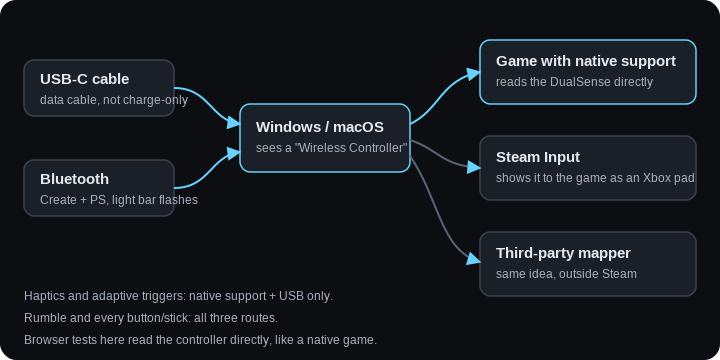
The setting lives in the Steam client under Steam > Settings > Controller, where PlayStation controller support is enabled; Valve’s Steam Input guide for players describes the controller settings there. Per game, right-click the title in your library, choose Properties, then the Controller tab, and set the override to enable or disable Steam Input for that game (this per-game path is not spelled out in Valve’s document; confirm it in your client). Enabling it is the right choice for games that don’t recognise the DualSense; disabling it is occasionally needed for games that do support the DualSense directly, where Steam’s translation would hide the native features. If a game shows Xbox button prompts, that is Steam Input doing its job rather than an error, and most games with native DualSense support switch to PlayStation prompts when Steam Input is disabled for them.
Steam Input also affects the browser tests on this site. With Steam running, the controller may reach the browser as a virtual Xbox controller: the gamepad tester flags this and switches the drawing to Xbox. To test the DualSense as the system sees it, close Steam first.
Games without DualSense support
Outside Steam, a game that only understands Xbox controllers (XInput) will ignore a DualSense connected over Bluetooth and may see it only partly over USB. There are three ways around that. The simplest is to add the game to Steam as a non-Steam game, which puts it behind Steam Input and gives it the same translation as a Steam title. The second is the game’s own launcher: several storefronts and launchers have their own controller translation that can be switched on in their settings. The third is a third-party mapping tool that presents the DualSense to Windows as an Xbox controller system-wide; DS4Windows is the best-known of these, and if you use one, download it only from its official project page and read what it installs, because it adds a virtual device driver.
Which route to pick depends on where the game came from. Steam titles and anything you can add to Steam are easiest behind Steam Input, which also remembers a layout per game. Games from other launchers that already offer their own controller translation are simplest with that switched on. A system-wide mapping tool is the last resort, useful for old games and emulators, and the one option that changes how Windows itself sees the controller, which is why it should be uninstalled cleanly when you stop using it.
A fourth category needs none of this: games built with native DualSense support read the controller directly over USB or Bluetooth and use the haptics and adaptive triggers over USB. Those features are the reason to prefer a cable when the game supports them, and they are also outside what any browser can test; the PS5 controller tester explains what the browser can and can’t reach on a DualSense.
Not connecting? Fixes
Work through these in order; each one is a real cause we see, and the live check above tells you immediately when one works.
Press a button. On this page and in the tester, the controller is invisible until you press something. In games, press the PS button to wake the controller.
Change the cable or port. A charge-only USB-C cable is the single most common reason a DualSense “doesn’t connect” by USB. Use a data cable and a port on the computer itself.
Re-pair from scratch. If the controller was last used with a PS5 or another PC, it is paired there, not here. Put it back into pairing mode (player indicator off, hold Create, hold PS until the light bar blinks) and add it again. In Windows, if a stale “Wireless Controller” entry already exists under Bluetooth & devices, remove it first and pair afresh.
Check Bluetooth itself. Pair any other device, such as a phone or headphones, to confirm the adapter works. Older laptop adapters and some USB dongles have trouble holding a controller connection, especially with headphones connected at the same time; a USB cable rules this out immediately, and if the controller works on the cable, the radio link is the problem.
Close Steam, or configure it. Steam can claim the controller exclusively. If a non-Steam game or the browser doesn’t see the controller while Steam is open, close Steam, or disable Steam Input for the game as described above.
Reset the controller. Sony’s troubleshooting page describes a reset button inside the small hole next to the Sony logo on the back of the controller: press and hold it with a pin or similar tool for at least 5 seconds, then connect by USB and press the PS button. This clears the controller’s pairing state without affecting anything else.
Update the controller. Sony’s PlayStation Accessories application for Windows updates DualSense firmware over USB and also exposes controller settings; connect the controller by cable and run it. A PS5 also updates the controller when it is connected to the console.
Charge it. A flat DualSense will pair, drop out and refuse to wake. Charge by cable for half an hour and try again; the light bar pulses orange while charging.
If none of this works and the controller also fails on a console or a second computer, the controller is faulty. If it works everywhere except one computer, the computer’s Bluetooth adapter or USB stack is the issue, and a cheap external Bluetooth 5 adapter is often the fastest fix.
A few patterns are worth recognising. A controller that connects, works for a minute and then drops is almost always battery or radio: charge it, move closer to the adapter, and take headphones off the same Bluetooth adapter. A controller that connects but whose sticks or triggers don’t move in a game, while buttons do, is a Steam Input or game-mapping problem rather than a connection problem, and the tester confirms it by showing the sticks moving. A controller that works over USB but never pairs over Bluetooth, on a laptop that pairs headphones fine, usually has a stale pairing entry on one side; remove the controller from Bluetooth & devices and reset the controller, then pair again. And a controller that Windows lists but that no game or test can read is sometimes held by another program: a remote-play app, a mapping tool, or Steam running in the background.
Mac
The DualSense works on macOS over USB-C or Bluetooth with no extra software, and Sony lists macOS 11.3 or later as supported. Apple’s pairing instruction matches Sony’s: press and hold the PS button and the Create button until the light bar flashes, then open Bluetooth settings on the Mac and select the controller from the list of nearby devices. On macOS Ventura 13 and later a connected controller also appears under System Settings > Game Controllers, where Apple lets you customise it. Haptic feedback is not available on Mac according to Sony, so the DualSense behaves as a standard controller there: buttons, sticks, triggers and basic rumble. Steam on Mac applies the same Steam Input translation as on Windows, and the browser tests work the same way in Safari, Chrome and Firefox. If the Mac doesn’t list the controller after pairing mode, open the Bluetooth settings while the light bar is still flashing, since the controller stops advertising after a short time, and check that it isn’t still paired to a PS5 or a PC nearby, which will reclaim it the moment it powers on. A USB-C to USB-C cable to a modern Mac is the simplest connection of all and also charges the controller. The PS5 controller tester runs on a Mac exactly as on a PC; press a button after connecting and it appears.
FAQ
Does a PS5 controller work on PC without Steam? Yes for connecting: Windows and macOS recognise it over USB or Bluetooth with nothing installed, and this page’s live check and the browser tests read it directly. For games, it depends on the game: titles with native DualSense support work without Steam; titles that only understand Xbox controllers need Steam Input, the launcher’s own translation, or a mapping tool.
Why does my PS5 controller connect but not work in games? The game expects an Xbox controller and doesn’t translate. Run the game through Steam with Steam Input enabled for PlayStation controllers, or add it to Steam as a non-Steam game. If the controller works in the tester but not in any game, that is the cause; if it fails in the tester too, go back to the connection fixes.
Can I use a PS5 controller on PC over Bluetooth with haptics? No. Sony states that haptic feedback requires a USB connection on PC. Bluetooth gives you buttons, sticks, triggers, touchpad and standard rumble.
Why does the controller show up as “Wireless Controller”? That is the name the DualSense reports over Bluetooth; it is the same for the DualShock 4. It is not a sign of a wrong driver.
Can I connect two PS5 controllers to one PC? Yes, by USB or Bluetooth, and the gamepad tester shows tabs for each. Games vary in how they handle a second controller; Steam Input assigns them as separate players.
How do I disconnect the controller from the PC? Hold the PS button for about ten seconds to turn the controller off, or remove it under Bluetooth & devices in Windows. To use it on the PS5 again, connect it to the console by USB and press the PS button, which re-pairs it there.
Does the DualSense Edge connect the same way? Yes. The Edge pairs with the same Create + PS hold and the same light bar signal, and over USB-C it works immediately. Its back buttons and profiles are configured on a PS5 or in Sony’s PlayStation Accessories app; on a PC without that app it behaves as a DualSense with whatever profile was last saved to it.
Is the PS5 controller better on PC with a cable or Bluetooth? For latency and reliability, the cable: Bluetooth adds a few milliseconds and depends on the adapter, and it rules out the haptics. For convenience, Bluetooth, which is what most people use for everything except games with native DualSense support. The keyboard latency and controller tests on this site can’t measure the controller’s input latency separately from the whole chain, so treat comparisons as impressions rather than numbers.
Why do games show Xbox buttons for my PS5 controller? The game is seeing an Xbox controller because Steam Input, a launcher, or a mapping tool is translating. Games with native DualSense support show PlayStation prompts when Steam Input is disabled for them; for the rest, the Xbox prompts are the price of the translation, and the button positions correspond (Cross is A, Circle is B, Square is X, Triangle is Y).