Monitor Ghosting: What It Is and How to Fix It
Ghosting is the faint trail that follows moving objects on a monitor: the pixels haven’t finished changing from the old image to the new one when the next frame arrives, so the previous position is still partly visible. It is the most common motion complaint about LCDs, it is almost always made better or worse by a single setting in the monitor’s menu, and it is easy to see on demand. Open the monitor ghosting test, follow the moving tile with your eyes and look at what trails behind it. This guide explains how to fix monitor ghosting with the overdrive setting, what the trail tells you, how response time relates to refresh rate, and the cable and Hz checks to do first.
Ghosting vs overshoot
Two things can appear behind a moving object, and they have opposite causes.
Ghosting is a dim, often darker or colored trail that lags behind the object and fades over a few frames. It means the pixels are changing too slowly: the liquid crystal has not reached its new state within one refresh period, so a smear of the previous frame remains. More overdrive helps.
Overshoot, also called inverse ghosting or coronas, is a bright halo or a dark outline hugging the object, often ahead of it as well as behind. It means the pixels are being pushed too hard: the overdrive circuit applies more voltage than the target shade needs so the pixel gets most of the way there quickly, and with too much of it the pixel flies past the target and has to come back. Less overdrive helps.
A third effect, motion blur, is neither. Every sample-and-hold display shows each frame for the whole refresh interval while your eyes keep moving to follow the object, which smears the image across your retina. It is the same at every overdrive setting, shrinks with higher refresh rates, and is removed only by backlight strobing modes. If the smear looks identical no matter what you change, that is what you are looking at.


Panel type predicts which of these you will see. VA panels are slow in transitions that start from near-black, so they ghost in dark scenes while looking clean in bright ones; this “black smearing” is the reason VA monitors divide opinion among gamers, and it is why the test’s background setting matters. IPS and TN panels are faster across the range and show overshoot more readily than ghosting when the overdrive is set high. OLED has transitions measured in fractions of a millisecond and shows neither; the smear on an OLED is pure sample-and-hold blur, identical at every setting, and the only remedy for it is a higher refresh rate.
The ghosting test moves the same tile in three lanes at full, half and quarter frame rate, with tick marks under each lane so a trail can be described in pixels. A trail that looks the same in all three lanes is the panel’s response; judder that gets worse down the lanes is low frame rate, which is a different problem with a different fix.
Overdrive setting: how to fix monitor ghosting
Overdrive, also labelled Response Time, OD, Trace Free, AMA, Over Drive or similar depending on the brand, is the setting that trades ghosting against overshoot, and it is the fix for most ghosting complaints. Monitors ship at a setting chosen for a marketing response-time figure, which is often the strongest one, and the strongest one almost always overshoots.
The procedure: open the ghosting test, go full screen, and open the monitor’s on-screen menu over it. Find the overdrive option and step through its levels while watching the trailing edge of the top-lane tile. At the weakest level you will usually see a dark trail; at the strongest, a bright halo. Pick the first level going up at which the dark trail is gone and no halo has appeared. On most monitors that is the middle option. Write the setting down, or photograph the menu, because many monitors reset overdrive when you change picture mode or input, and a factory reset after a firmware update will put it back to the shipping value. If the menu offers a per-mode setting, tune the game mode and the desktop mode separately; a setting that is right for fast motion can show a faint halo around a moving mouse cursor on the desktop, which some people notice and some don’t. Then change the test’s background to mid-gray and check again, because gray-to-gray transitions are the slowest on an LCD and a setting that is clean on black can still ghost on gray.
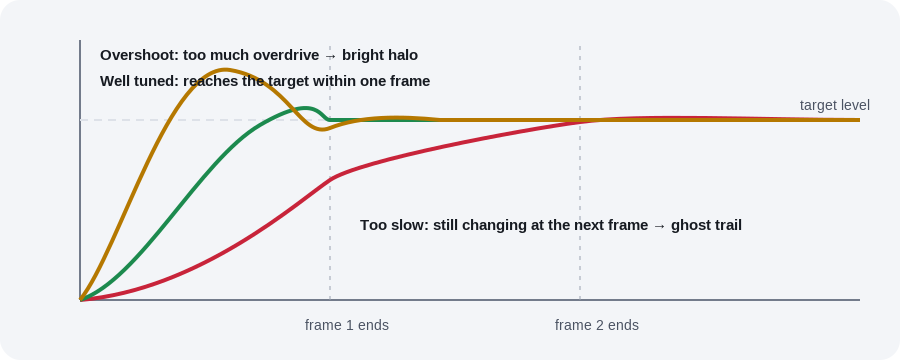
If you use adaptive sync (G-Sync, FreeSync, VRR), the right overdrive level depends on the frame rate, because the time available for each transition changes. A setting tuned at 144 Hz can overshoot badly at 60 frames per second. Test at the frame rate you actually play at by capping the frame rate in the game or driver, and if the monitor offers a variable or adaptive overdrive mode, compare it against the fixed middle setting. Some monitors handle this well and some don’t; the test shows which kind you have.
Response time vs refresh rate
These two specifications are quoted together and confused constantly. Refresh rate, in hertz, is how many times per second the screen draws a new frame; the refresh rate test measures it. Response time, in milliseconds, is how long a pixel takes to change from one shade to another; manufacturers quote a best-case gray-to-gray figure, usually 1 ms or 4 or 5 ms, measured at the overdrive setting that flatters it, and real transitions across the whole range take longer.
They set different limits. Refresh rate limits how often a new image can appear, so it caps smoothness and sets the baseline for motion blur. Response time limits how cleanly each image appears, so it causes ghosting when it is longer than the refresh interval. A 240 Hz monitor has 4.2 ms per frame; a panel whose typical transitions take 8 ms will trail at 240 Hz no matter how fast the refresh is, which is why cheap high-refresh VA monitors ghost in dark scenes and why OLED, with transitions under a millisecond, shows essentially none. Conversely, a fast panel at 60 Hz has no ghosting but plenty of motion blur, because each frame is held for 16.7 ms.
Two different numbers hide behind “response time” on specification sheets. GtG (gray to gray) is the time for a pixel to change between two shades, the figure that relates to ghosting. MPRT (moving picture response time) is a measure of perceived blur with a strobing backlight engaged, and it can read 1 ms on a panel whose GtG transitions take several milliseconds; it says nothing about ghosting and everything about whether the monitor has a strobe mode. A “1 ms” monitor may therefore ghost noticeably in the test, and that is not a fault, only a different measurement than the one you expected.
When buying, treat the quoted response time as a hint about panel type rather than a measurement: TN and fast IPS panels are generally quick, VA panels are slow in dark transitions, OLED is near-instant. Independent reviews with pursuit-camera photos show the real trails; the ghosting test lets you see your own.
Cable and Hz check (run the test)
Before blaming the panel, confirm that the monitor is actually running at the refresh rate you think it is, because a 144 Hz monitor stuck at 60 Hz shows three times the motion blur and people call that ghosting. Measure it: if it reads 60 Hz, set the correct rate in Windows or macOS and check the cable, as described in our guide to checking and changing the refresh rate. A marginal cable can also cause flicker and dropped frames that read as smearing.
Then look at what else is in the chain. V-Sync and frame caps in games change how frames are delivered and can add judder that looks like trailing; motion-smoothing or “game mode” settings on TVs used as monitors add processing that blurs or doubles edges; and some monitors’ MPRT or “1 ms” modes are backlight-strobing modes that reduce blur but add crosstalk, a double image above and below the object, which is a separate artifact with its own setting.
Temperature plays a part too. Liquid crystal responds more slowly when cold, so a monitor straight out of a cold room or just switched on in winter ghosts more for the first fifteen or twenty minutes; judge overdrive settings on a warmed-up panel, and don’t be surprised if a setting that is clean in summer shows a faint trail on a cold morning. Brightness has a smaller effect, but some monitors change their overdrive behavior with picture mode, so set the mode you actually use before tuning.
Once the rate is right and the chain is clean, the ghosting test shows the panel’s own behavior, and the overdrive setting is the lever. If the best setting still leaves a trail you can see in your games, that is the panel’s limit; the fixes beyond it are a strobing mode if the monitor has a good one, or a faster panel, and the test is the quickest way to judge either before you buy.
Ghosting by panel type: VA, IPS, TN and OLED
The panel technology sets how much ghosting a monitor can have before any setting is touched, and knowing which you own saves a lot of fiddling with overdrive.
VA panels have the highest native contrast of the LCD types and the slowest dark transitions. The liquid crystal takes longest to move from near-black to a mid-tone, so VA monitors ghost in dark scenes, shadows and night levels while looking perfectly clean in bright content; on the test, the black-background lane shows a dark smear that the gray background barely shows. This “black smearing” is a property of the panel, overdrive reduces it only so far, and the better VA monitors fix it with per-transition overdrive tables rather than a single setting. If you play dark games on a VA monitor and the test shows a trail at every setting, that is what you bought.
IPS panels are faster in dark transitions and slower in some mid-tone ones, so their ghosting is more even across content and generally lighter. Modern “fast IPS” panels at 144 Hz and above are often clean at the middle overdrive setting and overshoot at the top one; older or budget IPS panels at 60 and 75 Hz can trail noticeably because their transitions were never meant to finish in a 7 ms frame.
TN panels are the fastest LCDs and rarely ghost at any sensible overdrive setting; their problem is overshoot when the setting is too high, and poor viewing angles unrelated to motion. A TN monitor that shows a long trail in the test almost certainly has the overdrive at its lowest setting or is running at the wrong refresh rate.
OLED has no liquid crystal to move; each pixel switches in a fraction of a millisecond. There is no ghosting and no overdrive setting, and what you see behind a moving object on an OLED is pure sample-and-hold blur, identical at every setting and reduced only by a higher refresh rate. OLED does have a near-black transition quirk on some models that shows as a faint dark edge in very dark content; it is not ghosting in the LCD sense and the test’s gray-background lane will not show it.
Ghosting in games versus on the desktop
The same monitor can look clean in one and smeary in the other, for reasons that have nothing to do with the panel. Games change frame rate constantly, so with adaptive sync on, the overdrive that was right at 144 frames per second is wrong at 70; the trail appears in heavy scenes and vanishes in light ones, which people describe as ghosting that “comes and goes”. Games also render motion blur deliberately as an effect, and many apply temporal anti-aliasing that leaves a soft trail behind moving edges; both are in the game’s settings, not the monitor’s, and turning them off is the first step before touching overdrive. On the desktop, the moving object is usually the mouse cursor or a scrolling page, both at a steady frame rate, and a bright halo around the cursor is the overshoot of an overdrive setting tuned for games.
The test helps separate them because it runs at a fixed, known frame rate in a browser. If the test is clean at your chosen overdrive level but a game trails, look at the game’s frame rate and its motion settings. If the test itself trails, the monitor or its settings are the cause and the game is only showing it.
Strobing modes (MPRT, ULMB, DyAc, ELMB): when they help
Many gaming monitors have a backlight-strobing mode, named MPRT, ULMB, DyAc, ELMB, Aim Stabilizer or similar, which flashes the backlight once per frame instead of leaving it on. That removes most sample-and-hold motion blur, and it is the only way to get the crisp motion of an old CRT from an LCD. It does nothing for ghosting; the pixels still take as long to change, and because the backlight is off during the transition, a poorly timed strobe shows the half-finished transition as a double image above or below the object, called crosstalk. Strobing also cuts brightness sharply, usually disables adaptive sync, and some people see flicker or get eye strain from it; the screen flickering guide covers that and the other kinds of flicker.
Use it when the test shows that motion blur, not ghosting, is what bothers you: the smear is the same at every overdrive setting and in every lane. Tune overdrive first with strobing off, then enable strobing and look at the test again for crosstalk; some monitors expose a strobe-phase or pulse-width setting that moves the double image out of the middle of the screen. If crosstalk is heavy at every setting, the monitor’s strobing implementation is weak and you are better off without it.
How to fix monitor ghosting: the checklist
In order, each step taking a minute with the test open:
- Confirm the refresh rate with the refresh rate test and set it correctly in the operating system; a 144 Hz monitor at 60 Hz is the most common “ghosting” report.
- Replace a marginal cable and connect directly to the graphics card, not through a hub or adapter.
- Set the monitor’s overdrive to the middle level, then step up or down while watching the top lane until the trail is gone and no halo has appeared; check again on the gray background.
- If you use adaptive sync, repeat at the frame rate you actually play at, and try the monitor’s adaptive or variable overdrive mode if it has one.
- In games, turn off motion blur and check whether temporal anti-aliasing leaves trails; cap or raise the frame rate to where the overdrive was tuned.
- On a TV used as a monitor, select game or PC mode to disable motion smoothing and processing.
- Let the panel warm up for twenty minutes before judging anything in a cold room.
- If a trail remains at the best setting, that is the panel’s response time; a strobing mode trades it for lower brightness, and a faster panel is the only full fix.
FAQ
What is ghosting on a monitor? A faint trail or smear that follows moving objects because the panel’s pixels have not finished changing color when the next frame arrives. It is a response-time effect, most visible on VA panels in dark scenes, and it is adjusted with the monitor’s overdrive setting.
Can monitor ghosting be fixed completely? On most monitors the overdrive setting removes the visible trail at the frame rates the panel was designed for. What remains afterward is either motion blur, which is a property of all sample-and-hold displays and needs a higher refresh rate or a strobing mode, or the panel’s hard limit, which only a faster panel fixes.
Does a higher refresh rate reduce ghosting? Not directly: it shortens the time each transition has to finish, so a slow panel can ghost more at a higher refresh rate, not less. What a higher refresh rate reduces is motion blur, which people often call ghosting. The test shows which you have: blur is identical at every overdrive setting, ghosting changes with it.
Why does ghosting only appear in dark scenes? Because transitions from near-black are the slowest on an LCD, especially on VA panels. The test’s black background shows this kind; the gray background shows mid-tone transitions. A monitor that trails only on the black background has the typical VA dark-transition behavior.
Is ghosting a warranty issue? Normally no. Response time is a characteristic of the panel and is within specification even when visible. A monitor whose ghosting changed suddenly, or that shows trails far beyond what reviews of the same model report, is worth raising with the retailer within the return window, with the test on screen to show it.
Why does my mouse cursor leave a trail? A bright halo or a short trail behind the desktop cursor is overshoot or ghosting on a small, fast-moving object, exactly what the test shows on its tile. Lower the overdrive one step for desktop use, or use a per-mode setting if the monitor offers one; the cursor is often the first place an aggressive setting becomes visible.
Does cable type affect ghosting? Not the trail itself, but a cable that forces a lower refresh rate or drops frames changes the motion you see, and people read that as ghosting. The refresh rate test confirms the rate; if it matches the setting, the cable is not the problem.