Microphone Not Working? Test It and Fix It in Minutes
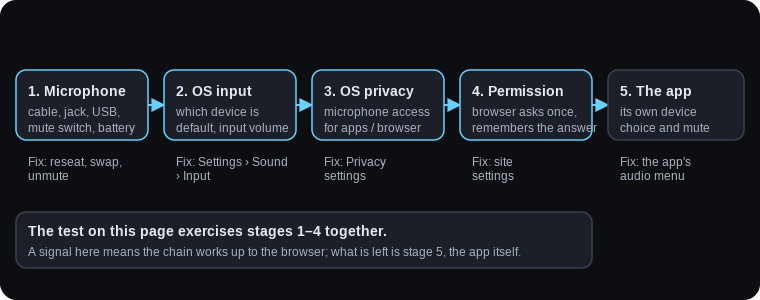
Why is my microphone not working is usually the wrong first question, because a microphone’s signal passes through five places that can each stop it: the microphone itself, the operating system’s input settings, the operating system’s privacy switch, the browser’s or app’s permission, and the application’s own device choice. The quickest way to find which one is to test the microphone here: the ten-second check below exercises the first four at once, and the mic test shows the full waveform and device list. A signal on this page means the hardware and the system work and the fault is in the app; no signal means it is earlier in the chain, and the sections that follow take each stage in turn, with the menu paths from Microsoft’s and Apple’s own support pages.
Why is my microphone not working? Test it first
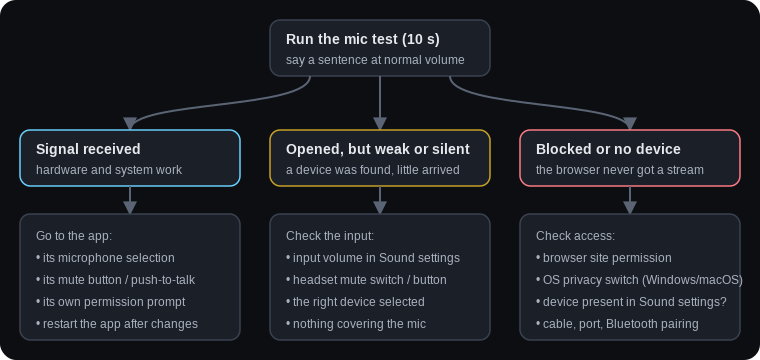
Press Test my mic, allow access when the browser asks, and say a sentence at normal volume. The box listens for ten seconds and reports one of three results.
Asks for microphone access when you press the button. Audio stays on this device; nothing is recorded.
Signal received. The microphone, its connection, the operating system’s input and privacy settings and the browser’s permission all work. Whatever application can’t hear you has its own microphone selection, its own mute, or its own permission; skip to “Browser and app permissions” and the application’s settings. Opened, but weak or silent. The browser got a microphone but almost nothing arrived: the input volume is low, a headset’s mute switch is on, the wrong device was opened (a webcam’s microphone across the room, a disconnected headset), or the microphone is covered. Go to the Windows or macOS section for the input volume and device, then to hardware. Blocked or no device. The browser was denied access or found no microphone at all: fix the browser’s site permission and the operating system’s privacy switch, then check that the microphone appears in the system’s sound settings.
Browser and app permissions (Chrome, Safari, Firefox; Zoom, Teams, Discord)
Browsers remember a refusal, so a site you once blocked never asks again, and each operating system has a switch above the browser’s. The browser steps, from the vendors’ pages:
- Chrome: More > Settings > Privacy and security > Site settings > Microphone; set the default, and move this site out of “Not allowed to use your camera or microphone” if it is there. The icon left of the address bar reopens the choice for the current site (Google).
- Safari (Mac): Safari > Settings > Websites > Microphone; set the site to Ask or Allow (Apple). Safari also needs its own entry switched on under System Settings > Privacy & Security > Microphone.
- Firefox: click the permissions icon left of the address bar and clear “Blocked” so Firefox asks again, or Settings > Privacy & Security > Permissions > Microphone > Settings (Mozilla).
- Edge: Settings and more > Settings > Privacy, search, and services > Site permissions > All sites; set Microphone to Allow for the site (Microsoft).
Meeting and chat applications add a layer of their own. Each has an audio settings page with a microphone selector, a test meter and often a mute or push-to-talk mode, and each asks the operating system for microphone permission the first time; an app that was denied once shows no prompt again until the system switch is changed. Microsoft documents Teams’ case on its support site, including checking the device under the app’s device settings and the Windows privacy switch below (Microsoft: my microphone isn’t working in Teams). For Zoom, Discord and similar apps, the equivalent is the audio or voice section of the app’s own settings; the exact menu names change between versions and are not reproduced here. In every app, after changing the system permission, quit and reopen the app: most read the permission only at start. Two app-side habits save the most time: look for the small microphone icon in the app’s own window, which usually opens its device picker and shows a live level directly, and check whether a keyboard shortcut or a physical key has muted you in the app without changing anything in the system, which the mic test on this page would not see because it sits outside that app. Browser-based versions of the same apps use the browser’s permission, not the desktop app’s, so the two can disagree on the same computer.
Windows 11: input device, privacy settings, drivers
Input device and level. Microsoft’s path: select Start > Settings > System > Sound; under Input, select the microphone you want to use and choose the arrow (>) beside it to open its properties, where Start test records a sample and Play lets you hear it, and the Input volume slider sets the level. The Input list is also where Windows shows which microphone is the default; a USB headset or webcam often becomes the default when plugged in, and the one you expect goes quiet (Microsoft: set up and test microphones).
Privacy switch. Select Start > Settings > Privacy & security > Microphone (under App permissions). Make sure Microphone access is on; make sure Let apps access your microphone is on; under Choose which apps can access your microphone, turn on the apps you use; and make sure Let desktop apps access your microphone is on, which covers browsers and most meeting apps (Microsoft: turn on app permissions for your microphone). A microphone that works in Windows’ own test and in no app at all is almost always this switch.
Troubleshooter and drivers. Microsoft’s Fix microphone problems page walks through the same checks with Windows’ audio troubleshooter and the device’s driver (Microsoft: fix microphone problems). For the case where Windows is not detecting the headset, camera or microphone at all, the same Microsoft page gives the driver route: in Device Manager, expand Sound, video and game controllers, right-click the device and select Uninstall device, tick “Attempt to remove the driver for this device” and uninstall; restart, and Windows reinstalls the driver automatically (otherwise use Scan for hardware changes), then Update driver. A microphone that is detected but silent is more often the privacy switch, the default device or an app’s own mute than a driver.
Three Windows specifics. A laptop function key or a keyboard key with a microphone icon mutes the mic at the system level and shows a light; press it again. Some sound-card control panels (a maker’s audio app) have their own mute and “boost” settings that override the Windows slider. And a microphone that only works with exclusive-mode applications, or only without them, has “Allow applications to take exclusive control” set in the device’s advanced properties; it is a legacy setting worth knowing about but rarely the cause.
macOS: Privacy & Security, input volume
Input device and volume. Choose Apple menu > System Settings, click Sound in the sidebar, then click Input and select the device you want to use; drag the Input volume slider and watch the input level meter while you speak. The Recording Indicator in Control Center shows when the microphone is in use or was used recently (Apple: change the sound input settings).
Privacy switch. Choose Apple menu > System Settings, click Privacy & Security in the sidebar, click Microphone, and turn access on for the browser or app in the list. An app that isn’t listed has never asked; one switched off there gets silence however its own settings look (Apple: control access to the microphone).
A Mac that hears nothing in any app after both checks usually has the wrong input selected (a display’s microphone, a disconnected AirPods pair still listed) or an input volume at zero; a Mac that hears you in the system meter but not in one app has that app’s permission off. Restart the app after changing the switch.
iPhone and AirPods
iPhone. Apple’s support page for microphones that aren’t working starts with the physical openings: remove screen protectors, films and cases that cover them and clear any debris, then test with the Voice Memos app (record, then play back) and the Camera app (record a video and listen). If the microphone doesn’t work in one app only, go to Settings, tap Privacy & Security, tap Microphone and make sure the app is enabled; if it is enabled or not listed, contact the app’s developer (Apple: if the microphones on your iPhone aren’t working). People not hearing you on calls but hearing you on speakerphone, or the reverse, points to one of the several microphones an iPhone has, which the same page separates by test. The mic test on this site works in Safari on iPhone, with the same permission prompt, and shows the level live.
AirPods. Each AirPod has a microphone, and by default the Microphone setting is Automatic, so either can act as the mic. If people hear you only sometimes, set it explicitly: on the iPhone or iPad, open Settings, tap the name of your AirPods, then tap Microphone (if it isn’t shown, tap Audio & Routing first) and choose Always Left AirPod or Always Right AirPod; with that set, the chosen AirPod is the microphone even if you take it out (Apple: change the settings of your AirPods). A muffled or silent AirPods microphone is usually the mesh: remove the ear tips and check the microphone and speaker mesh on each AirPod for debris, and clean them as Apple describes (Apple: if your left or right AirPod isn’t working). On a Mac or PC, AirPods connect as a Bluetooth headset and switch to the hands-free profile when the microphone is used, which makes the sound thin; that is the profile, not a fault, and the mic test’s sample-rate readout shows it.
Headsets and USB microphones
Headsets and USB microphones add a connector, a cable and often a mute control, and those are the usual suspects. Mute switches and buttons: in-line controls, a button on the earcup, a ring on the boom that mutes when raised, a touch pad on the side; the microphone opens in the test and nothing arrives. 3.5 mm plugs: a headset with a single four-pole plug (TRRS) needs a combined headset jack; plugged into a headphone-only jack it plays audio and no microphone appears. Two-plug headsets need the pink microphone socket, and a splitter if the computer has only a combined jack. Push the plug fully home; the last millimetre carries the microphone. USB: try another port, preferably directly on the computer rather than a hub, and avoid charge-only USB-C cables and adapters. A USB microphone shows up as its own device in the system’s Input list; if it does not appear there at all, the cable or port is the problem before anything else. Gain and interfaces: a USB microphone or an audio interface with its own gain knob can be turned down to nothing; a condenser microphone on an interface needs 48 V phantom power switched on; a dynamic microphone on a laptop’s jack is very quiet by nature and reads low in the test even when working.
When it is the hardware
If the microphone opens, the input volume is up, the right device is selected and the test still shows nothing or only noise, the microphone itself, its cable or the jack is faulty. Confirm it the simple way: plug a headset or a USB microphone that works elsewhere into the same computer, and plug the suspect microphone into a phone or another computer. A microphone that fails everywhere is the hardware; one that fails only on one machine is that machine’s jack, port or settings. Built-in laptop microphones fail after liquid or after a drop that disturbs the tiny cable to the display housing, and they are replaced with the webcam module on many models. Crackle and intermittent dropout from a headset are a cable breaking near the plug or the earcup. Hum that changes when you touch the laptop is a grounding problem with the power supply and goes away on battery. None of those are fixed by settings, and the test report from the mic test page, with the device name and the levels it saw, is what to attach to a return or a support request.
Before deciding a built-in microphone is dead, rule out two look-alikes. Privacy covers: some laptops have a physical microphone kill switch or a keyboard key that disables the microphone in hardware, with an indicator light, and the microphone then opens in software and delivers silence, which the test reports as “opened, but silent”. And firmware: a laptop whose microphone vanished from the Input list after a system update sometimes needs the audio driver reinstalled from the maker’s page, after which the device reappears; that is a software fault presenting as hardware. If the microphone is present in the Input list, the input volume is up, the privacy switch is on, and Windows’ or macOS’ own meter shows nothing while you speak, then it is hardware, and the maker’s support route applies.
FAQ
Why is my microphone not working? One of five things is stopping the signal: the microphone or its connection, the system’s input device and volume, the system’s privacy switch, the browser’s or app’s permission, or the app’s own microphone selection. The ten-second test above tells you which half of the chain to look at.
Why is my microphone not working on my iPhone? Apple’s steps: clear the microphone openings of cases, films and debris; test in Voice Memos and the Camera app; for one app, check Settings > Privacy & Security > Microphone. If it fails in Apple’s own apps after that, Apple’s page directs you to service.
Why is my AirPods microphone not working? Set the Microphone setting on your iPhone to Always Left or Always Right instead of Automatic, and check the mesh on each AirPod for debris after removing the ear tips. On a computer, remember that AirPods switch to a thin-sounding call profile when the microphone is in use.
My mic works in the test but not in Zoom or Teams. Why? The app has its own microphone selector, mute and permission. Choose the right device in the app’s audio settings, check it isn’t muted or set to push-to-talk, and restart the app after changing any system permission.
My camera has stopped too. Same cause? Often: a meeting app’s device selection, the operating system’s privacy switches and another application holding the hardware affect both, and the camera not working guide walks the camera side in the same order, starting with a one-click test.
Why does my microphone sound quiet or muffled? Low input volume, the wrong device (a distant webcam mic), a covered opening, or a Bluetooth headset in its call profile. The mic test shows the level and the sample rate, which separate those cases.
Can a website use my microphone without asking? No. Browsers require a permission prompt per site, show an indicator while the microphone is live, and the operating systems add their own switch and indicator on top. This page’s test asks on the button, listens for ten seconds and releases the microphone.