Screen Flickering: How to Find the Cause and Fix It
Screen flickering has a short list of causes and a long list of symptoms, and the fastest route to a fix is to work out which family you are in before you change anything: an application, the display driver, a refresh-rate or signal problem, the backlight’s dimming method, or failing hardware. Two checks sort most cases in a minute. First, run the refresh rate test: if the rate it measures is not the one you set in the operating system, or it jumps around, the flicker is a signal or setting problem and the fix is in the display settings or the cable. Second, open a system window such as Task Manager or the macOS menu bar: if it flickers along with everything else, the cause is below the applications, in the driver or the hardware; if only one window flickers, it is that application. This guide works through each branch with the steps the operating-system makers publish, then covers PWM flicker, which is not a fault at all but bothers some people a great deal, and the laptop and phone cases.
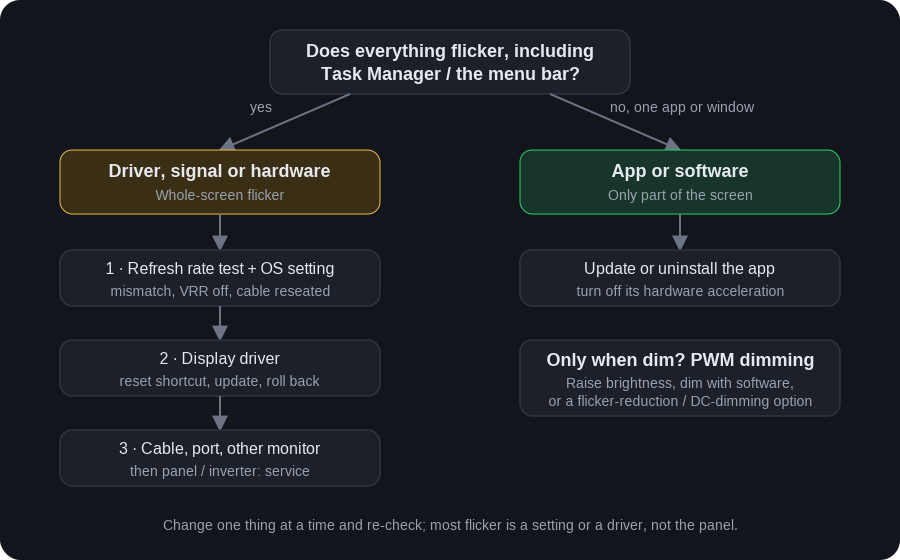
Is the screen flickering from an app or hardware? The Task Manager test
Microsoft’s own troubleshooting page for Windows uses this test, and it works the same way on any system. Press Ctrl + Alt + Delete and open Task Manager (or press Ctrl + Shift + Esc, which opens it directly). Watch it for a few seconds. If Task Manager flickers along with everything else on the screen, Microsoft’s page says a display driver is probably the cause, and you go to the driver section below after checking the refresh rate. If Task Manager stays steady while the flicker continues elsewhere, an application is causing it: Microsoft notes that some apps are not compatible with the current Windows version and can cause a flickering or scrambled screen. The Mac equivalent is to watch the menu bar and the Dock while a flickering app is in front; if they are steady, it is the app. Before either, try the one-second fix: on Windows, pressing the Windows logo key + Ctrl + Shift + B resets the graphics driver, and Microsoft lists it as the first thing to try, followed by a restart.
If it is an app. Update it first, because flicker after a system update is usually an app that has not caught up. If that does not help, turn off the app’s hardware acceleration in its own settings (browsers, chat apps and video players all have the option) and see whether the flicker stops; if it does, the app’s use of the GPU is the problem and a driver update may let you turn acceleration back on. If nothing helps, uninstall it: on Windows 11, Microsoft’s path is Start › Settings › Apps › Installed apps, select the app, then Uninstall › Uninstall. On a Mac, drag it out of Applications or use its uninstaller.
Refresh rate mismatch and the test
Whole-screen flicker that is regular, often described as a pulsing or a faint strobing, and flicker that appears after you change a cable, a monitor or a graphics setting, is usually the signal: the operating system asking for a refresh rate or a resolution the connection does not carry cleanly, variable refresh rate dropping in and out, or a mode the monitor accepts but does not like. The Hz measurement shows what the browser actually draws; compare it with the setting the operating system shows (Windows: Settings › System › Display › Advanced display; macOS: System Settings › Displays) and with what the monitor’s own information menu reports. Three results point three ways. A measured rate that matches the setting and holds steady means the signal is fine and the cause is elsewhere. A rate far below the setting, or one that jumps, means the connection is not carrying the mode: try the next lower refresh rate in the settings and see whether the flicker stops, then reseat or replace the cable and move back up. A rate the monitor does not support (an overclock, or a setting left from another monitor) is fixed by choosing a listed rate; the guide on checking and changing refresh rate has the menu paths for Windows, macOS and the NVIDIA and AMD panels.
Variable refresh rate. Adaptive sync (FreeSync, G-Sync compatible, VRR) lets the refresh rate follow the frame rate, and on some monitors the brightness changes slightly with the rate, which at a fluctuating frame rate looks like flicker, most visibly on dark loading screens and in menus. Apple’s note for Macs with an Adaptive Sync display says it suits games and video playback but “for other applications, it might produce a flickering or stuttering effect,” and the fix it gives is to turn variable refresh rate off: in System Settings › Displays, select the external display and choose a fixed rate from the Refresh Rate menu instead of the variable option. On Windows the equivalent is the monitor’s own FreeSync/adaptive-sync setting in its menu and the VRR toggle in the graphics driver’s panel; turn it off, test, and if the flicker was VRR, decide whether you want it on for games only. VA panels are the most prone to VRR flicker; it is a characteristic, not a defect.
Display driver: update, roll back, reinstall
If the whole screen flickers, the refresh rate measures correctly, and the Task Manager test pointed at the driver, work through Microsoft’s steps in order. Update: in the search box on the taskbar enter device manager and open it, expand Display adapters, right-click the adapter and select Update driver. If Windows finds nothing, get the driver from the graphics-card maker’s site (NVIDIA, AMD, Intel) or the laptop maker’s support page for the exact model, which is often the better choice on a laptop. Roll back: if the flicker started after a driver update, open the same Display adapters entry, right-click the adapter, select Properties, then the Driver tab, and select Roll Back Driver › Yes; Microsoft documents this path for the case where a newer driver introduced the problem. Reinstall: uninstalling the device from Device Manager and restarting makes Windows install a basic driver; if the flicker stops in that state, the problem is the vendor driver and a clean install of the current version usually settles it. On a Mac, install the current macOS update and, for a persistent problem, start in safe mode: Apple’s guide says that starting up in safe mode can help you identify whether issues you are experiencing are caused by software that loads as your Mac starts up; on Apple silicon, shut down, hold the power button until the startup options appear, select the startup disk and hold Shift while choosing Continue in Safe Mode, and on an Intel Mac restart and hold Shift until the login window (Apple: start up your Mac in safe mode). A flicker that stops in safe mode is software.
Driver flicker often has a signature: it starts after an update, it happens when windows are opened or moved, when a video starts, or when the system switches between integrated and discrete graphics on a laptop, and it disappears in safe mode. A flicker that is present in the firmware setup screen before the operating system loads is never the driver; skip to hardware.
PWM: flicker that is not a fault
Many screens dim their backlight (LCD) or their pixels (OLED) by switching them on and off faster than the eye can follow and varying the proportion of on-time: pulse-width modulation. At full brightness the light is on continuously; at 20 % it is on for a fifth of each cycle and dark for the rest. The switching is usually in the hundreds or thousands of cycles per second and invisible as such, but some people perceive it at low brightness as a flicker, a shimmer when their eyes move, or as headaches and eye strain after long sessions, and a phone camera pointed at the screen often shows it as rolling bands. This is how the display was designed and no setting is wrong; the question is whether it bothers you.
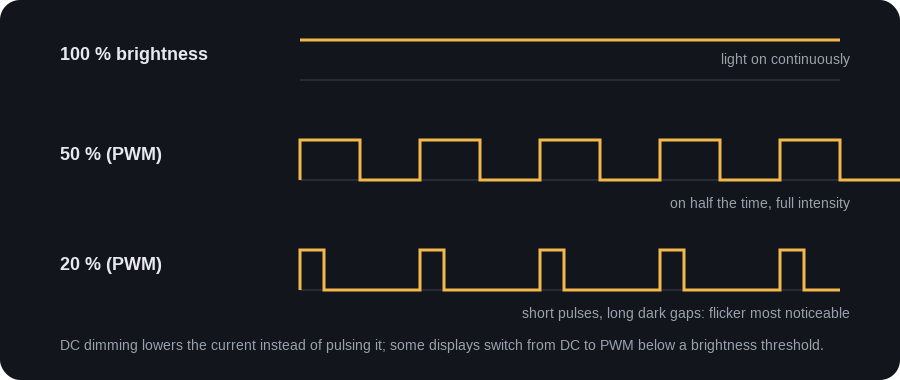
If it does: raise the hardware brightness to a level where the pulses are long (many displays switch to continuous output above a certain brightness) and dim with software instead, using a night-light or a colour-filter accessibility setting, or by lowering the white point; on a desktop monitor, look for a model advertised as flicker-free, which means it dims by lowering current rather than pulsing; on phones, some makers offer a setting that reduces or disables PWM dimming at low brightness, under names that vary by brand and model, which trades a little low-brightness picture quality for steadier light. To confirm PWM is what you are seeing, show the white screen at a low brightness and look at it through a phone camera in slow-motion video mode: rolling dark bands mean PWM; none means the flicker is something else.
Cable, port and the monitor itself
When settings and drivers are exhausted and the whole screen still flickers, the signal path is next. Reseat both ends of the cable; a connector that has worked loose produces exactly the intermittent flicker, with black flashes, that people blame on the panel. Try another cable, preferably one certified for the bandwidth you need (a 4K 144 Hz signal over an old HDMI cable will flicker or drop). Try another port on the graphics card and another input on the monitor. Apple’s guidance for Macs starts here, with “good quality cables and adapters,” and adds a cause people forget: interference “from a nearby power line, a fluorescent light, a radio, a microwave oven, another computer, or another electrical device,” with the fix of moving the devices or the display. Then isolate the hardware: connect the monitor to a different computer, or a different monitor to this computer. If the flicker follows the monitor, and it is present in its own menu and on its self-test screen with no input connected, the monitor is failing, usually the backlight driver, the inverter on older units, or a cold solder joint that flickers as the unit warms up. The vertical lines guide covers the related panel and cable faults that show as lines rather than flicker.
A flicker that comes with the brightness setting, flashing brighter and darker at irregular intervals regardless of what is on screen, is almost always the backlight or its power supply, not the signal. A flicker that is only in dark scenes on an OLED or a VA monitor with VRR is the panel’s brightness changing with refresh rate; turn VRR off to confirm.
Laptop and phone specifics
Laptops. A laptop’s flicker has the same families plus two of its own. Power management: the display may run at a different refresh rate or a dimmed, PWM-driven backlight on battery, so flicker that appears only unplugged is a power setting; plug in and compare, then look at the power plan’s display options and any dynamic refresh rate setting. The hinge cable: the display’s ribbon cable runs through the hinge and wears with opening and closing, and a flicker that changes when you move the lid, or that stops when you hold the lid at a certain angle, is that cable or its connector, a repair rather than a setting. For a laptop with both integrated and discrete graphics, flicker when switching between them is a driver matter; updating both drivers from the laptop maker’s site is the fix. An external monitor that does not flicker when connected to the flickering laptop tells you the problem is the laptop’s own panel or cable; the reverse tells you it is the output or the driver.
Phones and tablets. Flicker on a phone is usually one of three things: PWM at low brightness (above), an adaptive refresh rate switching between modes as content changes (visible as a brief shimmer when scrolling stops; a fixed refresh rate setting, where the phone offers one, removes it), or an app’s problem (flicker only in one app, fixed by updating it). A phone that flickers everywhere, including in the settings menus and at full brightness, or that flickers when the body is flexed or pressed near the display, has a hardware fault, often after a drop, and is a service case. Before concluding that, restart it and check for a system update; display driver problems on phones arrive and leave with updates.
When flicker means failing hardware
Some flicker is the beginning of a failure, and it helps to know the signs so you can act within warranty. Flicker that is present on the monitor’s own menu or self-test with no cable attached is the monitor. Flicker that worsens as the unit warms up, or that starts as an occasional flash and becomes frequent over weeks, is a failing component, typically in the backlight power stage. Flicker accompanied by lines, by a dim half of the screen, by a pink or yellow cast, or by the image going black and returning, is panel or driver-board failure. Flicker that only one graphics card port produces, on any monitor and any cable, is the port. In each of these cases, document it: a short video with your phone, the date, and the conditions, and run the monitor test to record anything else the panel is doing. Repairing a monitor’s power board is sometimes economic; replacing a panel rarely is.
FAQ
Why is my screen flickering? Most often an app, a display driver or a refresh-rate setting, in that order; less often PWM dimming at low brightness, a cable, or a failing backlight. The Task Manager test (does a system window flicker too?) and the refresh rate test (does the measured rate match the setting?) tell you which family you are in.
How do I fix screen flickering in Windows? Press Windows + Ctrl + Shift + B to reset the graphics driver and restart. If it continues, use the Task Manager test: if Task Manager flickers, update or roll back the display driver in Device Manager under Display adapters; if it does not, update or uninstall the app that flickers via Settings › Apps › Installed apps.
Why does my monitor flicker at a low refresh rate or only in games? Flicker only in games or with fluctuating frame rates is usually variable refresh rate changing the panel’s brightness with the rate, most visibly on VA and OLED panels in dark scenes. Turn adaptive sync off in the monitor and the graphics driver to confirm, then decide whether to keep it for games.
Why does my laptop screen flicker on battery? Power settings: a lower refresh rate, a dimmed backlight that uses PWM, or a graphics switch between integrated and discrete chips. Plug in and compare; if the flicker stops, adjust the power plan’s display and refresh-rate options and update both graphics drivers from the laptop maker’s site.
Is PWM flicker harmful? It is not a fault and most people never notice it, but some get eye strain or headaches at low brightness. Raise the hardware brightness and dim with software, choose a flicker-free monitor, or use a phone’s flicker-reduction setting where offered. A phone camera in slow-motion mode shows PWM as rolling bands.
Can a cable cause screen flickering? Yes, and it is the most common hardware cause: a loose connector or a cable that cannot carry the chosen resolution and refresh rate produces intermittent flicker and black flashes. Reseat, try a certified cable, another port and another input before suspecting the monitor.
When is flickering a sign the monitor is dying? When it is present on the monitor’s own menu with nothing connected, worsens as the unit warms up, or comes with lines, a dim region, a colour cast or blackouts. Record a video and the date and use the warranty while it lasts.