Keyboard Not Working? How to Find the Cause and Fix It
A keyboard not working is four different problems wearing the same symptom: a few keys dead or double typing, keys that type the wrong characters, a whole keyboard that does nothing, or keys that register late or not at all when pressed briefly. Each has a different cause and a different fix, and the fastest way to tell them apart is to press every key and look at the pattern. The mini tester below does that without leaving the page, and the full keyboard tester adds layouts, chatter detection and a report. Test first, then jump to the section that matches what you see.
Before any of it, rule out the three things that account for most “broken” keyboards and take a minute: a cable or receiver that has worked loose, a Bluetooth keyboard with a flat battery, and an accessibility setting (Filter Keys on Windows, Slow Keys on a Mac) that was switched on by a key combination nobody meant to press. If the keyboard lights up, the Caps Lock LED toggles and it types normally in the tester, the keyboard is fine and the problem is in whatever program you were using.
Test your keys
Click the keyboard below and type across every row, including Shift, Ctrl, Alt, the arrows and the function keys. A key that lights up is reaching the computer, whatever it prints on screen; a key that never lights is not. The box also flags keys that stay down for two seconds without a release (stuck) and keys that register twice from one press (chattering), and counts how many different keys you have pressed. Press Esc to stop capturing so the page scrolls normally again.
Click the keyboard, then press keys — each one lights up.
Capturing keys — press Esc to release
- Last key
- —
- Pressed
- 0 keys
- Problems
- none so far
Read the result against the tree below. Most keys light but a few don’t, or some type twice: the fault is under those keys, and the first section is yours. Keys light but the wrong character appears: a setting, second section. Nothing lights at all: connection or driver, third section, with a separate section for laptops. Keys light only when held, or short taps vanish: an accessibility filter or a wireless link, covered in the delayed-keys section. The full keyboard tester shows the same thing on a drawing of your exact layout and lists the keys you haven’t pressed, which is the quickest way to find a dead key you didn’t know about.
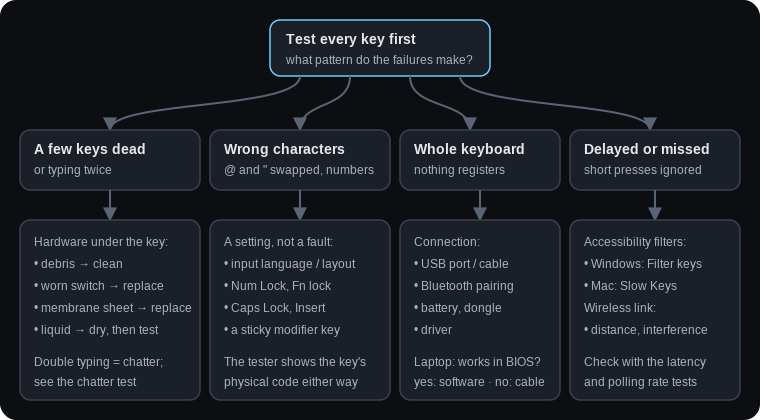
Keyboard keys not working: only some keys
When most of the keyboard works and a handful of keys don’t, the computer, the connection and the drivers are fine; the problem is between the keycap and the circuit under it. Which problem depends on the keyboard’s construction.
Mechanical keyboards have a separate switch under each key. A key that fails intermittently, needs a hard press, or types twice has a worn or dirty switch: the metal contacts inside have oxidised or the spring has weakened. Start with compressed air around the key with the keycap pulled off, then a drop of electrical contact cleaner into the switch’s stem while pressing it repeatedly; let it dry. On a hot-swap board a failed switch pulls out with the puller and a new one pushes in; on a soldered board it is a soldering job, routine for a repair shop. Double typing has its own test, the keyboard chatter test, which records the interval between the two events so you can tell switch chatter from a debounce setting, and its own fixes.
Membrane and laptop keyboards have a rubber dome over a printed sheet. Dead keys in a row or a column, or a cluster that failed together, point to a crease or a damaged trace in the sheet, which is replaced as a unit; a single dead key is usually debris or a torn dome. Pull the keycap gently (laptop scissor caps unclip from one edge), clean under it, check the dome and the scissor mechanism, and press the centre of the dome with a fingertip directly on the sheet; if that registers in the tester, the cap or scissor is the fault, not the sheet.
Liquid is the other common cause of a cluster of dead keys, often appearing hours or days after the spill as corrosion sets in. Power the keyboard off immediately, turn it over, and let it dry for at least 48 hours before testing; sugary drinks need the caps off and the sheet or switches cleaned with isopropyl alcohol, since they leave a conductive film. Keys that come back after drying may fail again weeks later as corrosion continues; the tester shows that progression.
The pattern of dead keys is diagnostic on its own. A single dead key is almost always local: debris, a torn dome, a worn switch. Several dead keys that share a row or a column on a membrane board share a trace on the sheet, and the break is usually at the edge where the sheet meets the connector, or under a spill. Several dead keys scattered at random on a mechanical board are individual switches reaching the end of their rated life together, which happens on heavily used boards after years. Keys that die when the keyboard is warm and return when it cools point to a cracked solder joint or trace that opens as the board expands, a repair-shop fault. And a keyboard where every key works in the tester but some don’t in a game has a game-side remap or a rollover limit, which the keyboard ghosting test measures.
Two things that look like a dead key but aren’t: a key that works in the tester but not in one program is being intercepted by that program or by a shortcut utility; and the handful of keys a browser can’t see at all, listed on the keyboard tester as undetectable (power, some media and Fn-layer keys), aren’t dead, they simply never reach a web page.
Whole keyboard not working (USB, Bluetooth, driver)
When nothing registers, the keyboard’s signal isn’t arriving, and the checks follow the signal’s path.
USB. Plug the keyboard into a different port, preferably one on the computer itself rather than a monitor, dock or hub, and avoid USB hubs without their own power for the test. If the keyboard has a detachable cable, swap it, since USB-C cables intended for charging don’t always carry data. Watch for the keyboard’s lights: Caps Lock toggling its LED means the keyboard has power and firmware, and the problem is further along. On a desktop, try the keyboard in the BIOS or UEFI setup screen (see the laptop section for how); if it works there, the operating system is the problem.
Bluetooth. Check the battery first; a low battery is the most common reason a Bluetooth keyboard pairs and then goes silent. Confirm the keyboard isn’t connected to another device, since multi-device keyboards switch channels with a key combination and a keyboard still bound to a tablet types nothing on the PC. Remove the pairing on the computer and pair again from scratch: on Windows 11, Start > Settings > Bluetooth & devices, remove the keyboard, then Add device; on Windows 10, Settings > Devices > Bluetooth & other devices. On a Mac, System Settings > Bluetooth. Distance and interference matter more than people expect: a metal desk or a USB 3 hub next to the receiver can drop a 2.4 GHz link, and moving a dongle to a front port or a short extension cable fixes a surprising number of “dead” wireless keyboards.
Driver and operating system. Keyboards use the system’s own driver: Microsoft’s driver documentation states that Windows provides system-supplied HID mapper drivers for HID keyboard and mouse devices, and that vendor drivers are not required for keyboards that comply with the HID standard (Microsoft: keyboard and mouse HID client drivers); vendor software is for lighting and macros. If a keyboard works in BIOS and in a different user account but not in yours, a utility or remapping tool in your profile is intercepting it. If it works nowhere in Windows but does in BIOS after a Windows update, reinstall the driver the way Microsoft’s page describes: right-click Start, select Device Manager, right-click the keyboard and select Uninstall device, restart, and after the restart Windows attempts to reinstall the driver for the device (Microsoft: update drivers through Device Manager in Windows). On a Mac, an unresponsive keyboard after a wake from sleep is usually fixed by closing and reopening the lid or a restart.
Wake, KVM switches and USB-C. A keyboard that is dead only after the computer wakes from sleep is a power-management setting on the USB controller or a hub that didn’t re-enumerate; unplugging and replugging it, or a restart, brings it back, and disabling USB selective suspend for that port in the operating system’s power options stops it recurring. KVM switches and docking stations add their own USB hubs and firmware, and a keyboard that fails through a KVM but works direct is the KVM’s problem, often fixed by its own firmware update or by using its dedicated keyboard port rather than a generic USB port. USB-C keyboards and adapters bring the charge-only cable problem from phones: a cable that charges a device may carry no data lines at all, and the keyboard will light up and type nothing.
The keyboard itself. A keyboard that does nothing on two computers, over two cables or a fresh pairing, with a charged battery, is faulty. Mechanical boards occasionally recover from a firmware reset (the key combination is in the manufacturer’s manual); membrane boards don’t.
Laptop keyboard not working (Filter Keys, BIOS test, cable)
Laptop keyboards add two things to the checklist: a settings feature that makes a working keyboard feel broken, and a ribbon cable that makes a physical fault look like a software one.
Filter Keys. Windows has an accessibility option that makes the keyboard ignore brief or repeated keystrokes, and it can be switched on by accident, because holding the right Shift key for eight seconds turns it on. With it on, quick typing drops letters and the keyboard seems to work only when you press slowly and firmly. Microsoft’s path to check it: press Windows logo key + U or select Start > Settings > Accessibility, then Keyboard, and make sure the Filter keys switch is off. Sticky Keys, toggled by pressing Shift five times, is a different feature that makes modifiers latch, and is worth switching off at the same time if modifiers behave oddly.
The BIOS test. Restart the laptop and open its firmware setup screen before the operating system loads (the key varies by maker and is shown briefly at power-on; Dell’s page, for example, says to tap the F2 key about once per second as soon as the Dell logo appears, and gives the route from inside Windows for any PC: Settings > System > Recovery, Restart now next to Advanced startup, then Troubleshoot > Advanced options > UEFI Firmware Settings > Restart (Dell: how to enter BIOS or UEFI setup). A Mac has no BIOS screen; its recovery screen does the same job as a keyboard test: on Apple silicon press and hold the power button until startup options load, on an Intel Mac press the power button and immediately hold Command and R (Apple: how to start up from macOS Recovery).) Press keys there. If they work in the firmware screen, the keyboard hardware, its cable and its controller are all fine, and the cause is in the operating system: Filter Keys, a driver, a layout, a stuck update or a utility. If keys fail there too, the cause is physical.
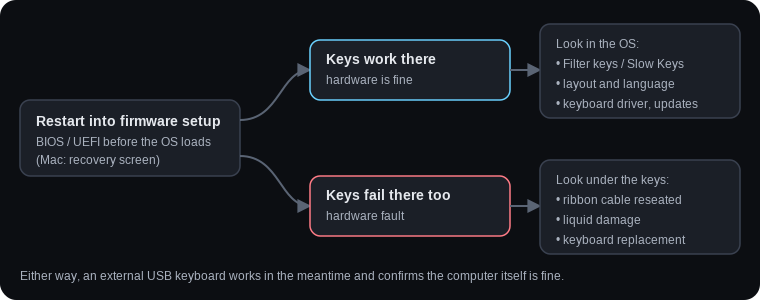
The ribbon cable. A laptop keyboard connects to the mainboard through a flat ribbon cable that can loosen after a drop, a battery swap or a repair, or oxidise with age. The symptoms are a keyboard that is completely dead, or dead in whole rows, or intermittent when the chassis flexes. Reseating it means opening the laptop, which on most models is a matter of removing the bottom cover, releasing the connector’s latch, cleaning the cable’s contacts with isopropyl, and reinserting it square; on models where the keyboard is accessed from the top it is a longer job. Look up a teardown for your exact model before opening anything, and if the laptop is under warranty, don’t.
Liquid and physical damage follow the same rules as any keyboard: power off, dry for two days, clean with isopropyl, then test; laptop keyboards are replaced as a unit, and on many thin models that means the top case, which is why an external USB keyboard is often the sensible answer for an older machine.
Keep working meanwhile. Any USB or Bluetooth keyboard works alongside a dead laptop keyboard, and Windows and macOS both have an on-screen keyboard for the minutes it takes to log in and order one.
Typing wrong characters (language/layout, Num Lock)
Keys that light up in the tester but produce the wrong character on screen are working perfectly; the computer is interpreting them with a different layout than the one printed on the caps. The tester shows the physical code of each key (the key left of Backspace is Backslash on an ANSI board whatever it prints), which is how you can tell that the key is right and the mapping is wrong.
Input language and layout. The classic symptoms are @ and ” swapped, or Y and Z swapped, or \ printing as #, which happen when a US layout is active on a UK keyboard, a German layout on a US one, and so on. Microsoft’s path on Windows 11: select Start > Settings > Time & language > Language & region, select the ellipses next to your language and choose Language options, and under Keyboards check which layouts are installed; add the right one with Add a keyboard and remove the wrong one. Windows switches layouts with Windows logo key + Spacebar (forward; adding Shift goes backward, and nothing happens when only one layout is installed, per Microsoft’s layout settings page), which is easy to press by accident, so a keyboard that changes behaviour mid-session usually has two layouts installed and has been toggled. On a Mac, Apple’s path is Apple menu > System Settings > Keyboard, then Text Input > Edit, where you can turn on “Show Input menu in menu bar” and check which input source is selected. The ANSI vs ISO guide explains why a layout mismatch also moves the Enter and backslash keys physically, and the mini tester there tells you which kind of board you have.
Num Lock. On a full keyboard, numbers on the number pad that move the cursor instead of typing digits mean Num Lock is off. Many laptops without a number pad have an embedded pad on a block of letter keys that a Num Lock combination switches on, which is the most common reason a laptop “types numbers instead of letters”; the combination and the keys are model-specific and in the laptop’s manual, and pressing the same combination again switches it off. A laptop with no Num Lock key at all can toggle it from Windows’ On-Screen Keyboard: Microsoft’s page says to select the Options key and choose “Turn on numeric keypad”, which expands the OSK to show a numeric keypad with its own NumLock key (Microsoft: use the On-Screen Keyboard (OSK) to type).
Fn lock, Caps Lock, Insert. Function keys that control brightness and volume instead of acting as F1–F12 (or the reverse) are the Fn lock. On ThinkPads, Lenovo’s user guide gives Fn + Esc: it switches the keys between the special function printed on each key and the standard F1–F12 function, with the FnLock indicator showing which is active (Lenovo: use the keyboard shortcuts, ThinkPad T14 Gen 4 user guide); other makers use a different combination or a firmware setting, so check the manual for the model. Everything in capitals is Caps Lock; a key that types over existing text is Insert, which Overtype mode in editors honours. None of these are faults, and the tester shows each key’s name so you can see which is latched.
Dead keys and compose sequences. On many international layouts the apostrophe, grave, tilde and caret keys are “dead keys”: they print nothing until the next letter, which they accent (´ then e gives é). Someone used to a US layout sees a key that “doesn’t work” and then an accented character appearing a keystroke later. The US-International layout on Windows behaves this way on purpose, and it is a common accidental choice when adding a keyboard. Switching to the plain US layout stops it; the tester shows the key registering normally either way, which is the clue that it is a layout feature rather than a fault.
A held modifier. A stuck Ctrl, Alt or Shift, or a Sticky Keys latch, makes every key do something other than type: letters become shortcuts, numbers become symbols. The tester marks a key that is held for more than two seconds as stuck, which catches a physically jammed modifier; Sticky Keys shows as a modifier that stays active after you release it.
Mac
Mac keyboards, built-in and external, fail in the same ways with a few platform specifics. Apple’s own troubleshooting for a Mac that doesn’t respond to key presses starts with Slow Keys: choose Apple menu > System Settings, click Accessibility in the sidebar, then Keyboard, and make sure Slow Keys is off; with it on, a key must be held longer than usual before it is recognised, which feels exactly like a failing keyboard. The Acceptance delay slider in the same place controls how long. Mouse Keys, under System Settings > Accessibility > Pointer Control and toggled with Option-Command-F5 (or by pressing Touch ID three times on a Mac that has it), turns part of the keyboard into mouse controls and makes those keys stop typing (Apple: use your keyboard like a mouse). Input sources are under System Settings > Keyboard > Text Input, as above, and the input menu in the menu bar shows at a glance which layout is active; the ABC and British layouts differ in the position of ~ and §, which is where “my Mac keyboard types the wrong symbol” usually comes from. An external keyboard that works on a PC but not on the Mac is almost always a pairing or a Bluetooth issue; the built-in keyboard on a MacBook that fails only in macOS and works on the recovery screen is a software problem, and one that fails on both is a hardware repair that Apple’s own support page directs to a service provider. Run the Mac keyboard tester first: it draws a MacBook or Magic Keyboard with Apple’s key names and dims the keys macOS never passes to a page (fn/Globe, Touch ID, the function row in its default mode), so a dead key stands out.
Hardware fixes
Once the test and the sections above have ruled out settings and connections, the fix is physical, and the choice is between repairing the key and replacing the board.
Clean first. Compressed air with the keycaps off clears most debris; isopropyl alcohol of 90 % or higher on a swab cleans the contacts of a mechanical switch stem or the sheet under a membrane dome; electrical contact cleaner, applied sparingly into a switch while pressing it, restores oxidised contacts. Let everything dry fully. Test again on the keyboard tester before reassembling, so you know the fix worked while the key is still accessible.
Replace the switch. On a hot-swap mechanical board, pull the switch and press in a new one of the same type; on a soldered board, desolder the two pins and solder in the replacement. Keep a few spare switches from the same batch if the board came with them. The chatter test confirms the new switch is clean.
Replace the dome or the sheet. Individual rubber domes are available for some membrane and scissor keyboards; a damaged sheet means a new keyboard, since the sheets are the keyboard.
Replace the keyboard. For a desktop board that is out of warranty and has several failed keys, replacement is usually cheaper than the time to repair it; for a laptop, the keyboard module or top case is a repair-shop job unless you are comfortable with the teardown. Under warranty, run the keyboard tester, note the dead or chattering keys from the untested list and the log, and include that in the claim; a list of specific key codes is understood immediately and skips the troubleshooting script.
Firmware. Mechanical boards with onboard firmware occasionally benefit from a reset or an update from the manufacturer’s page; it clears a corrupted key map or a stuck layer, which can look like several dead keys at once. The manual lists the key combination.
FAQ
Why is my keyboard not working at all? Follow the signal: power (lights or Caps Lock LED), connection (another port, cable or fresh pairing), operating system (does it work in the firmware setup screen?), and finally the keyboard itself on another computer. One of those steps shows where the signal stops.
Why are some keys not working on my keyboard? Debris, a worn switch, a torn dome or a damaged membrane trace under those keys, or liquid. Pull the caps, clean, and test again; a row or cluster that failed together is a sheet or a ribbon cable, a single key is the switch or dome.
Why is my laptop keyboard not working but an external one is? The laptop keyboard’s signal isn’t reaching the system. If it works in the BIOS screen, the cause is in Windows or macOS (Filter Keys, Slow Keys, driver, layout); if it fails there too, the ribbon cable or the keyboard module.
Why is my keyboard typing wrong characters? A different input layout is active than the one printed on your keys, or Num Lock, Fn lock, Caps Lock or a latched modifier is on. The tester shows that the keys themselves are fine; fix the setting using the paths above.
Why does my keyboard type letters twice? The switch under that key is chattering, or a debounce setting is too short. The keyboard chatter test records the interval between the two events and has the fixes.
Why do my keys only work when I press them hard? On Windows, Filter Keys; on a Mac, Slow Keys. Both make the system ignore brief presses. If those are off, the switch or dome under the key is worn and needs cleaning or replacement.
Why does my keyboard work in the BIOS but not in Windows? Because the firmware screen talks to the keyboard directly while Windows goes through its driver, your user profile’s utilities and any accessibility settings. The hardware is proven good; check Filter Keys, the input layout, remapping utilities and the keyboard’s Device Manager entry, in that order.
Why does my wireless keyboard miss letters when I type fast? A weak battery or a poor radio link drops reports, and it looks like dead keys that come and go. Replace or charge the battery, move the receiver to a front port or an extension cable away from USB 3 devices and metal, and compare with a cable if the keyboard has one. The keyboard latency test shows the inconsistency as a wide spread between presses.
Can a browser test really check a keyboard? For everything a key sends, yes: the Gamepad-style privacy rules don’t apply to keyboards, and a web page receives every key event the operating system passes on, with the physical key code. It can’t see keys the operating system keeps for itself (power, some media keys, the Fn key on most boards), and the keyboard tester lists those as undetectable rather than dead.