No Sound From Speakers? Test First, Then Fix It
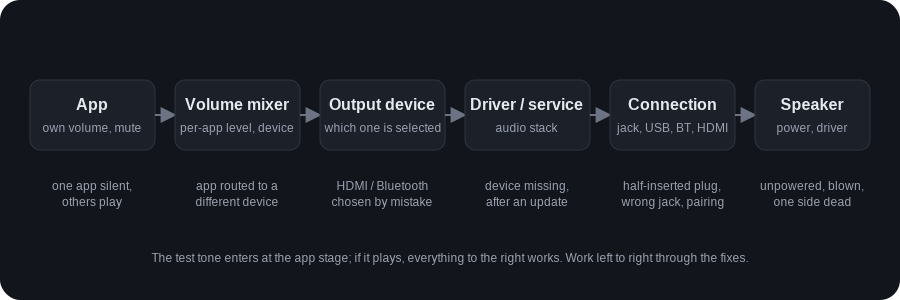
Computer speakers not working is one of the few problems where ten seconds of testing saves an hour of guessing: the fault is almost always in one of six places between the app and the speaker, and a test tone from the sound test tells you which half of the chain to look at. Play the tone below: if you hear it on both sides, the output path from the browser to the speakers works, and your problem is an app, a mixer setting or the wrong device selected for that app; if you hear nothing, or only one side, the problem is the device selection, the driver, the connection or the speakers themselves. The rest of this guide follows that split, with the exact steps from Microsoft’s and Apple’s support pages for Windows 11 and macOS, the laptop-specific checks, the HDMI and Bluetooth cases, and the signs that mean a speaker has actually failed. The full sound test page adds a sweep, a phase check and an output-device picker when you need more than a tone.
Test the speakers first
Lower your volume, then press a side. A short 440 Hz tone plays at a modest level; nothing is recorded.
Three results, three routes. Both sides play. The browser reached the speakers, so the operating system’s output device and the hardware are fine; go to the output device and volume mixer section, because the app that is silent is muted, turned down or sent to another device. Nothing plays. Work through the output device section first (the wrong device selected is the single most common cause), then the Windows or macOS section, then the hardware signs. One side plays. Check the balance and mono settings in the operating system section, then the connection: a half-inserted plug or a damaged cable drops one channel, and a dead driver in one speaker does the same; the headphone test on a pair of headphones tells you whether the computer’s output has both channels, which isolates the speaker.
Output device and volume mixer
Modern systems have several possible audio outputs at once: the built-in speakers, a monitor over HDMI or DisplayPort, a USB headset, a Bluetooth device, a dock. The operating system sends sound to one of them, and apps can be assigned to others individually. “No sound” is very often sound going to a monitor with no speakers, to a Bluetooth headset in a drawer, or to a dock that was unplugged. On Windows 11, Microsoft’s instruction is to select the Speakers icon on the taskbar, then the arrow to the right of the speaker volume slider to open the list of audio devices, and choose the one you want; the settings icon to the right of the Volume mixer slider opens the Volume mixer, where each app has its own volume and its own output device. Microsoft’s page for app audio not working while system sounds work spells it out: Start › Settings › System › Sound › Volume mixer, and under Apps make sure the affected app isn’t muted and its volume slider is turned up, then confirm the correct Output device is selected for that app. On a Mac, Apple’s first instruction is to check the app itself (“Most apps that can play audio have their own volume controls”), then System Settings › Sound › Output, where the Mac’s speakers or the device you want must be selected, the Output volume slider must not be all the way to the left and the Mute checkbox must not be selected.
A third place sound hides on Windows is the per-app output in the same mixer: a browser or a game can be pinned to a device that is no longer connected, and it stays silent until you change its Output device back or restart the app. On a Mac, some apps (conference and audio software especially) keep their own output selection in their preferences, separate from System Settings, and need the headphones or speakers chosen there too.
Two habits prevent most recurrences. When you unplug an HDMI monitor, a dock or a headset, check that the output has moved back to the speakers; systems remember the last device and do not always switch back. And when one app is silent while others play, look in the mixer before anything else; a conference app or a game that was once routed to a headset keeps that routing.
Windows 11 fixes
The steps below are Microsoft’s, from its “Fix sound or audio problems in Windows” and related pages, in the order that resolves the most cases first.
- Check the output and volume. Start › Settings › System › Sound. Under Output, select the correct device, and make sure the volume is not muted and the slider is turned up. If the device you expect is not in the list, go to step 4.
- Set the default device. Microsoft’s path: Start › Settings › System › Sound › More sound settings › Playback, right-click the device and select Set as default. A device can be present but not default, in which case new apps start on something else.
- Run the audio troubleshooter. Start › Settings › System › Troubleshoot › Other troubleshooters, then Run next to Audio. On current Windows 11 builds Microsoft directs you to the automated Audio troubleshooter in the Get Help app, which runs the same diagnostics. The troubleshooter restarts the audio service, resets the default device and checks the driver, which fixes a surprising share of “it just stopped” cases.
- Turn off audio enhancements. Start › Settings › System › Sound, select the output device, scroll to Advanced settings and set Audio enhancements to Off. Enhancements are vendor processing that can silence or distort output after a driver change.
- Restart the audio services. From Microsoft’s app-audio page: Start, type services.msc, press Enter; right-click Windows Audio and select Restart, then right-click Windows Audio Endpoint Builder and select Restart. A stopped service means no sound anywhere until it runs again.
- Driver: update, roll back, reinstall, generic. Open Device Manager (search for it from Start), expand Sound, video and game controllers, right-click your audio device and select Update driver › Search automatically for drivers. If the trouble began after an update, right-click the device, Properties › Driver tab › Roll Back Driver. If neither helps, right-click › Uninstall device, tick Attempt to remove the driver, select Uninstall, and restart so Windows reinstalls it. As a last resort Microsoft offers the generic driver: right-click › Update driver › Browse my computer › Let me pick from a list of available drivers, and choose High Definition Audio Device. On a laptop, the maker’s own driver from its support site is usually the better final answer, because laptop speakers often depend on vendor processing to sound right.
If the device has vanished from every list, Microsoft’s page on a missing or undetected output device covers the same driver steps plus Windows Update; a device that stays missing after a clean driver reinstall and a BIOS or firmware update points to hardware.
macOS fixes
Apple’s steps for a Mac with no sound from its speakers are short, and they are in a deliberate order. First, unplug any headphones or external speakers, because a Mac routes sound to whatever was last connected and an adapter left in the headphone port silences the built-in speakers. Then System Settings › Sound › Output: make sure your Mac’s speakers are selected (Apple’s page says to select the built-in speakers “as indicated in the Type column”), that the Output volume slider is not all the way to the left, and that the Mute checkbox is not selected. For external speakers on the audio port, make sure they are plugged into the audio output port on the Mac or the display and powered if they need power, and that they are selected in the output device list. For USB speakers, Apple adds a check: with the speakers selected in Output, press and hold Option, choose Apple menu › System Information and look for the speakers under USB; if they are not listed, reconnect them. For a display’s built-in speakers, the display’s cables must be connected to the Mac and the display selected as the output. And Apple repeats the app check: the app’s own volume control may be down. If the internal speakers still do not work after these steps, Apple’s page says you might need service. Restarting the Mac is a reasonable step between the settings and the service visit; it clears a stuck audio process, which is the usual cause of a Mac that goes silent until reboot. If sound returns after a restart but keeps disappearing, note which app was running when it stopped; an app that grabs the output in an exclusive or unusual sample-rate mode is usually the culprit, and its own audio preferences are where to look.
Laptop speakers
Laptops add their own failure modes on top of the operating-system ones, and the makers’ support pages agree on the first two. The mute and volume keys. Laptop keyboards have a speaker-mute function key, often with its own indicator light; a muted laptop shows volume moving on screen while the speakers stay silent. Press the mute key once and check the indicator. The headphone jack switch. Plugging anything into the headphone jack switches the speakers off, and a jack whose internal switch is stuck, from lint or from a plug that was yanked, leaves the laptop convinced headphones are connected. Insert and remove a plug a few times, cleanly; if the output list shows “Headphones” with nothing plugged in, that switch is the problem, and a USB or Bluetooth output is the workaround until it is repaired.
Then the maker’s tools. Dell laptops: Dell’s audio troubleshooting page starts with a restart (Start › Power › Restart), then driver update or reinstall from Device Manager under Sound, video and game controllers or from Dell’s Drivers & Downloads for the Realtek or Cirrus audio driver, then the Windows troubleshooter via Settings › System › Sound › Troubleshoot under the output device, then a hardware diagnostic through SupportAssist, and it recommends installing pending Windows updates and BIOS and chipset updates. HP laptops: HP’s sound issues page points to HP Audio Check in HP Support Assistant, which runs diagnostics and offers a Test button, to the Windows troubleshooter’s “Find and fix problems with playing sound”, and to HP PC Hardware Diagnostics Windows (Start › All apps › HP Help and Support › HP PC Hardware Diagnostics Windows › System Tests › Run Once), which reports a failure ID if the speakers have failed. Lenovo laptops: Lenovo’s “Fix audio or sound problems in Windows 10 and 11” article runs through thirteen steps in this order: Use Automatic Updates; Try Windows Troubleshooter; Verify Windows Updates; Check the Sound Settings; Test your Microphone; Check Microphone Privacy; Uninstall Sound Driver in Device Manager; Update or Roll Back Sound Driver; Change default sound format; Restart Audio Services; Check Sound Control Panel; Disable Audio Enhancements; and Teams settings (Lenovo: fix audio or sound problems in Windows 10 and 11). The speaker test above fits before step four: it tells you whether sound reaches the hardware at all before you start on drivers.
Laptop speakers also fail physically more often than desktop ones: they are small, close to the keyboard, and in the path of spills and drops. A laptop whose speakers crackle at low volume, play on one side only across every app, or rattle on a clean test tone has a hardware fault; the bass test’s fixed tones and the sound test’s left/right buttons show which.
External speakers, HDMI and Bluetooth
Powered desktop speakers. Dell’s external-speaker page puts it simply: ensure the speaker has power and the cables are connected properly, then set it as the output under Start › Settings › System › Sound, and test the speakers on another device if you can, because a speaker set that is silent on a phone too is the speaker set. Check the speaker’s own volume knob and the jack it is plugged into; on desktops with several jacks, the line-out is the one to use, and a plug in the microphone or line-in jack gives silence. HDMI and DisplayPort. A monitor or TV connected by HDMI appears as an audio device whether or not it has speakers, and Windows and macOS often select it. If your monitor has no speakers, choose the built-in speakers or your external set as the output; if you want sound through the monitor or a receiver, select it and raise the monitor’s own volume, which is separate. The surround sound test shows how many channels an HDMI device exposes, which matters for a receiver. Bluetooth speakers. Connected is not the same as selected: Microsoft’s Bluetooth-connected-but-no-sound page starts by clicking the Sound icon in the taskbar and ensuring the Bluetooth device is selected as the output, and if that does not help, removing the device under Settings › Bluetooth & devices and pairing it again. On a Mac, after connecting under System Settings › Bluetooth, Apple’s instruction is to choose the device under System Settings › Sound › Output. A Bluetooth speaker that connects but plays nothing is nearly always a selection problem; one that plays on one side only is covered in the headphones guide, because the causes are the same.
Computer speakers not working for good: signs of hardware failure
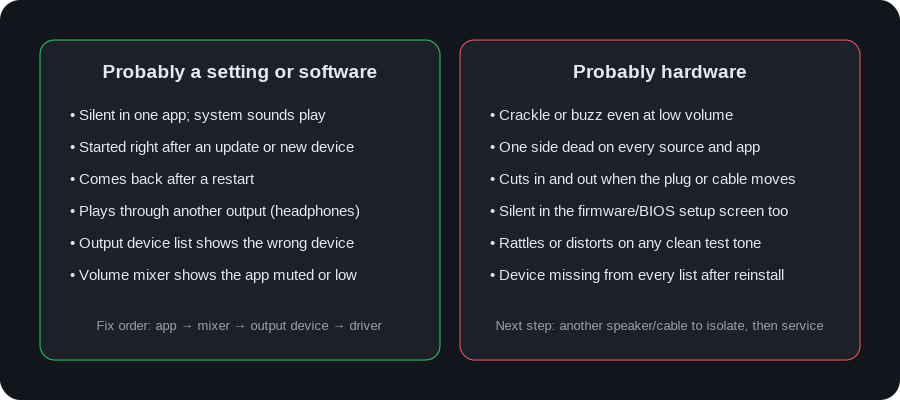
Settings problems are total and sudden, and they follow software: silence after an update, after a new device, in one app, until a restart. Hardware problems have texture. A speaker that crackles or buzzes at low volume, that distorts a clean test tone the sound test plays, or that rattles on the bass test’s fixed tones has a damaged driver. One side dead on every source, including headphones plugged into the same jack, is the jack or the audio chip; one side dead on the speakers only, with headphones fine, is that speaker or its cable. Sound that cuts in and out when you move the plug or the cable is the connector. A laptop that is silent even in its firmware setup screen, where no driver is loaded, has a hardware fault, since no setting is involved there. And an audio device that disappears from every list and stays missing after a clean reinstall and a firmware update is a failed chip or a disconnected internal cable. In each of these cases the next step is isolation, another speaker on this computer and this speaker on another device, and then a repair; the test tone, the sound test’s phase check and a photo of the Device Manager or System Information screen are what a technician will ask for.
FAQ
Why are my computer speakers not working all of a sudden? Most often the output device changed: a monitor, dock, headset or Bluetooth device took over as the default. Play the test tone, then check the output device list from the taskbar Speakers icon (Windows) or System Settings › Sound › Output (Mac). After that, the troubleshooter and the driver steps.
Why do my laptop speakers not work but headphones do? The laptop thinks headphones are connected (a stuck jack switch), the speakers are muted by the function key, or the speakers have failed. Check the mute indicator, insert and remove a plug cleanly, look at the output list for a phantom “Headphones” entry, and if the speakers crackle or play one side only on every app, it is hardware.
How do I fix no sound in Windows 11? Settings › System › Sound: select the right output and un-mute. Then More sound settings › Playback › Set as default; the Audio troubleshooter; Audio enhancements off under the device’s Advanced settings; restart the Windows Audio service; and update, roll back or reinstall the driver in Device Manager. These are Microsoft’s own steps in order.
Why is there no sound on my Mac? Unplug headphones and adapters, then System Settings › Sound › Output: select the Mac’s speakers, raise the Output volume slider and clear Mute. Check the app’s own volume. If the speakers still do not work, restart, and if that fails Apple says the Mac may need service.
Only one speaker works. What is wrong? If headphones in the same jack also lose a side, it is the jack or the audio chip; if headphones are fine, it is the speaker or its cable. Also check balance and mono settings in the operating system’s sound or accessibility settings, and reseat the plug fully; a half-inserted plug drops a channel.
Why do my speakers crackle or buzz? At low volume with a clean test tone, a damaged driver; with a cable that changes the sound when moved, a bad connector; only in one app, a processing or sample-rate mismatch, which turning off audio enhancements usually fixes. The bass test’s fixed tones show whether a speaker rattles at frequencies it should reproduce.
Can I test my speakers without installing anything? Yes. The tone above and the full sound test play from the browser: left, right, both, a sweep and a phase check, with the output channel count shown. Nothing is downloaded and nothing leaves your device.