How to Fix Laptop Overheating
How to fix laptop overheating starts with a question the makers themselves ask first: is it overheating, or is it warm? Apple’s page on Mac laptop temperatures opens by saying the computer can get warm during normal use, and Microsoft’s Surface page says the same of its devices, so warmth alone is not a fault. Overheating is when the processor has to slow itself to stay inside its limit, when fans run flat out for nothing, or when the machine shuts down to protect itself, and the first of those is something a browser can show you: the box below keeps every processor core busy for forty-five seconds and watches whether throughput falls, which is what throttling looks like from the outside. The CPU stress test runs the same load for up to ten minutes with a per-core view. What a browser cannot do is read the temperature, and this guide does not pretend otherwise; the CPU temperature guide covers the tools that can. After the test come the fixes, taken only from the pages Dell, Apple and Microsoft publish, with HP’s and Lenovo’s pages linked where they could not be read, and a clear line at the end between what you can fix and what needs a technician.
Is it overheating, or just warm?
The makers give numbers for the environment, not for the chip. Apple says to use a Mac laptop where the ambient temperature is between 50° and 95° F (10° and 35° C), on a stable work surface that allows for good ventilation, and that if the laptop has fans they turn on automatically to cool critical components (Apple: keep your Mac laptop within acceptable operating temperatures). Microsoft says a Surface is rated for operation at +32°F (0°C) to +95°F (35°C), that it may feel warm during normal use, and that if it exceeds the maximum operational temperature it shuts down immediately and shows a thermometer icon (Microsoft: what to try if your Surface feels too warm). Between those two ends, warm and shutting down, the signs that a laptop is genuinely overheating are behavioural: fans that run loud and long while nothing demanding is open; a machine that is fast for the first minute of a game or an export and then slows and stays slow; frame rates that start high and sink; sudden shutdowns or restarts under load, especially on a hot day or on a bed; and a case too hot to rest hands on at the keyboard rather than merely warm underneath. Apple’s page adds a caution about measurement: third-party apps that report a laptop’s temperature do not measure the external case temperature, which is much lower than the internal figures they show, so a high number in such an app is not by itself a problem. The test below turns the second sign, the slow-down, into a number.
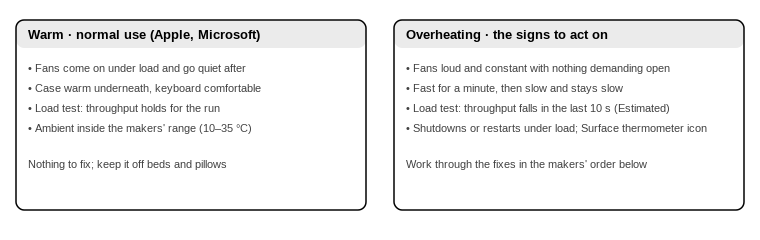
Test it: load the processor and watch for throttling
Starts only on your click, after a warning. Every logical processor is kept busy for 45 seconds while the box watches throughput; a drop in the final seconds is consistent with throttling. No temperature is read: a browser cannot.
Plug the laptop in, close what you can, put it on a hard flat surface and press the button; after the warning it starts one worker per logical processor and shows the combined throughput once a second. The verdict compares the last ten seconds with the early level, using the better of the first window and the best window before the end as the baseline, and it is labelled Estimated because it is what JavaScript workers can do in this browser, not a measurement of the processor’s clock. A fall of fifteen percent or more over forty-five seconds is consistent with thermal throttling: the processor reaching its limit and lowering its speed to stay there, which is exactly the behaviour that makes an overheating laptop feel slow. A flat line does not clear the machine, because forty-five seconds in a browser is a lighter load than a game or a video export; the full CPU stress test runs for up to ten minutes and shows each worker, and a drop that appears only after several minutes is the usual signature of a cooling system that is clogged rather than broken. Two readings make the test useful rather than merely interesting. Run it once as the machine is, then again after the cheapest fix below, the hard surface and a cleared vent, and compare; if the drop shrinks, the cause was airflow. And run it on battery and plugged in: Windows and macOS both allow more heat and speed on mains power, so a laptop that throttles only on battery may be behaving as designed. The browser never reads the temperature during any of this, and the CPU temperature guide explains why and which tools do.
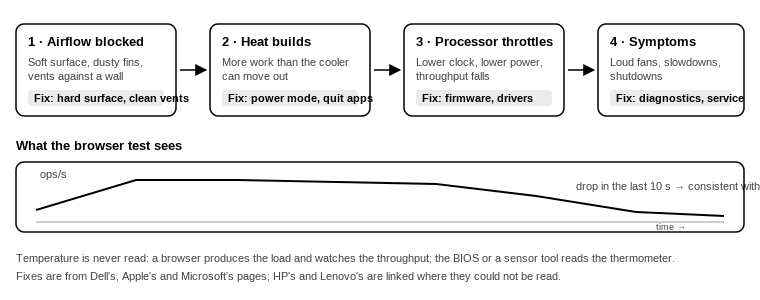
How to fix laptop overheating: surface and vents first
Every maker’s page starts in the same place, because most overheating is airflow. Dell’s prevention page says that placing a laptop on soft surfaces like beds or couches can block vents, and to always use the laptop on a hard, flat surface (Dell: how to prevent overheating); Apple’s says not to use a Mac laptop in bed, on a pillow or under bedding, and that if the laptop has ventilation openings, nothing should be put into them. A laptop draws air in through the underside and the sides and pushes it out through the back or the hinge, and a duvet closes both ends of that path at once; a desk, a book or a tray restores it. The second airflow fix is dust. Dell’s troubleshooting page for overheating and shutdowns lists cleaning the air vents as the first of its initial steps, and its prevention page says to use compressed air to blow out any dust from the vents, holding the can upright to avoid moisture buildup (Dell: how to stop computer and laptop overheating and shutdown issues). Do it with the machine off, in short bursts, from the outside of the vents, and without opening the case; a laptop that has lived two years on a carpet or with a pet can hold enough dust in its fins to halve its cooling, and the stress test above before and after is the proof. A stand that lifts the back of the machine helps for the same reason a hard surface does, and a cooling pad helps a little; neither substitutes for clean fins. If the fan is silent under the load test on a machine that has one, or rattles, skip to the hardware section.
Power mode and runaway apps
Heat is work, and two settings decide how much work a laptop does. The first is the power mode. Dell’s page says to switch from the Best Performance plan to Balanced or Best Power Efficiency through Windows Settings, and Microsoft’s Windows 11 page gives the path, Settings > System > Power & battery > Power mode, describing Best Power Efficiency as reducing power consumption by limiting background activity both plugged in and on battery (Microsoft: power settings in Windows 11). Dell adds its own layer: in Dell Optimizer or Dell Power Manager, choose the Cool option to optimise fan speed and performance for lower temperatures. Microsoft’s Surface fan page describes the same trade directly: Recommended limits fan speed for quieter operation, while Better or Best performance lets the device run faster, warmer and louder. The second setting is whatever is running. Apple’s page says that if a Mac laptop gets warm even when it is not doing intensive tasks, or its fans run for a long time, to use Activity Monitor to check CPU activity and look for malfunctioning processes that put a significant load on the CPU; on Windows, Task Manager’s Processes tab sorted by CPU does the same job. A browser tab with a runaway script, a sync client re-indexing, a game left in the background or an update installing can hold a core at full speed for an hour, and a laptop cooling that load on a lap is warm for a reason that has nothing to do with its cooling system. Quit the process, let the machine settle for a minute, and run the load test again: if throughput now holds, the overheating was software.
Updates: firmware, drivers and Windows
The fan curves, the power limits and the sensor logic that decide when a laptop throttles live in its firmware and drivers, and the makers fix them there. Dell’s troubleshooting page lists updating drivers and the BIOS and installing Windows updates among the first steps, its prevention page says to use SupportAssist to check for driver and BIOS updates and install them, and gives the Windows route as Start > Settings > Windows Update (Dell). On a Mac, firmware arrives with macOS updates, so Software Update is the equivalent. A firmware update is the one fix on this page that can change a laptop’s thermal behaviour without touching the hardware, because makers do revise fan tables after launch; it is also the one to do carefully, from the maker’s own tool or support page for your exact model, plugged in, and not from a third-party site. The what motherboard do I have guide shows where System Information lists the system model and the BIOS version, which is what the maker’s update page asks for.
The makers’ own diagnostics
When surface, dust, power mode, apps and updates have not changed the stress test’s verdict, the makers’ pages move to their diagnostics. Dell lists running the SupportAssist fan test, which spins the fan up and checks that it responds, and its page continues into advanced troubleshooting for persistent heat, fan noise and shutdowns. Microsoft’s Surface page says that if the thermometer icon appears, to turn the Surface off, move it to a cooler place, let it cool down for at least five minutes, and if the icon continues to appear, to contact Microsoft. Apple’s page sends a Mac whose fans run constantly without a visible cause to Activity Monitor first and then to Apple support. HP publishes a page on reducing heat inside a notebook to prevent overheating and Lenovo publishes pages on fans running faster than expected and on what to check if a PC seems warm; neither site would serve the pages at the time of writing, so their steps are not quoted here and the links go to the pages themselves: HP: reduce heat inside the laptop to prevent overheating, Lenovo: fan runs at a higher than expected speed and Lenovo: what to check if the PC seems warm. Every maker’s diagnostic has the same advantage over this page: it can read the sensors and drive the fan, which a browser cannot.
When it is hardware
Some overheating is a broken part, and the signs are specific. A fan that is silent under the load test on a laptop that has one, that rattles or grinds, or that runs at full speed from power-on regardless of load is a fan or a sensor fault. A laptop several years old that throttles within a minute of any load after the vents are clean has usually dried out the thermal compound between the processor and its heat pipe, which a service replaces. A machine that shuts down under load even in a cool room on a hard surface after the steps above is protecting itself from a cooling path that no longer works. All three are service jobs, under warranty or at a repair shop, and the useful thing to bring is evidence: the stress test’s report, which records the throughput drop and the duration without any personal data, plus the maker’s diagnostic result. What this guide will not suggest is opening a laptop to re-paste or clean the fan yourself unless the maker’s own service manual for the model describes it, and it will not suggest any of the folk remedies, freezing, propping on ice packs, running with the bottom cover off, that circulate online: none of them is on a maker’s page, and each of them can turn a dirty laptop into a dead one through condensation, dust or a dropped screw. The battery health check is worth a look on the same visit, since a swollen battery pushes on the case and the fan and can be the actual source of the heat, and the system tests hub lists the rest of the category’s tools.
FAQ
How do I fix laptop overheating? In the makers’ order: put the laptop on a hard, flat surface and keep it off beds and pillows; blow the dust out of the vents with compressed air held upright, machine off; switch the power mode from best performance to Balanced or best power efficiency; find and quit runaway processes in Activity Monitor or Task Manager; update the BIOS, drivers and Windows or macOS; then run the maker’s diagnostic. Run the load test above before and after each step to see which one helped.
Why is my laptop overheating all of a sudden? The usual answers are a change of surface, a new or updated program holding the processor busy, dust that finally crossed the threshold, a power mode switched to best performance, or a firmware update that changed the fan behaviour. Apple’s and Dell’s pages start with the surface and the running processes; the load test shows whether the slowdown is there and whether the first fix removed it.
Is it normal for a laptop to get hot? Warm, yes: Apple’s page says a Mac laptop can get warm during normal use, and Microsoft says the same of a Surface. Overheating is different: throttling that makes the machine slow under load, fans at full speed for nothing, or a protective shutdown, which Microsoft describes with a thermometer icon on a Surface.
Can a browser check my laptop’s temperature? No. No web API exposes temperatures or fan speeds. A browser can produce a load and watch whether throughput falls, which is what the box above does and labels Estimated; reading the actual temperature needs the BIOS or a sensor tool, covered in the CPU temperature guide.
Does a cooling pad stop a laptop overheating? It helps at the margin by improving airflow under the machine, which is the same fix as a hard surface. It does not clean dust out of the fins or replace dried thermal compound, so if the load test still shows a drop with the pad in place, the cause is inside.
How hot is too hot for a laptop? The makers publish limits for the environment, not for the chip: Apple gives 10–35 °C ambient, Microsoft 0–35 °C for a Surface. The processor’s own limit is set by its maker and enforced by throttling and then shutdown, which is why the behaviour, slowdown and shutdown, is the honest measure from outside and why a Surface shows a thermometer icon when it reaches it.