Headphones Not Working? Jack, Bluetooth and Driver Fixes
Why are my headphones not working is a question with a short list of answers, and the quickest way through it is to play a tone in each ear before touching a setting: the headphone test does that, and a short version is embedded below. Press Left and Right with the headphones on. Both sides play: the headphones and the connection work, and the silence you came here about is an app, a volume mixer or an output-device setting. Neither plays: the output is going somewhere else, or the connection has failed. One side plays: a half-inserted plug, a damaged cable, a balance or mono setting, or one dead earpiece, in roughly that order of likelihood. The sections follow those outcomes, with the jack, Bluetooth, Windows 11 and macOS steps from Microsoft’s and Apple’s support pages, and a separate section for the one-side problem, which has its own causes. The full headphone test page goes further when the tone plays but the sound is wrong: a balance slider, sweeps for the limits of each driver and a binaural check.
Why are my headphones not working? Test them first
Lower your volume, then press a side. A short 440 Hz tone plays at a modest level through your headphones; nothing is recorded.
If nothing plays, do the cheapest check before any menu: try the headphones on a phone or another computer, and try another pair on this one. Apple’s advice for headphones that do not work with an iPhone or iPad ends the same way: if a second pair works, the first pair is at fault and the headphone maker is who to ask; if several pairs fail, it is the device. That single swap splits every case that follows into “headphones” or “device”, and it takes less time than reading on.
Headphone jack: dirt, half-insertion, 3.5 mm vs USB-C
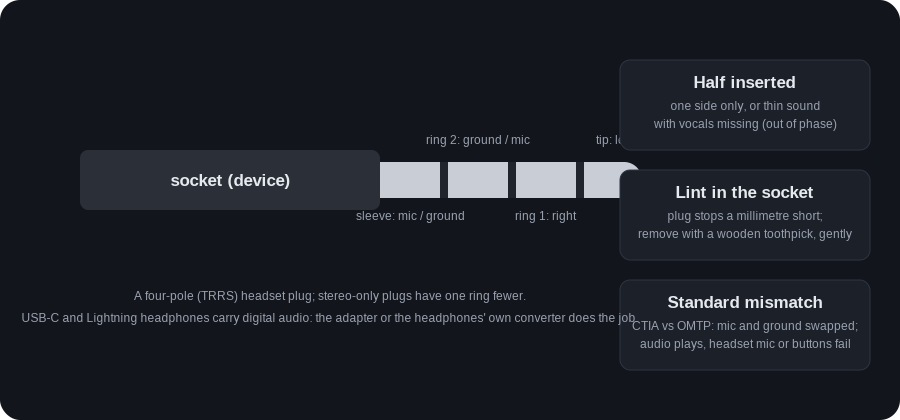
A 3.5 mm plug carries left on the tip, right on the first ring, and ground (plus a microphone on headsets) on the rest. Every millimetre matters. Half inserted is the most common cause of one-side sound or of thin, hollow sound with the vocals missing: the plug is seated on the wrong contacts. Push until it clicks, and if a phone case stops it going fully home, Apple’s advice is explicit: “firmly plug your headphones back in” and, if you have a case, you might need to remove it to get a firm connection. Lint in the socket stops the plug a millimetre short after months in a pocket; Apple’s instruction is to check for debris in the headphone port and to gently brush openings with a small soft-bristled brush. A wooden toothpick, used gently and dry, lifts packed lint from the bottom of a socket; metal tools short the contacts. A damaged cable near the plug or the earpiece gives sound that changes when you flex it; that is a repair or a replacement, not a setting. Standard mismatch on headsets with a microphone: two wiring conventions exist for the four-pole plug (CTIA and OMTP), and a headset of one kind on a device of the other plays audio but the microphone and the inline buttons fail, or the audio is quiet and tinny until you press the mic button; an adapter swaps the two contacts.
USB-C and Lightning headphones are different animals: the audio is digital, and the converter is in the adapter or the headphones. A USB-C adapter that does not work on a particular phone or laptop may lack the converter (it expects the device to output analogue audio over the port, which few do), or the port may not support audio accessories at all. Try the adapter on another device and another adapter on this one, and check the device’s output list: a digital headphone appears there by name when it is recognised, and its absence means the device has not seen it.
Bluetooth pairing and codec issues
Bluetooth headphones fail in three distinct ways, and each has its own fix. Not pairing. The headphones must be in pairing mode, which differs by model; Microsoft’s pairing page says to turn on the Bluetooth device and make it discoverable, then on Windows 11 select Start › Settings › Bluetooth & devices, open Manage Bluetooth devices (or Add device) and select the device under New devices, noting that if the device isn’t displayed, the Bluetooth devices discovery setting might need to be set to Advanced. On a Mac, Apple’s path is Apple menu › System Settings › Bluetooth, then Connect next to the device. On an iPhone, Settings › Bluetooth with the accessory in pairing mode. Connected but silent. The device is paired but not selected as the output. Microsoft’s page for this exact case: click the Sound icon in the taskbar and ensure the Bluetooth device is selected as the audio output; if it still fails, set the format under Settings › Bluetooth & devices › Devices › your device › Advanced sound properties to 2 channels, 16 bit, 48000 Hz, and failing that remove the device under Bluetooth & devices and add it again. On a Mac, after connecting, choose the headphones under System Settings › Sound › Output. Cutting out or distorted. Apple’s guidance for wireless headphones that cut out: keep the device within a few feet with no walls or floors in between, move away from crowded Wi-Fi, poorly shielded cables, microwave ovens and wireless speakers, charge the headphones, and if it persists forget and re-pair: on iPhone, Settings › Bluetooth, tap the Info button next to the headphones, Forget This Device, restart the phone, and pair again; on a Mac, Control-click the device in the Bluetooth list and choose Forget.
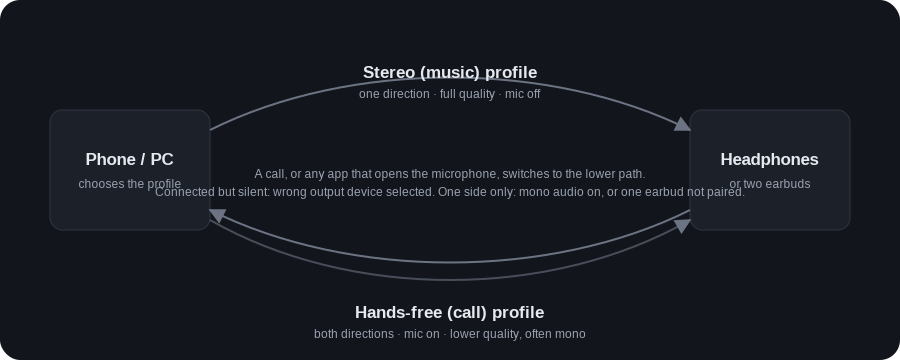
The codec and profile explain the “sounds terrible in meetings” complaint: when any app opens the headphones’ microphone, the connection switches from the stereo music profile to the hands-free profile, which carries the microphone and far lower audio quality, sometimes in mono. It switches back when the microphone is released. If that happens in a music app, something else is holding the microphone open; Windows shows two entries for a headset (a stereo and a hands-free device), and choosing the stereo one as the output for music while leaving the hands-free one for calls keeps the two apart. A headset whose microphone does not work at all is covered in the microphone troubleshooting guide.
Windows 11 and macOS output settings
When the tone played through the speakers but not the headphones, the output device is the whole story. Windows 11: select the Speakers icon on the taskbar and the arrow next to the volume slider to pick the headphones from the device list, or Start › Settings › System › Sound and choose them under Output; check that they are not muted and the slider is up. For a stubborn case, Settings › System › Sound › More sound settings › Playback, right-click the headphones and Set as default, and in the Volume mixer (Settings › System › Sound › Volume mixer) confirm that the silent app is not muted and has the headphones as its Output device. Turn Audio enhancements off under the device’s Advanced settings if the sound is present but wrong. If the headphones do not appear at all when plugged in, the jack-detection driver or the jack itself is the problem; the driver steps in the speakers guide apply. macOS: System Settings › Sound › Output; select the headphones (wired headphones appear as “External Headphones” on most Macs when plugged in), raise the Output volume and clear Mute, and check the app’s own volume. If plugging in headphones does not change the output list, the jack has not detected them: reseat the plug, try another pair, and check for debris.
iPhone and iPad: Apple’s steps for headphones that do not work: update to the latest iOS or iPadOS and restart, check for debris and damage, firmly plug the headphones back in (removing the case if needed), adjust the volume with the buttons or Control Center, and test another pair. Apple’s headphone safety features can also lower loud audio: Settings › Sounds & Haptics › Headphone Safety is where Headphone Notifications and Reduce Loud Audio live; the latter “automatically lower[s] your headphone volume when it exceeds your set decibel level”, which people sometimes read as a fault. Apple notes that in some countries or regions headphone notifications cannot be turned off.
Only one side works
One-sided sound has the clearest diagnostic path of all, because the swap test and two settings resolve nearly every case. First the plug: push it fully in, and look at the result while flexing the cable near the plug and near the earpiece; a side that comes and goes is a broken conductor, which is the end of the road for a cheap pair and a cable replacement for a detachable one. Then the two settings that make a healthy pair sound one-sided. Balance: on Windows 11, Settings › System › Sound › Output settings › Volume, where Microsoft’s one-channel page says to ensure both Left and Right channels are set to the same level; on iPhone and iPad, Apple’s AirPod page points to Settings › Accessibility › Audio & Visual, where the Balance slider should be in the middle; on a Mac the balance slider is under System Settings › Sound › Output for the selected device. Mono audio: Windows 11, Settings › Accessibility › Audio, Mono audio toggle (Microsoft lists it as a cause of one-channel Bluetooth sound); iPhone, Settings › Accessibility › Audio & Visual › Mono Audio. Mono audio does not silence a side, but it hides a dead earpiece on the other, so turn it off while testing.
For true-wireless earbuds, one silent bud is usually a pairing or charge problem rather than a failure: Apple’s steps for one AirPod not working are to charge the case, clean the charging contacts, put both earbuds in the case for 30 seconds and then test each on its own, and reset if one still fails; Microsoft notes that with some earbuds only one side connects successfully and recommends removing the device, putting both buds in the case, entering pairing mode and adding the device again. Also clean the earbud’s mesh: Apple suggests removing the ear tips and clearing debris from the speaker mesh. If after all that one side is still dead on every device, the driver in that earpiece has failed. The balance slider on the headphone page measures how many decibels one side needs to match the other, which separates a slightly weak driver from a dead one.
Headset mic not working
A headset whose audio plays but whose microphone is silent is a different fault with a different page. The causes are the plug standard mismatch above, a Bluetooth headset whose hands-free profile is disabled or whose microphone is not selected as the input, an operating-system privacy setting that blocks apps from the microphone, and lint over the microphone opening, which Apple lists first for wired headsets (“check your microphone for blockage, like debris, lint, or plastic packaging”). The microphone guide walks through the input-device and permission steps for Windows, macOS and iPhone with an embedded mic test, and the full mic test shows the level and the device name, which tells you whether the headset’s microphone is the one being used at all.
FAQ
Why are my headphones not working when plugged in? The plug is not fully seated, the socket has lint in it, the output is still set to the speakers or another device, or the cable has broken. Push the plug home, check the output device list, and try the headphones on a phone; if they work there, it is this device’s jack or settings.
Why is my headphone jack not working? Debris in the socket, a worn or stuck detection switch, or a failed jack. Clean gently with a soft brush or a wooden toothpick, insert and remove a plug a few times, and look at the output list: if “Headphones” never appears when you plug in, the jack is not detecting them. A USB or Bluetooth output is the workaround until it is repaired.
Why do my Bluetooth headphones connect but have no sound? They are paired but not selected as the output. Pick them from the Sound icon on the Windows taskbar or under System Settings › Sound › Output on a Mac. If that fails, Microsoft’s steps are to set the output format to 2 channels, 16 bit, 48000 Hz and then remove and re-pair the device.
Why does only one side of my headphones work? Plug not fully inserted, a broken cable conductor, balance off-centre, mono audio enabled, or a dead driver. Reseat, flex the cable while listening, centre the balance, turn mono audio off, and compare on another device. For earbuds, charge both and re-pair.
Why do my headphones sound bad only during calls? Bluetooth switches to the hands-free profile when the microphone is in use, which has much lower audio quality and can be mono. It is the profile, not a fault. Choose the stereo (music) device for media on Windows, and make sure no app is holding the microphone open when you are not on a call.
Why does my headset microphone not work but audio plays? A plug standard mismatch on wired headsets, the wrong input device or a privacy setting on Bluetooth and USB headsets, or lint over the microphone opening. The microphone guide covers the input and permission steps with an embedded test.
How can I test my headphones online? The tone above plays left, right and both in the browser. The full headphone test adds a balance slider that measures the mismatch between sides, sweeps for each driver’s limits and a binaural check; nothing is downloaded or recorded.