Vertical Lines on Computer Monitor: Causes and Fixes
Vertical lines on computer monitor screens, or horizontal ones, come from one of two places: the signal reaching the screen, or the panel itself. Everything about the fix depends on which, and you can usually tell in a couple of minutes. Start by opening the dead pixel test and stepping through its solid white, red, green and blue screens in full screen: a line that is one fixed color on every field and sits in exactly the same place is a panel line; a line that flickers, changes with the content or moves is a signal problem. This guide walks through the three checks that separate the two, then the fixes for cable, port, driver and panel, the differences between a laptop and an external monitor, and when to repair, claim or replace.
Is it the panel or the signal? (test with the color screens)
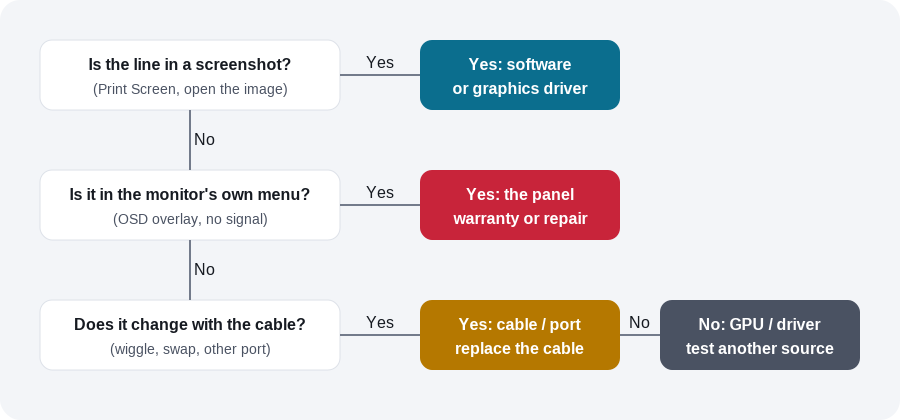
Three checks, in order, answer this for almost every case.
Check 1: is the line in a screenshot? Press Print Screen (or Shift-Cmd-3 on a Mac) and open the image on another screen or zoom into it. If the line is in the screenshot, it was drawn by the computer: a software or graphics-driver problem, and the monitor is fine. If the screenshot is clean, the line is being added after the image leaves the graphics card, by the cable, the connection or the panel.
Check 2: is the line in the monitor’s own menu? Unplug the video cable and press the monitor’s menu button. The on-screen menu and the “no signal” message are generated inside the monitor. If the line runs through them, it is in the panel or the monitor’s electronics, not the signal. On a laptop, the equivalent is the BIOS or firmware screen at startup, before the operating system and its driver load: a line that is already there in the BIOS is hardware.
Check 3: does it change with the cable? Wiggle the cable at both ends while watching the line, then swap the cable, then try another port or input. A line that flickers, jumps, changes color or disappears when you move the cable is a connection problem. A line that ignores all of that is the panel.
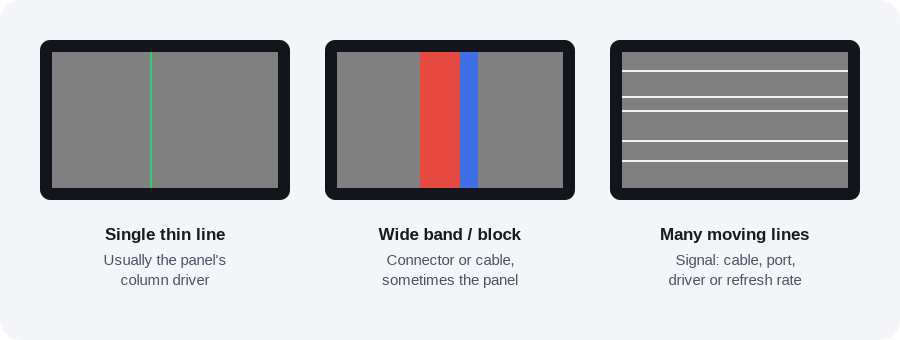
The test’s solid colors make lines much easier to see and describe. A panel line is typically a single pixel wide, perfectly straight, runs the full height (or width) of the screen, and shows as one fixed color: bright green or magenta on black, dark on white. Signal lines are usually wider, noisier, multiple, and change character with the picture. Use the color fields to note which: the description matters for a warranty claim.
Cable / port
Loose, damaged or inadequate cables are the most common cause of lines that are not in the panel. Digital connections (HDMI, DisplayPort, USB-C) fail in a particular way: a marginal link produces sparkles, horizontal bands of noise, flickering vertical lines, flashes to black or a picture that drops out at higher resolutions and refresh rates, because the data arrives with errors rather than slightly degraded.
Horizontal lines deserve a separate mention because their causes skew differently. A single thin horizontal line that never moves is a panel row driver, the horizontal counterpart of the vertical column driver. Many thin horizontal lines that drift, roll or appear during motion are almost always a signal problem: a refresh rate the monitor doesn’t quite support, a cable at the edge of its bandwidth, or interference from a poorly shielded cable running next to a power supply. Tearing, a horizontal split where the top and bottom of the picture are from different frames, is not a fault at all but V-Sync being off; it moves with the content and disappears when V-Sync or adaptive sync is enabled.
Fixes, in order of cheapness: reseat both ends of the cable firmly; swap the cable for a known-good one, preferably shorter and certified for the resolution and refresh rate you run (DisplayPort 1.4 or HDMI 2.0/2.1 for high rates); try a different port on the graphics card and a different input on the monitor; and lower the refresh rate or resolution temporarily to see whether the lines stop, which confirms a bandwidth problem. Bent pins in a DisplayPort or HDMI socket, and USB-C hubs and adapters, are frequent culprits; connect the monitor directly to test.
Driver
If the line shows up in a screenshot, the graphics driver or software is drawing it. Update the graphics driver from NVIDIA, AMD or Intel directly rather than through Windows Update, or roll it back if the line appeared right after an update. Check whether the line appears in every application or only one: a line that only shows in a browser or a game is that program’s rendering, often fixed by turning off hardware acceleration in the program’s settings. A line that appears on the login screen and in the BIOS cannot be the driver; skip to the panel section.
A clean way to separate driver from hardware on Windows is Safe Mode, which loads a basic display driver: if the line is gone in Safe Mode, the driver or a program that hooks into it is responsible; if it is still there, it isn’t. On a Mac the equivalent is a restart into Safe Mode or the recovery screen. Also check the graphics card itself if lines appear in a screenshot and persist across drivers: failing video memory produces regular patterns of dots, short dashes or colored lines across the whole screen, usually worse under load and in games, and that is a hardware fault in the card, not the monitor.
Overclocked graphics cards, custom resolutions and some scaling settings also produce artifacts that look like lines. Reset the driver’s settings to defaults and remove any custom resolution before concluding the hardware is at fault. On a laptop with two graphics processors, forcing an application onto the other one is a quick test.
Panel failure: when vertical lines on computer monitor panels won’t go away
A line that passes the three checks (not in a screenshot, present in the monitor’s own menu, unchanged by the cable) is in the panel or the monitor’s electronics. The usual culprit is a column or row driver, the chips along the edge of the glass that address each line of pixels, or the flexible ribbon that connects them. Symptoms: a single pixel-wide vertical line in a fixed color, sometimes several, sometimes a thin line that comes and goes with temperature or pressure on the bezel. A wide vertical band, a block of wrong colors or a section of the screen that is dimmer usually points to a connector or a failing timing-controller board, which is sometimes repairable; the row of fine lines that appears after a drop or a knock is a cracked panel, which is not.
A few things to try before giving up on the panel. Power-cycle the monitor at the mains for a few minutes, which clears lines caused by a stuck controller. Let it run for an hour: a line that is only there when the panel is cold, or only when it is warm, is a marginal connection in the driver ribbon, and worth mentioning in a claim because a service center may not reproduce it. Gently pressing the bezel near the line, with the screen on a white field, sometimes makes it disappear or change; that confirms a ribbon connection but is not a repair and can make it worse, so once, lightly, for diagnosis only.
Panel lines do not heal and usually multiply, especially the kind that come and go with temperature. If the screen is under warranty, claim now rather than later; a single line today is the same claim as five lines in three months, but the second version is easier to argue about and harder to live with in the meantime.
Black vertical lines on a monitor
Black vertical lines on a monitor are the panel’s version of a dead pixel stretched into a column: the column driver that addresses those pixels, or the ribbon that connects it, has stopped delivering a signal, so the whole column stays dark. They show most clearly on the white screen of the dead pixel test and disappear on black, which is the quick way to confirm one; a colored line does the opposite and shows on black. A single black line that is exactly one pixel wide and runs the full height is almost always a driver or ribbon fault inside the panel. A black line that is several pixels wide, has soft edges or is slightly curved is usually damage: pressure from a bag, a closed lid on an object, or a knock, and it tends to grow.
Black lines have the same three checks as any other: not in a screenshot, present in the monitor’s own menu, unchanged by the cable. They are the one kind that occasionally responds to a temporary fix: gentle pressure near the top or bottom of the line, where the ribbon meets the glass, can restore contact for a while, and a line that appears only when the panel is cold often means the ribbon’s adhesive has lifted slightly and reconnects as the panel warms. Both are signs of the same ageing ribbon connection, and a repair shop can sometimes re-bond it for less than a panel. On a laptop, black lines that come and go as the lid moves point at the hinge cable instead, which is a cheap part.
If several black lines appear together, spaced evenly, a whole driver chip has failed rather than a single column; the pattern is diagnostic and worth describing to a service center. If a wide black band appears with a sharp edge, especially after a knock, the glass is cracked under the surface and the band will spread; back up what is on the machine and plan for a panel.
Colored lines, flickering lines and lines that come and go
A thin line in a fixed color, green, magenta, cyan or white, visible on black and on most other fields, is a column stuck on rather than off: the same driver or ribbon fault with the column driven to a constant value. It is as permanent as a black line and claimed the same way. A line that is one color on one test field and a different color on another is a sub-pixel column fault, and the color sequence in the dead pixel test shows which sub-pixel.
Lines that flicker, that shimmer with fine noise, or that appear in groups and drift are the signal, not the panel; they come with a marginal cable, a bandwidth limit at a high refresh rate, interference, or a failing graphics card, and the cable and driver sections above cover them. Lines that appear only in motion, or only in one application, are rendering, not hardware. Lines that come and go with temperature, present for the first ten minutes after power-on and then gone, or the reverse, are a marginal connection in the panel’s ribbon and will become permanent; note the behavior with times for the warranty claim, because a service center that tests a warm panel for five minutes may see nothing.
A special case is a line that appears after cleaning or after the screen was pressed: a short, sometimes slightly curved line or a small cluster of them where the pressure was applied is damage to the panel’s thin-film transistors and does not recover. Clean screens with a dry microfiber cloth and no pressure, and never carry a laptop with anything between the keyboard and the lid.
Laptop vs external monitor
On a laptop, the first question is whether the line appears on an external monitor connected to it. If the external monitor is clean and the built-in screen shows the line, the laptop’s panel or its display cable is the problem. That cable runs through the hinge and is the most common failure point: a line that appears or changes as you open and close the lid is the hinge cable, which is cheaper to replace than the panel. If both screens show the line, the graphics chip or driver is at fault, and the software checks above apply.
On an external monitor, the first question is whether the line appears with a different source. Connect a laptop, a games console or a streaming stick; if the line is still there, it is the monitor. If it goes away, it is the computer or the cable between them. Monitors with several inputs let you run the same test with the other input and a different cable without unplugging anything.
Phones and tablets follow the laptop logic: a line that is in a screenshot is software (rare); a line that stays through a restart and shows in the recovery screen is the panel or its connector, and on most phones the two are replaced together.
Repair or warranty?
If the monitor, laptop, TV or phone is within its warranty, a panel line is a straightforward claim: it is a defect by any policy, unlike single dead pixels, which are counted against a threshold. Document it before you call. Run the white, red, green and blue screens, photograph the line on each (close up, exposure lowered so the line is visible), note whether it is in the monitor’s own menu, and keep the screenshot that shows the desktop is clean. Those three facts answer the first questions a support agent asks.
Out of warranty, the economics decide. Replacing the driver ribbon or the timing-controller board on a monitor is a job for a repair shop and costs a fraction of a new panel; replacing the panel itself in a monitor is rarely worth it below the premium end, because the panel is most of the monitor’s price. For laptops, panel replacement is routine and often reasonable, and a hinge display cable is cheap. Before paying for anything, confirm with the checks above that the fault is in the panel and not in a cable you could replace yourself for the price of a coffee, and check the manufacturer’s pixel and panel policy, since some brands cover lines for longer than the general warranty. Our pixel policy guide collects those policies by brand, with links to the official pages so you can quote them in a claim.
Frequently asked questions
Why are there vertical lines on my computer monitor? Either the panel (a column driver or its ribbon has failed, giving a thin fixed-color or black line that is also in the monitor’s own menu) or the signal (a marginal cable, port or driver, giving noisy, flickering or moving lines that change with the cable). The three checks at the top separate them in two minutes.
Can vertical lines on a monitor be fixed? Signal lines, yes: a cable, a port or a driver. Panel lines, sometimes: a repair shop can re-bond a ribbon or replace a timing-controller board; a cracked panel or a failed column driver means a new panel, which is only worth it on a laptop or a premium monitor.
Are vertical lines covered by warranty? Normally yes: a line is a defect by every manufacturer’s policy, unlike single dead pixels, which are counted against a threshold. Document it with the color screens before you call, and claim early, because lines multiply.
Why do the lines come and go? A marginal ribbon connection that opens and closes with temperature or pressure. It will become permanent; note when it appears for the warranty claim, since a service center testing a warm panel briefly may not see it.